
Account rules
Read and set an account's loss limits, stop-risk caps and exposure limits, and understand when AO enforces them.
Account rules are the limits AO checks before an order on the account reaches your broker: daily loss, drawdown, stop risk, exposure and activity. They’re enforced when the account is in Managed mode. In Direct mode they’re saved but not enforced.
Open an account’s rules
- From Accounts, open the account and click Risk controls at the top right.
- In the terminal, click Risk controls (the shield in the right-hand rail), then Account limits & controls. The shield appears once the account has saved rules or a restriction is active.
Back to accounts returns you to your account list.
Who can change them
You can read the rules on any account you own. Saving changes needs permission to edit account rules, which an administrator or an account manager usually holds. Without it, the form is read-only and the page says “You can view these limits. Editing requires account risk authority.”
Account managers can change an account’s rules without getting access to trade it. Trading stays with the trader.
What the page shows
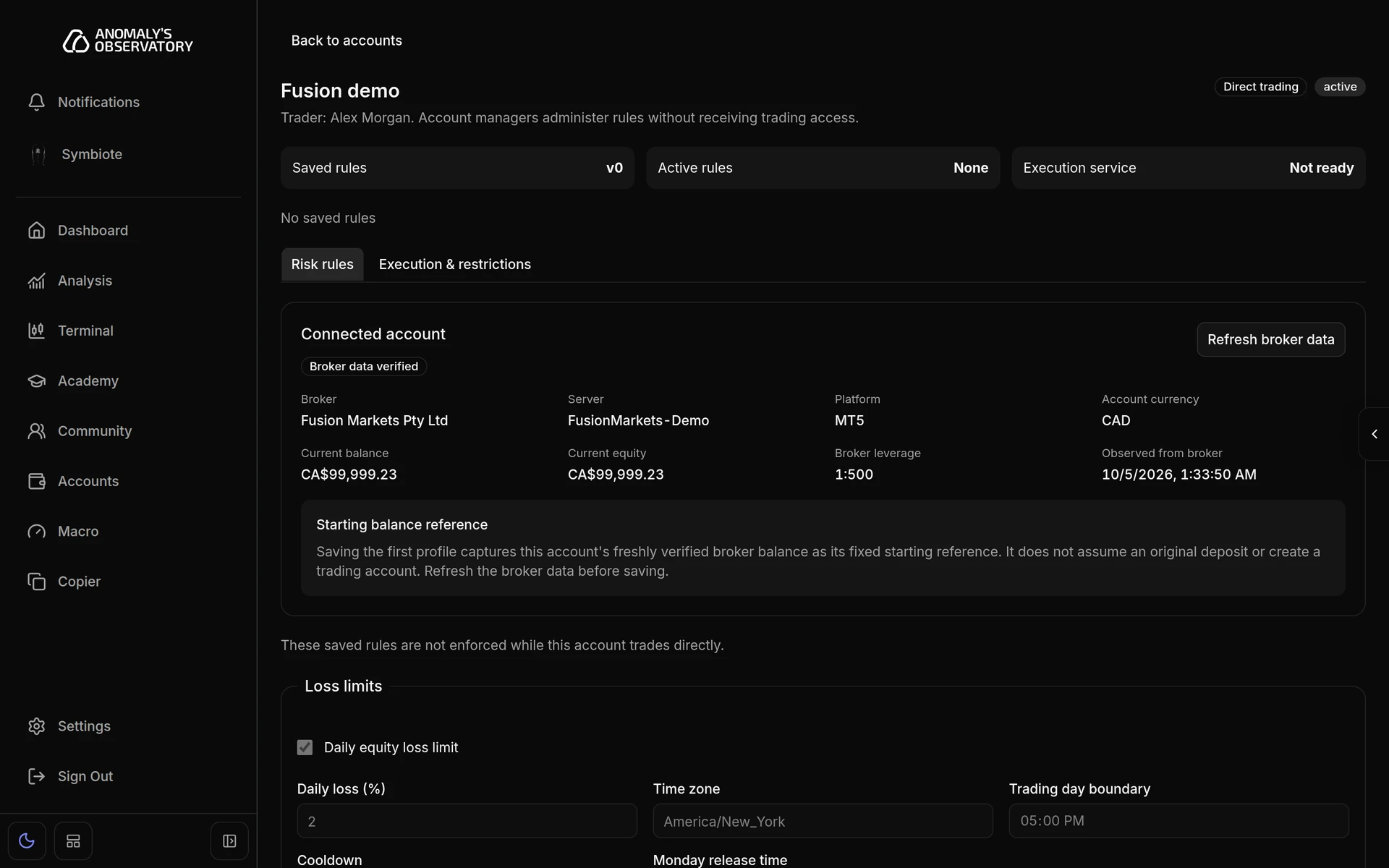
- A badge for the account’s mode: Direct trading, Managed trading or Mode not initialized.
- Saved rules: the latest version saved, such as v3.
- Active rules: the version the server is enforcing, or None.
- Execution service: Ready or Not ready. Managed mode needs it ready.
- Account requires attention, if something happened that needs a review. For example, “External trading activity detected” means trades were placed on the account outside AO.
- Tabs: Risk rules and Execution & restrictions. Managers with the right permissions also see Managers and History.
Connected account and starting balance
At the top of Risk rules, Connected account shows the broker’s latest figures for the account: broker, server, platform, currency, balance, equity and leverage, plus when they were observed. Its badge says whether the figures are verified. Click Refresh broker data if they’re out of date.
Starting balance reference is fixed. The first time rules are saved for the account, AO captures the account’s verified balance from the broker. Drawdown and stop-risk percentages are measured against that figure. It doesn’t change when your balance, the rules or the mode change. Refresh the broker data before you save rules for the first time.
The rules
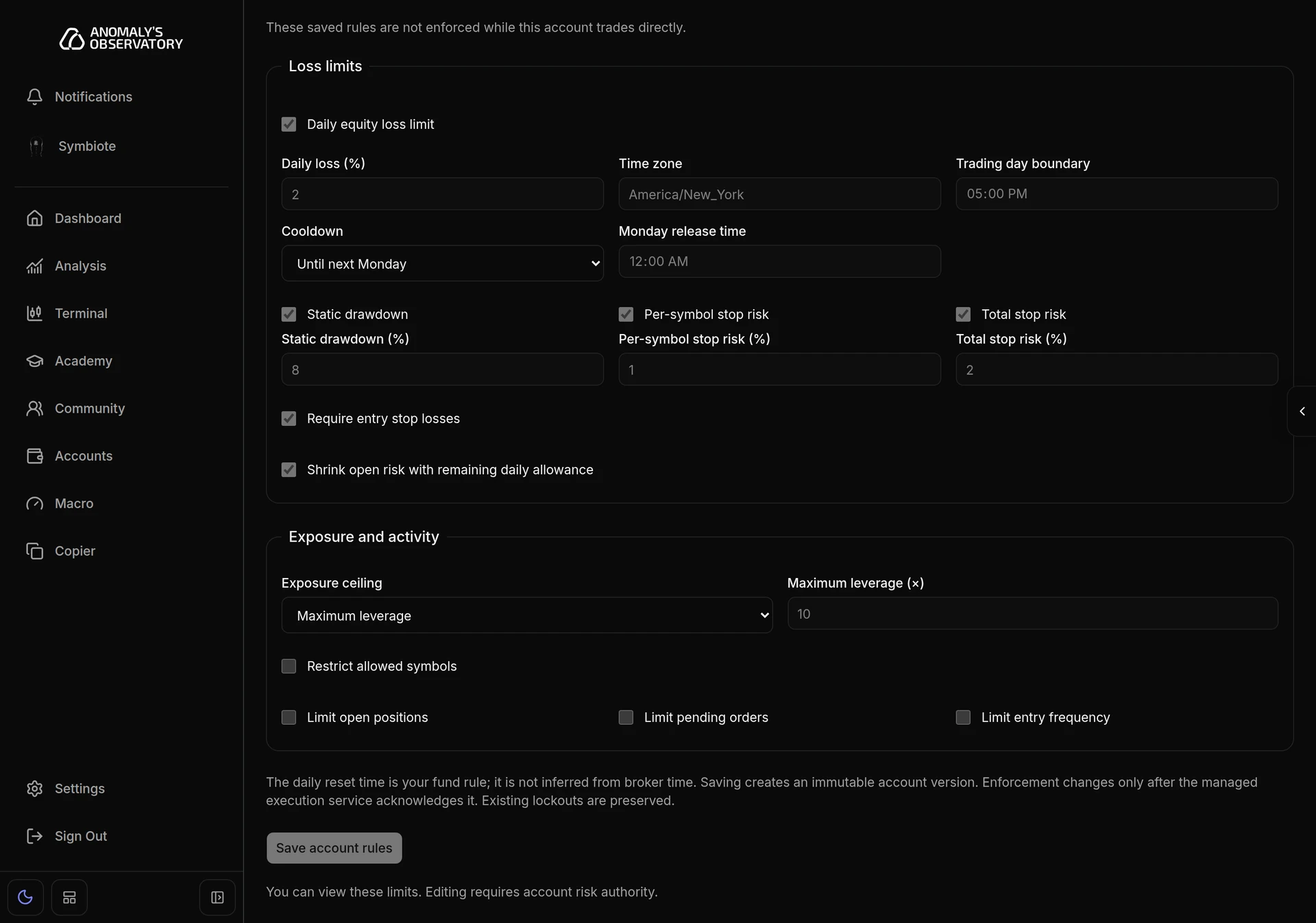
The defaults below are what the form starts with on an account that has no saved rules.
Loss limits
| Rule | What it does | Default |
|---|---|---|
| Daily equity loss limit | Blocks new risk once equity falls this far below the day’s starting balance. Set Daily loss (%), the Time zone and the Trading day boundary, then a Cooldown: Until next Monday at a Monday release time, or Fixed hours. | 2%, America/New_York, day starts 17:00, cooldown until next Monday 00:00 |
| Static drawdown | Locks the account if equity falls this far below the starting balance reference. The lock stays until someone with permission lifts it. | 8% |
| Per-symbol stop risk | Caps what you’d lose on one symbol if every stop on it were hit. | 1% |
| Total stop risk | Caps what you’d lose across the account if every stop were hit. Pending orders count. | 2% |
| Require entry stop losses | Every new entry must have a stop loss. | On |
| Shrink open risk with remaining daily allowance | Open risk at your stops can’t exceed what’s left of today’s loss limit. | On |
Static drawdown and both stop-risk rules are percentages of the starting balance reference, and the form shows the matching amount under each field. The daily limit is a percentage of the day’s starting balance. The trading day boundary is your rule. AO doesn’t take it from your broker’s server time.
Exposure and activity
| Rule | What it does | Default |
|---|---|---|
| Exposure ceiling | Caps open exposure with Maximum leverage or Notional in account currency. Managed accounts need one of the two. Disabled turns it off. | 10× leverage |
| Restrict allowed symbols | Only the symbols you pick from your broker’s list can be traded. | Off |
| Limit open positions | Caps open positions. Pending orders count toward it, because they can fill. | Off |
| Limit pending orders | Caps pending orders. | Off |
| Limit entry frequency | Caps new entries per time window, set with Entries per window and Window (seconds). | Off |
Save rules
- Change the fields you need on the Risk rules tab.
- Click Save account rules.
Each save creates a new numbered version, and Saved rules goes up by one. In Managed mode, new risk is blocked until the execution service picks up the new version. Then Active rules matches Saved rules. Saving doesn’t clear a lockout that’s already in place.
If Save account rules is greyed out with “Load fresh broker account data before saving the first profile.”, click Refresh broker data first.
Execution mode
The Execution & restrictions tab shows how the account’s orders are sent.
- Direct: orders go from the terminal to your broker. Saved rules aren’t enforced on them. Copied trades are the exception: Copier checks every follower order against the follower’s rules in either mode.
- Managed: every order placed in AO goes through the account’s rules on the server first. Trades placed through the broker or another terminal can still happen. AO monitors them separately and shows External trading activity detected on the account’s rules page.
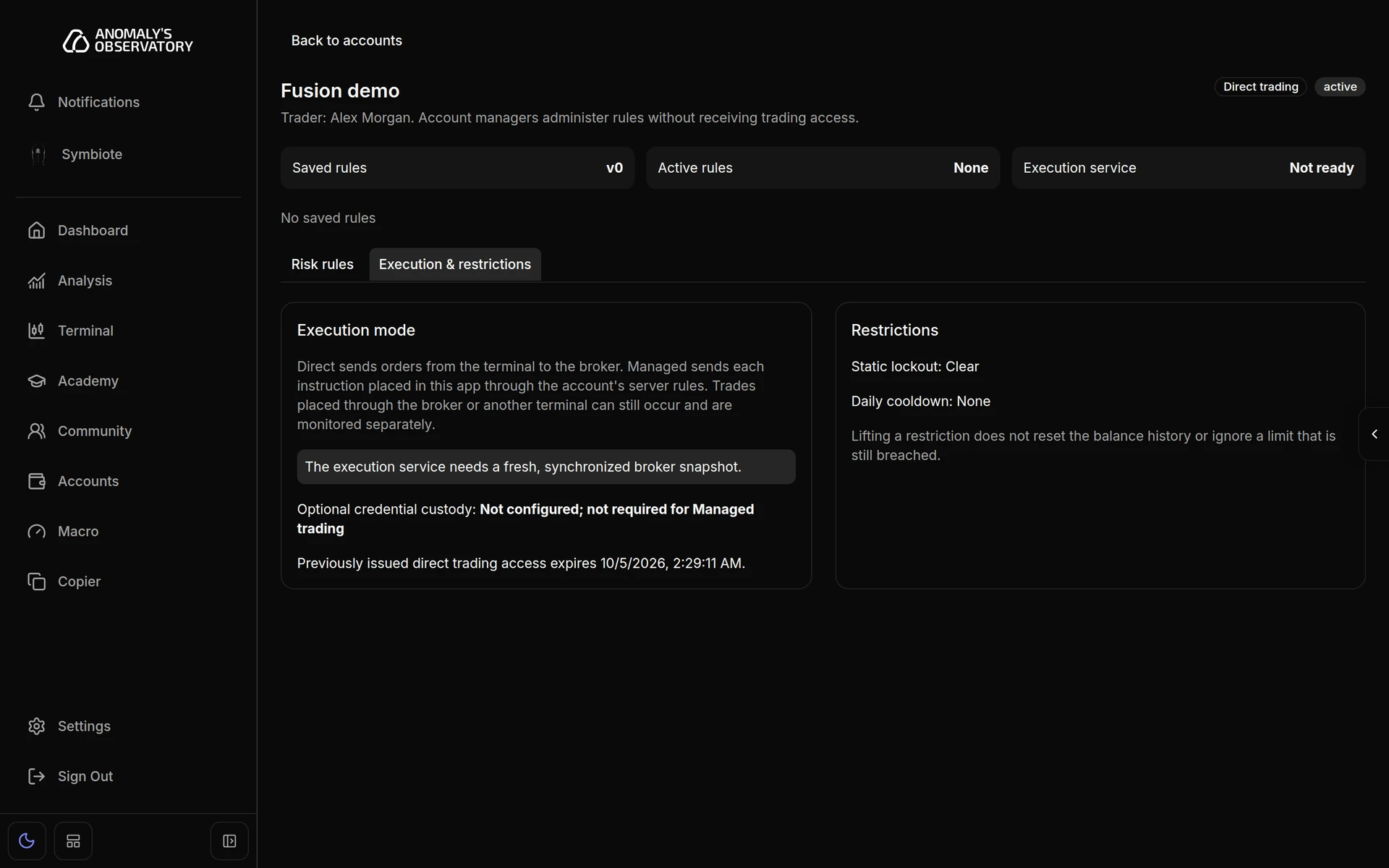
Changing the mode needs its own permission. If you have it, type a Reason for mode change of at least five characters, then click Prepare managed trading or Request direct trading. While a switch is being prepared, new risk is paused. The list on the tab shows what’s still missing. Click Check transition prerequisites to finish the switch once everything’s ready. Switching back to Direct ends server enforcement once any pending instructions are settled.
Restrictions
The Restrictions box shows Static lockout (Locked or Clear) and Daily cooldown, with the time it ends or None.
While a Managed account is restricted, new orders are refused, but you can still close positions, cancel pending orders and move a stop loss closer. The terminal shows Risk blocked under the Risk controls shield.
People with permission can type a Reason for reinstatement and click Lift eligible restrictions. Lifting doesn’t reset the balance history, and it doesn’t override a limit that’s still breached.
Reuse rules across accounts
If you can edit rules, Reusable rule sets sits under the form. Name a set in Rule set name and click Create rule set to copy this account’s saved rules into it, or choose an existing set and click Publish new version. No account changes until you apply a version to it.
To apply a rule set, managers open Accounts and click Manage accounts & risk. Tick the accounts, click Apply rule set, pick the set, review the changes listed for each account, and click the apply button, for example Apply to 2 accounts. Each account keeps its own currency and starting balance reference.
Managers and history
On the Managers tab, people with permission assign account managers. Type an Existing user’s email, click Find person, then Assign manager. Remove takes a manager off the account. The History tab lists changes to the account’s rules, managers, mode and restrictions, with who made each one and when.
Related: Position sizing and risk checks shows how these rules appear when you place an order.