
Trade copier
Copy trades from one of your accounts to your other accounts, with each follower's own size, stops and symbol mapping.
Copier copies trades from one of your accounts, the master, to your other accounts, the followers. Each follower has its own sizing, its own copy settings and its own list of symbols to copy. Every copied order must also pass the follower’s account rules.
Before you start
- At least two connected accounts. See Connect a trading account.
- Saved account rules on each follower. Copier checks follower orders against them. Saving rules needs permission to edit them, so ask your administrator or account manager if the form is read-only.
- Every account ready to copy. In the copier editor, each follower shows Ready or Setup needed, and the editor lists what’s missing for any follower or master that isn’t ready. Items that say an operator must configure something are done by support, so contact them.
Save templates (optional)
A template holds follower settings you can reuse: sizing, copy settings and symbol mappings.
- Open Copier from the sidebar and click the Templates tab.
- Click New template, or Create a template if you have none yet.
- Type a Template name, for example “Standard 1:1”.
- Set Risk sizing, Copy settings and Symbol mapping, described below.
- Click Save template.
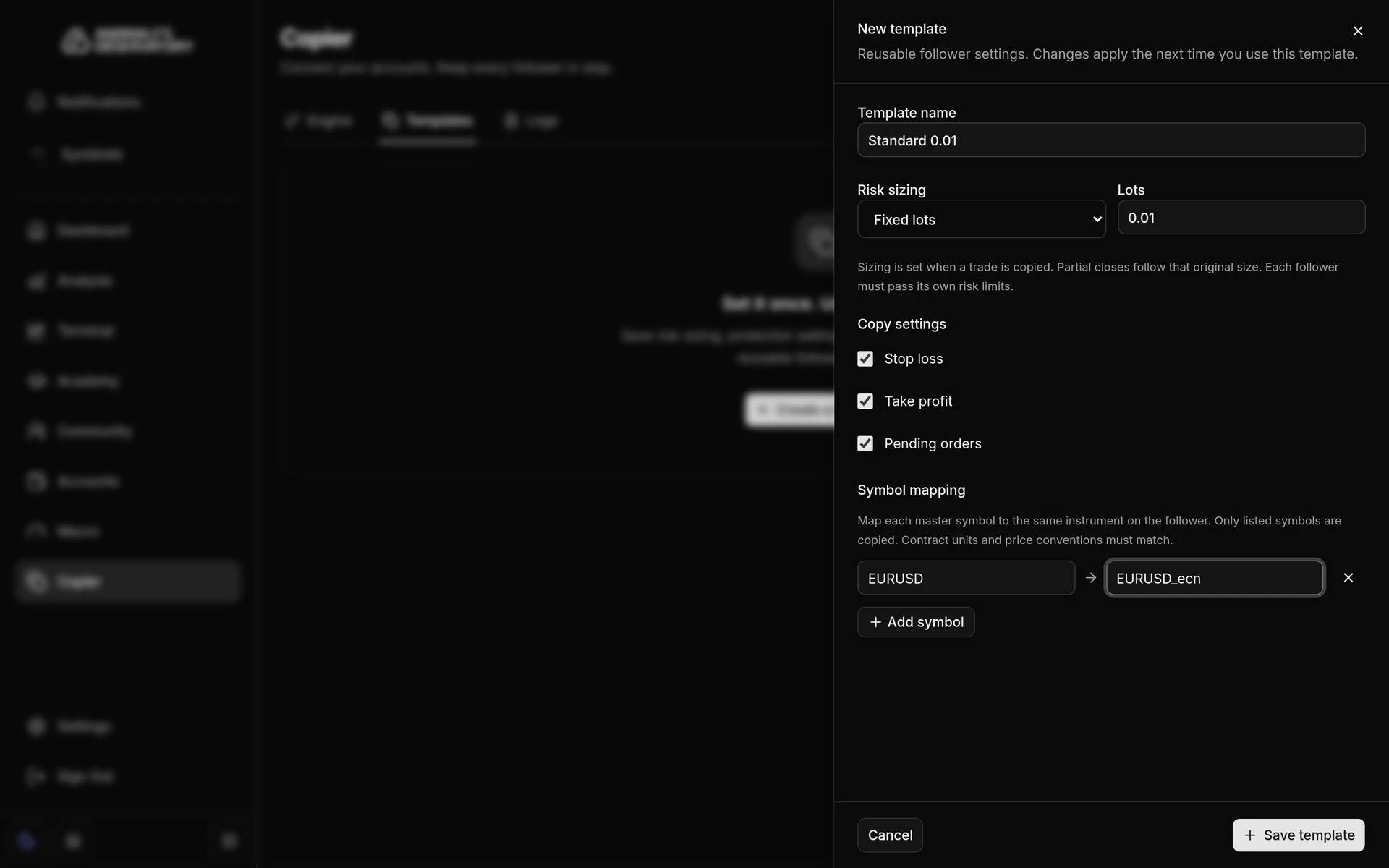
A copier takes a copy of a template’s settings when you apply it. Editing or deleting the template later leaves existing copiers as they are.
Create a copier
- On the Engine tab, click Create copier.
- Type a Copier name, for example “London session”.
- Choose the Master account. This is the account whose trades get copied.
- Under Follower accounts, tick each account that should copy it.
- For each follower, pick a template under Apply template, or set Risk sizing, Copy settings and Symbol mapping yourself. Every follower needs at least one symbol mapping.
- Under When copying starts, choose Copy new trades only or Include existing trades. New trades only leaves out everything already open on the master, including pending orders that fill later.
- Click Review settings, check the summary, and click Save draft.
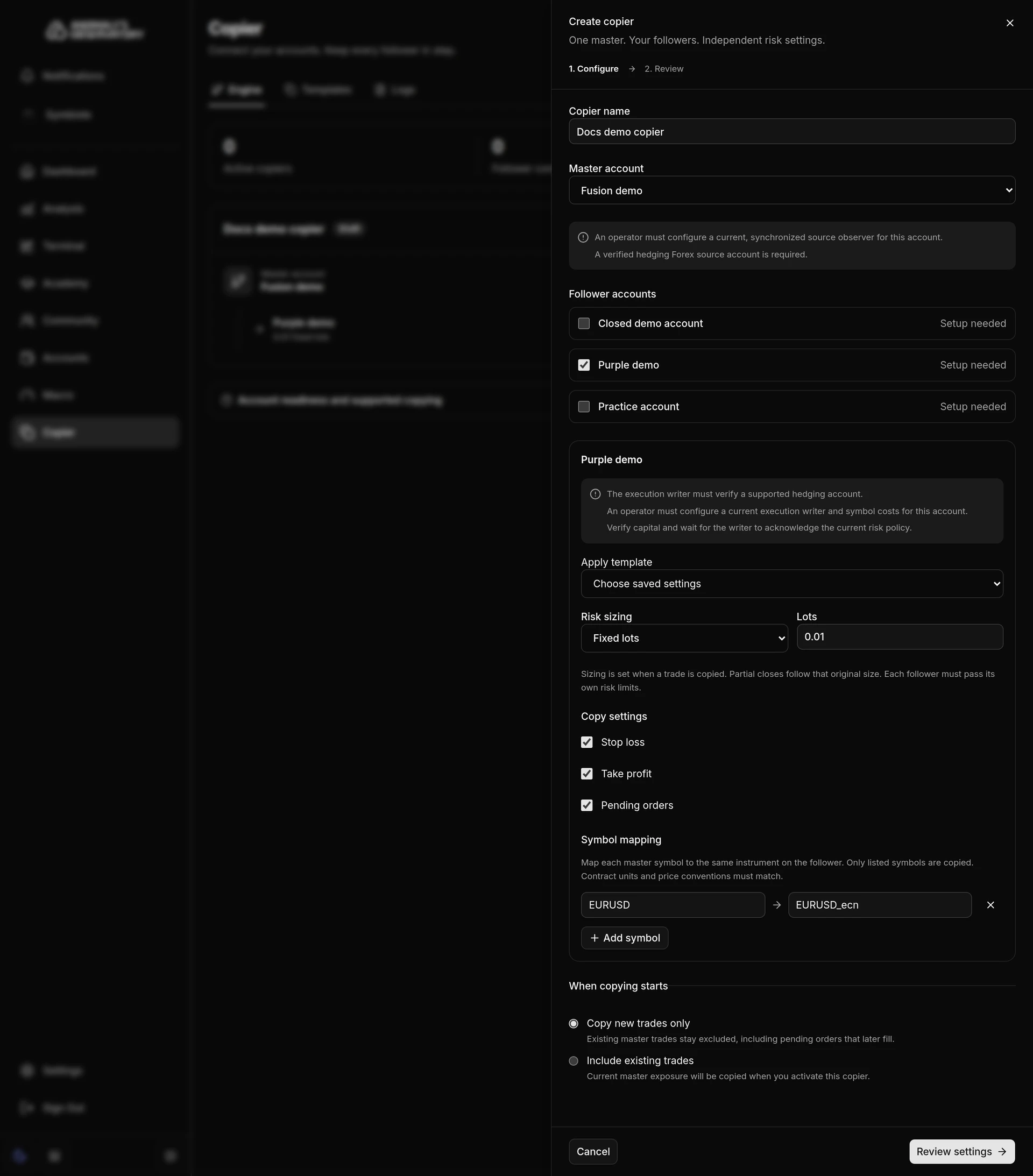
Saving creates a draft, and a toast says Copier draft saved. Nothing is copied until you start it.
Risk sizing
| Option | Follower size |
|---|---|
| Lot multiplier | The master’s lots × Multiplier (1 = same size). This is the default, at 1. |
| Fixed lots | The same Lots on every trade. |
| Balance multiplier | The master’s lots × the follower’s balance ÷ the master’s balance × the multiplier. Both accounts must use the same currency. |
| Fixed balance multiplier | The master’s lots × the follower’s balance ÷ the Reference master balance you enter × the multiplier. Both accounts must use the same currency. |
| Fixed percentage risk | Sized so the follower loses Risk (% of equity) if the copied stop loss is hit. The master trade needs a stop loss, and Stop loss copying must be on. |
The follower’s size is set when a trade is copied and rounded down to the follower broker’s lot step. Partial closes on the master follow that original size. If the size falls outside the follower broker’s minimum or maximum lot, that trade isn’t copied. Copier doesn’t round it up to the minimum.
Copy settings and symbol mapping
Copy settings has three boxes, all ticked by default: Stop loss, Take profit and Pending orders.
Symbol mapping lists the master symbols to copy and the matching follower symbol for each. Click Add symbol for another row. Only listed symbols are copied. Each pair must be the same instrument with the same contract size and price format. Brokers often name the same instrument differently, for example EURUSD on one broker and EURUSD_ecn on another.
Start, pause and stop copying
The Engine tab shows each copier as a card: its name and state, the master account, whether it copies existing trades, and each follower with its sizing, symbol mappings and Ready or Setup needed. The figures across the top count Active copiers, Follower connections and Followers ready.
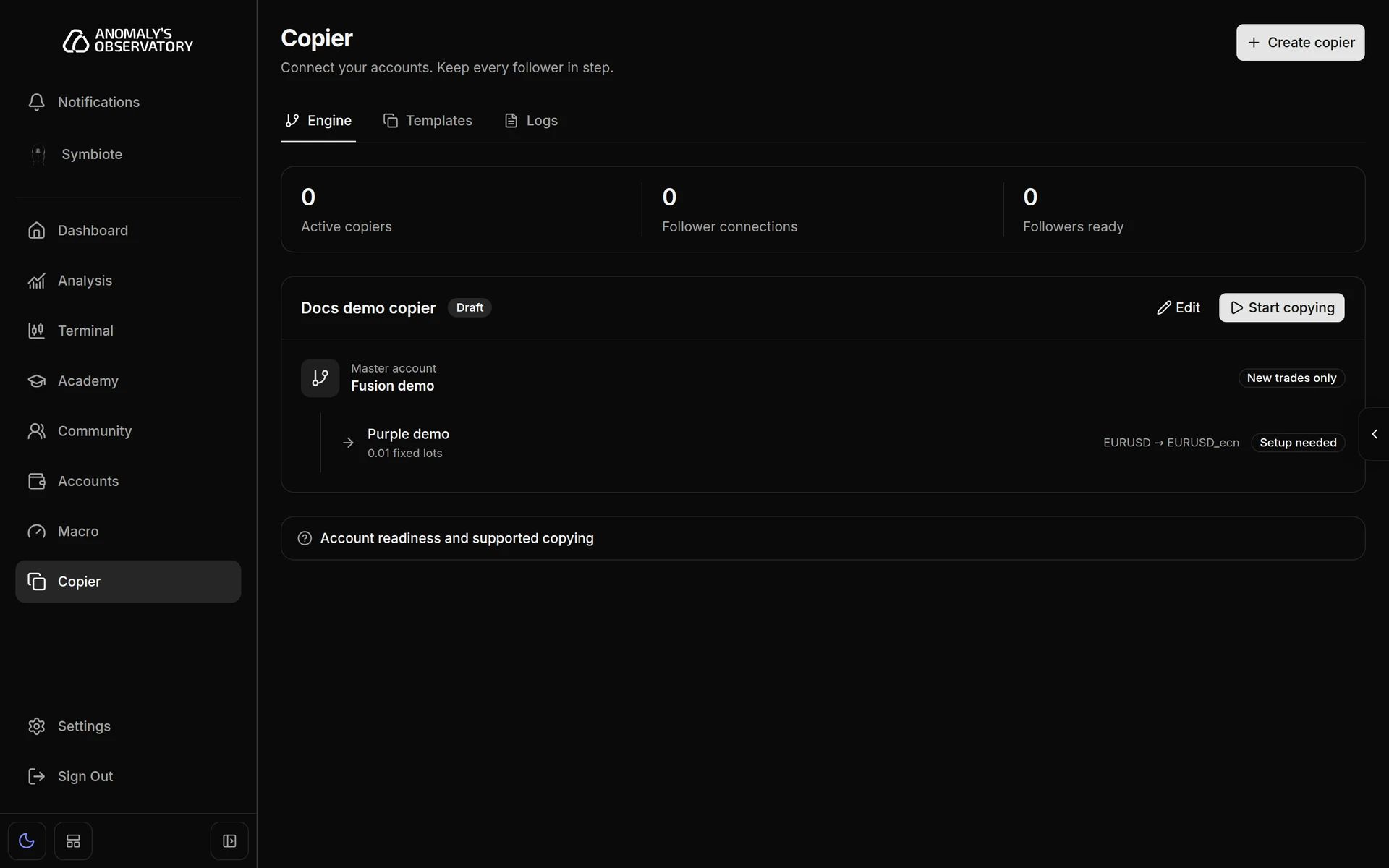
| Button | What it does |
|---|---|
| Start copying | Checks the master and every follower. If anything isn’t ready, the card lists the reasons and the copier stays off. Otherwise a toast says Copier activated and the state changes to Active. |
| Pause new trades | Stops copying new trades. Trades already copied still get stop loss and take profit updates and closes, and any pending remainders are cancelled. The state shows New trades paused. Resume new trades turns copying back on. |
| Stop copying | Asks you to confirm, then stops all new copy instructions. Followers’ open positions stay open, and you manage them from their own accounts. Instructions already sent to a broker may still complete. The state shows Stopped. |
| Edit | Opens the copier’s settings. It’s only there while the copier is a Draft or Stopped. |
A follower can follow only one active copier at a time, and copiers can’t form a loop.
Logs
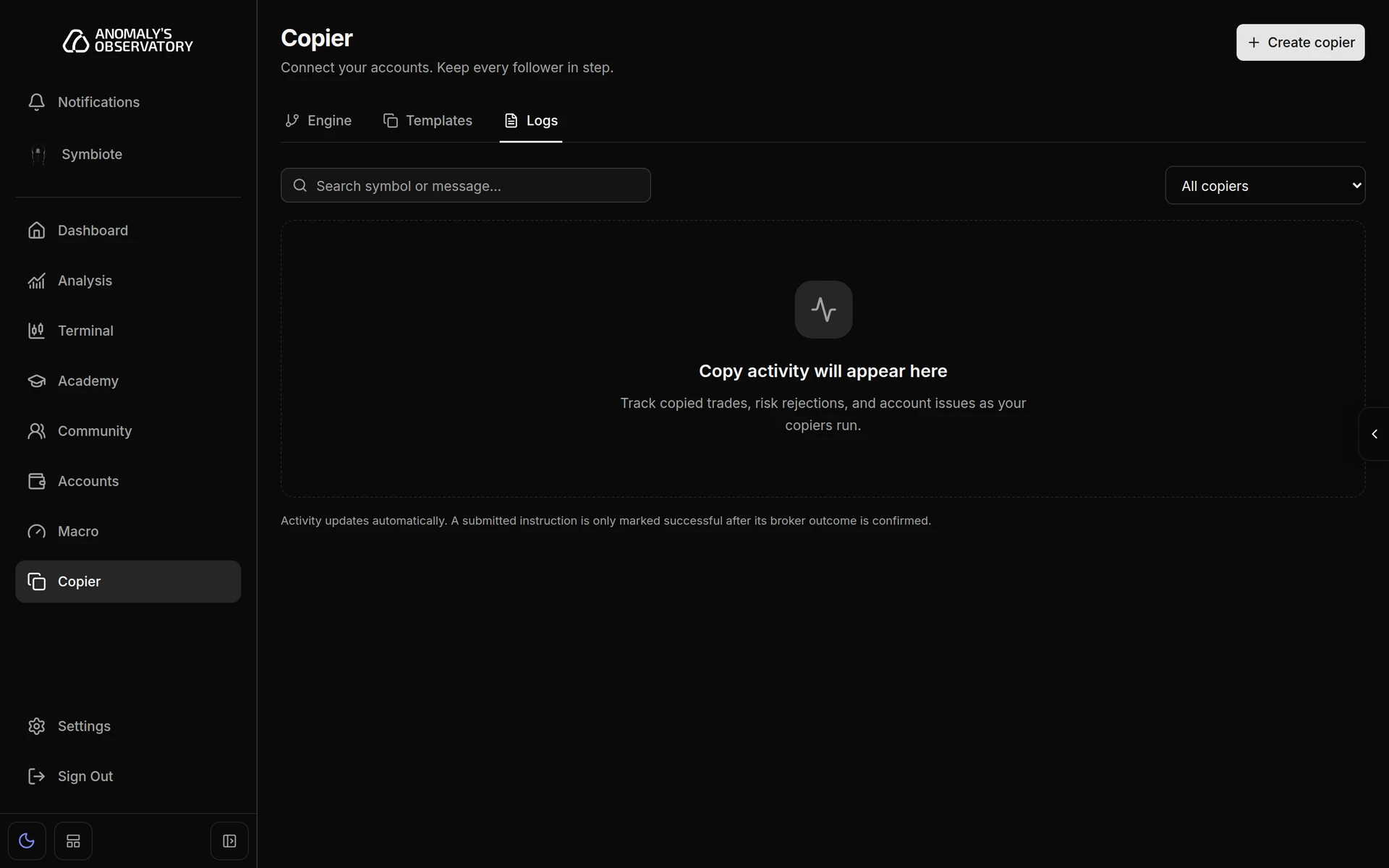
The Logs tab lists copier activity as it happens: copied trades, risk rejections and account problems. Each entry shows the Time, Status, Master → follower, Symbol and Details. Search by symbol or message, or filter by copier.
An instruction is only marked successful once the broker’s result is confirmed. If a follower’s rules refuse a copied order, the log says so and names the rule.
What Copier supports
- Direct and Managed accounts, as master or follower. Direct accounts keep normal terminal and broker access.
- Hedging forex accounts, with explicit symbol mappings.
- The master’s current trades. Copier follows what’s open on the master now. It doesn’t replay trades that opened and closed while it was disconnected.
- Stop loss and take profit updates, closes and partial closes, and pending orders. Stops, targets and pending orders copy only when their copy setting is on.
Not supported: pending order volume and expiry edits, stop-limit orders, netting accounts, reverse copying, filters, delays, and forcing the minimum lot.