
Symbiote
Ask Symbiote about the chart, lesson or account in front of you, check its sources, and save decisions to practise later.
Symbiote answers questions about what you’re looking at: the chart in your Terminal, the Academy lesson you’re studying, or your account’s results. It works from AO’s teaching material and your own data, and it shows the sources behind its answers.
Open Symbiote
- The edge tab. A small tab sits on the right edge of the window on every page except Symbiote’s own. Click it, or press ⌘ + J on a Mac or Ctrl + J on Windows, to open Symbiote over the page you’re on. Drag the tab up or down to move it out of the way.
- The full page. Click Symbiote at the top of the sidebar, above Dashboard.
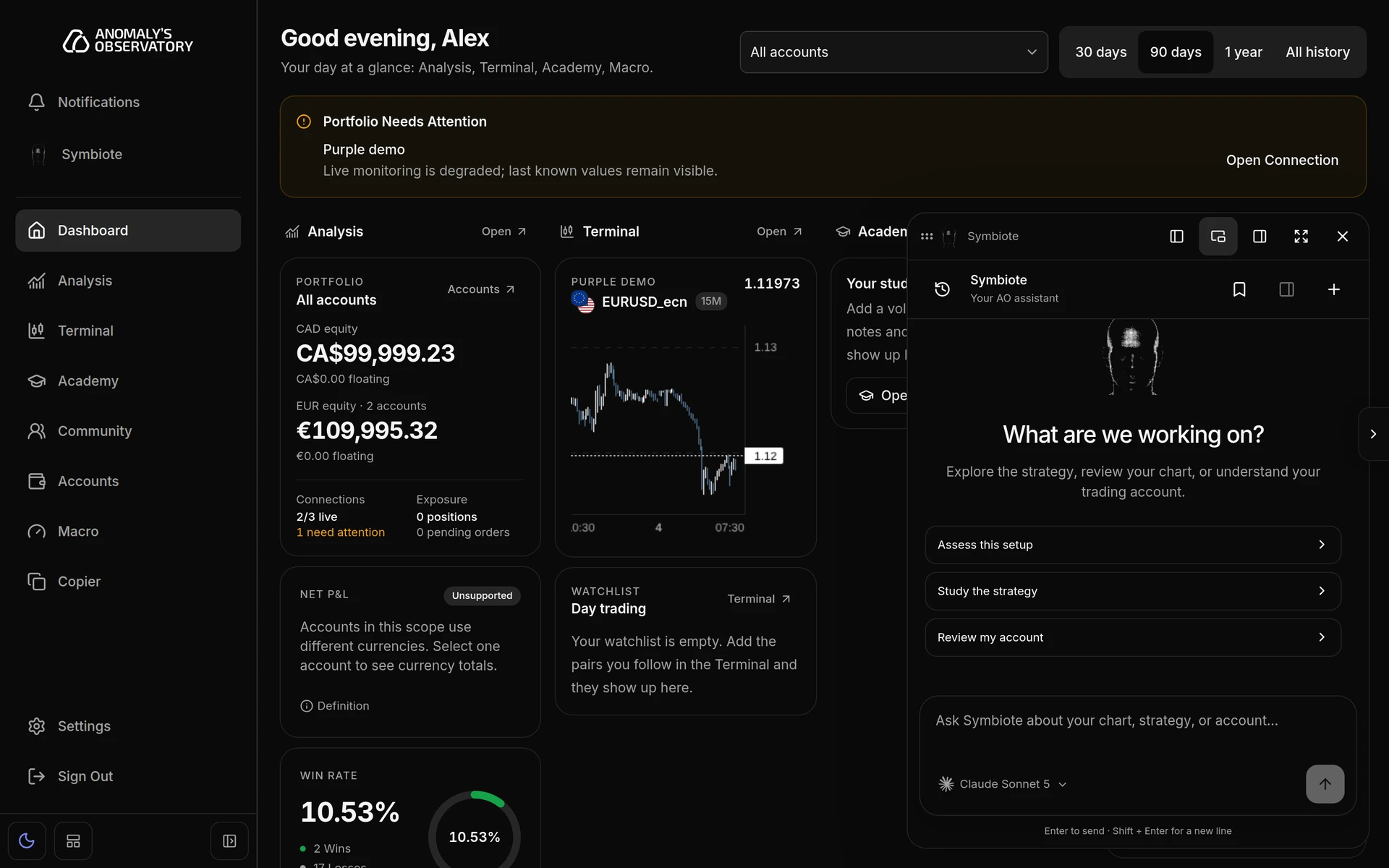
The panel floats by default. Drag it by its title bar, resize it from any edge, or use the buttons in the title bar to dock it to the left or right of the window. Docking needs a window at least 1,080 pixels wide. The expand button opens the full page, and Esc or the close button hides the panel. On a phone, the panel fills the screen.
Ask a question
- Open the page you want help with. For a chart question, open the chart in the Terminal. For a lesson, open the chapter in the Academy.
- Open Symbiote and type your question in the box that says “Ask Symbiote about your chart, strategy, or account…”. In a new conversation, you can start from Assess this setup, Study the strategy or Review my account instead.
- Press Enter to send. Shift + Enter starts a new line.
- Read the answer as it arrives. Open the activity line above it to see each step Symbiote took.
Under your question, a short label shows what Symbiote was given:
- On a Terminal chart: the symbol, the interval and the price feed. The visible chart, including your drawings, is attached as a picture.
- In an Academy chapter: the lesson’s title.
- In Analysis with one account selected, or on an account’s page: “Account review” and the date range.
- Anywhere else: “AO workspace”.
Check the sources
When an answer draws on teaching material, it lists it under Supporting evidence, with the PDF page, the point in the video, or “Note”. Click a source to open it.
For a setup question, the answer can include an EXODUS assessment: each strategy consideration is marked supported, contradicted or unknown, and an unknown one lists the information that’s missing. When an assessment isn’t possible, you’ll see “Strategy assessment is not ready” and the reason. Limitations lists what Symbiote couldn’t check.
The panel icon in the header (Inspect latest result) opens the Result workspace, where you can go back through every finished answer in the conversation.
Choose a model
The model menu sits under the message box. Open it to search the available models or filter them by provider, then pick one. The models listed are the ones AO offers.
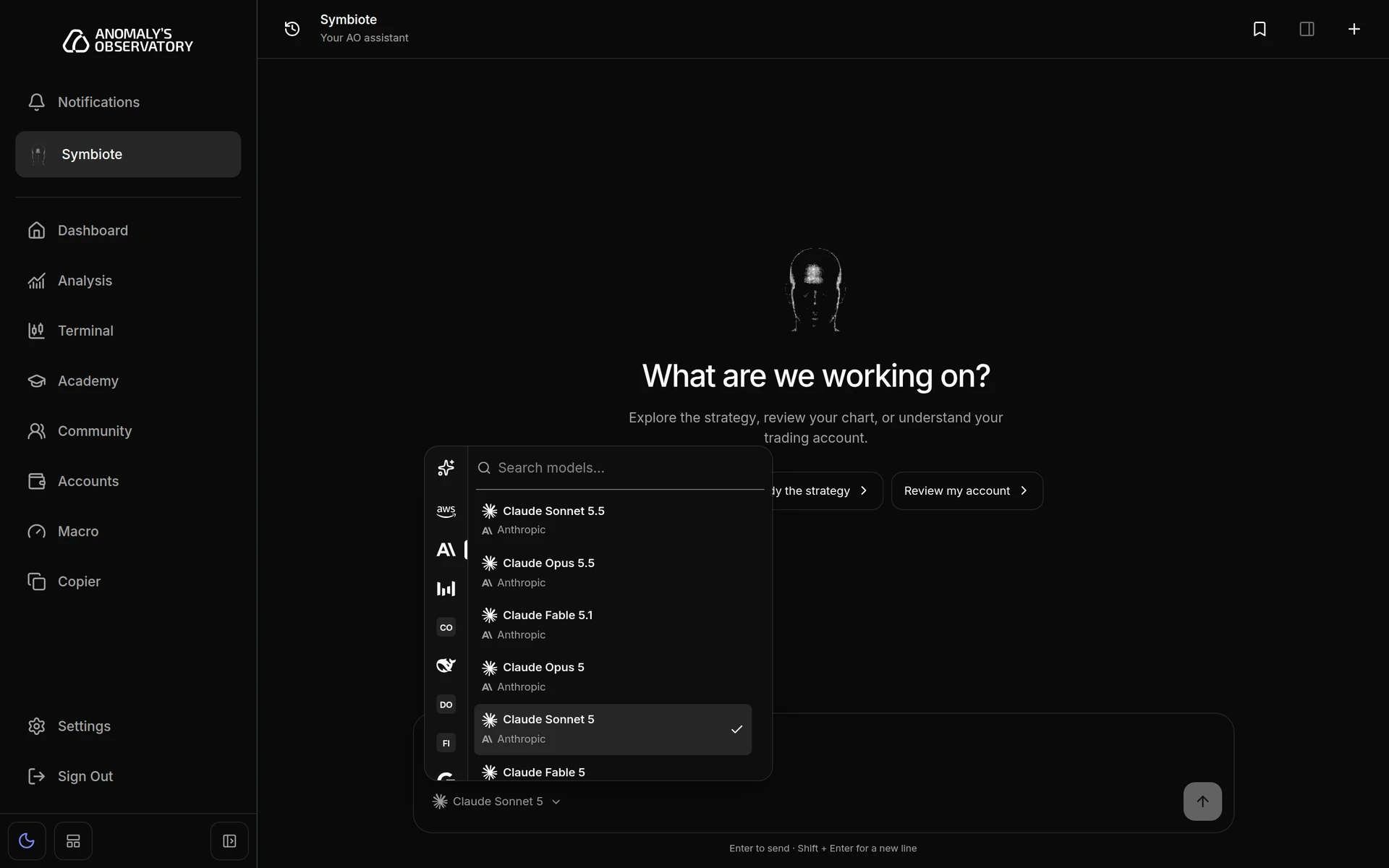
While an answer is running
- Stop ends the current answer.
- Anything you send in the meantime waits under Up next. The arrow on a waiting message stops the current answer and runs that message straight away. The cross removes it.
Conversations
- The history icon at the top left opens Conversations. Pick one to carry on, or rename or archive it.
- The + icon starts a New conversation.
Save a decision to practise later
When you ask about a chart, the picture sent with your question is kept with it. Open captured chart, under your question, shows it. You can save that moment as a decision and come back to it.
- Under your chart question, open Save a decision case.
- Give it a Decision title and fill in What was known at this decision. The note is stamped with the current time and can’t be backdated.
- Click Save immutable decision.
- Later, open Saved decisions with the bookmark icon in the header and pick the decision.
- Click Practice this decision. Symbiote reviews the setup using only the chart and information from when you saved it, without revealing what happened next.
- To record what happened, open Later outcome, type it and click Save outcome. Reveal recorded outcome shows it again. The outcome stays hidden during practice.
Turning it off
Symbiote is on by default. To take it out of your sidebar, turn it off in Settings → Navigation. See Settings.