
Replay and paper trading
Play past market data back one candle at a time and practise entries with simulated orders that never reach your broker.
Bar replay hides everything after a point in the past and reveals the chart one candle at a time. Replay Trading lets you place simulated orders against those revealed candles. Nothing you do in replay is sent to your broker.
Starting replay from a past candle, stepping forward, placing a simulated buy with a stop and target, and playing it out.
Start a replay
-
Click Bar replay (the rewind icon) in the chart toolbar. The replay bar opens under the chart.
-
To replay every chart in your layout together, click Replay options (the arrow next to Select bar) and choose All charts under Replay on. The default is Current chart.
-
Click Select bar, then click a closed candle on the chart. The chart cuts off after that candle.
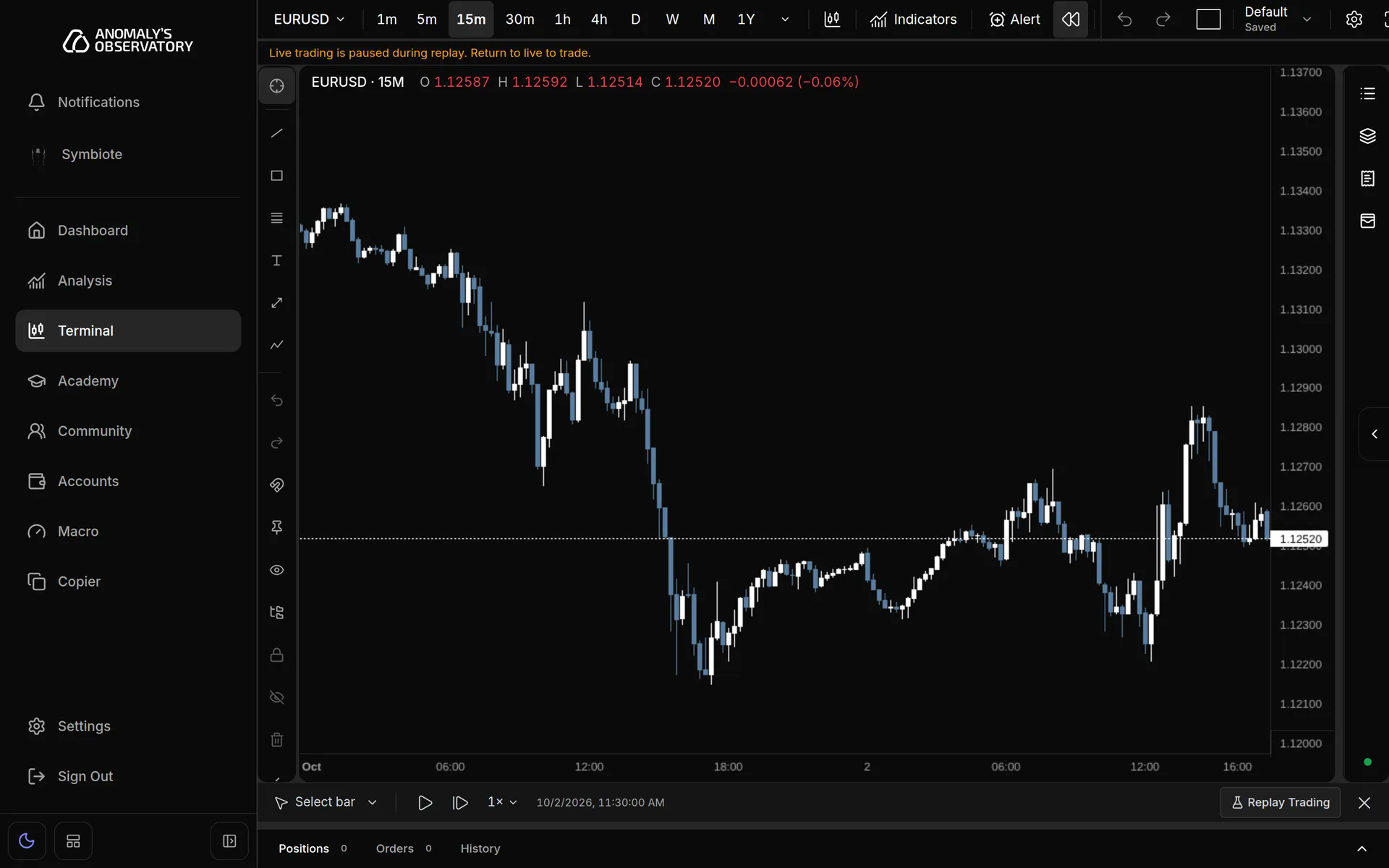
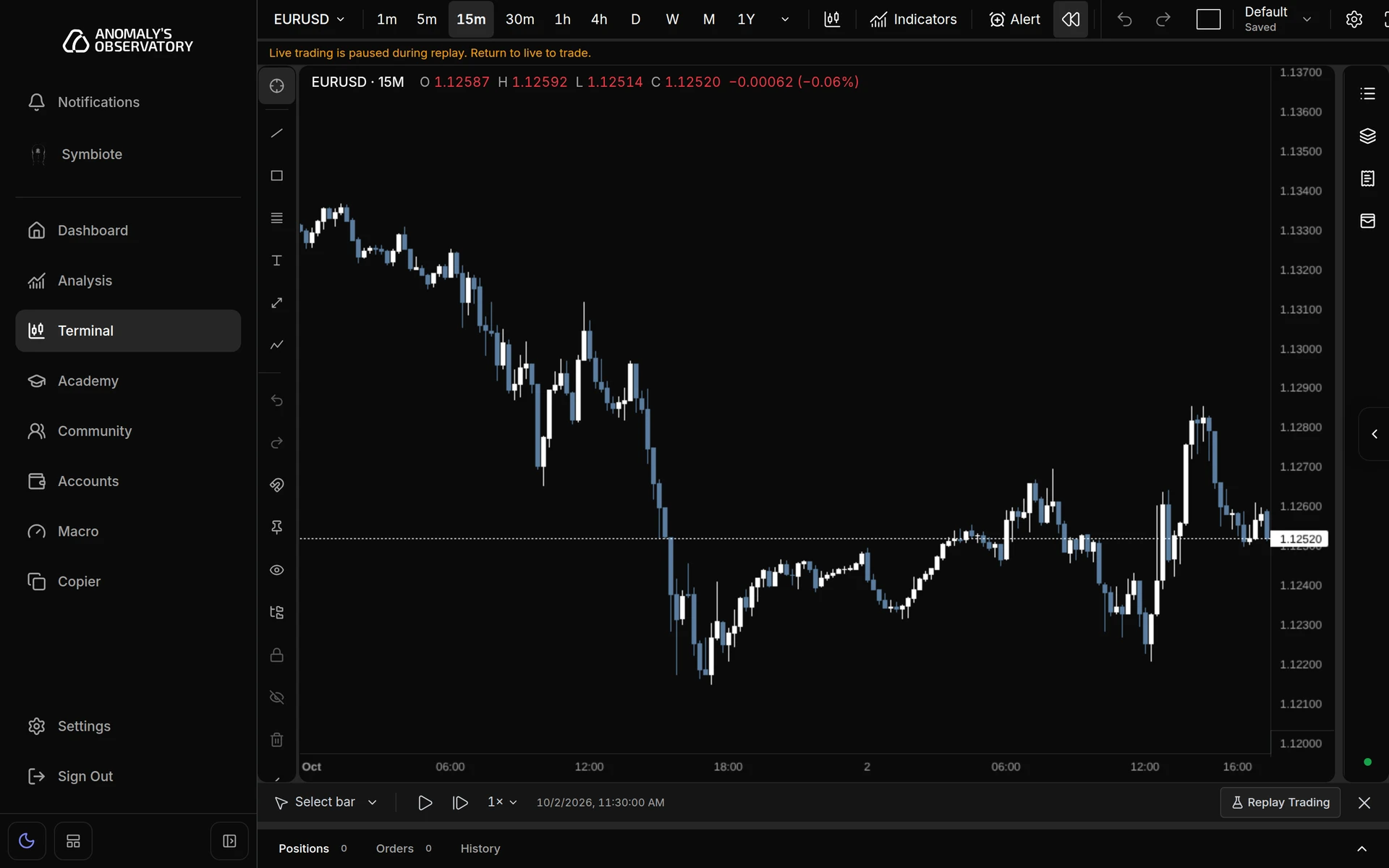
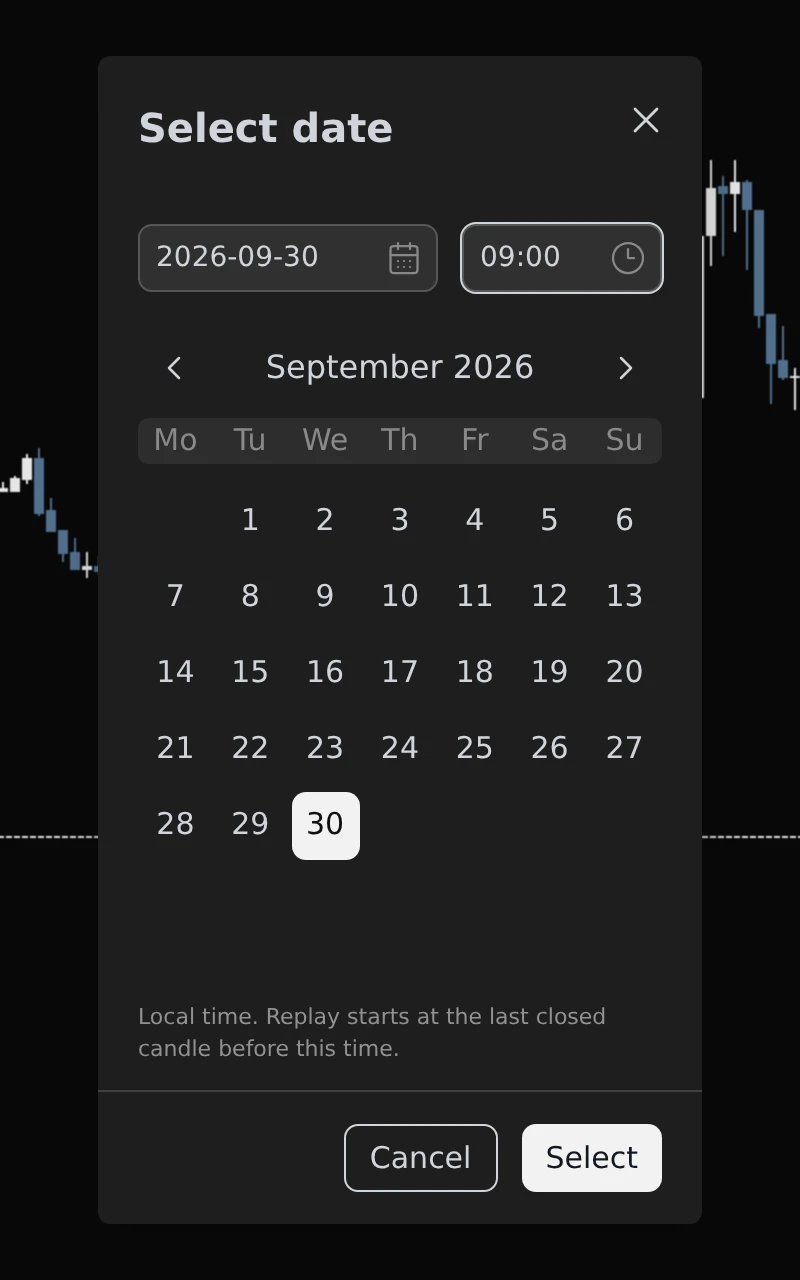
To start from a date instead, open Replay options and choose Select date…. Enter a date and time, or pick a day on the calendar, and click Select. The time is your local time, and replay starts at the last closed candle before it. You can use Select date… during a replay to jump to another point.
Step and play
- Step replay forward reveals the next candle of the chart you started from.
- Play replay reveals candles on a timer. Pause replay stops it.
- Replay speed sets the pace, from 0.1× to 10×. At 1× a new candle appears every second, at 10× ten a second, and at 0.1× one every ten seconds.
The time of the latest revealed candle shows in the replay bar on wide screens. When you reach the newest closed candle, the bar reads End of available closed candles.
Click Return to live (the × at the right end of the replay bar) to finish.
What changes during replay
- Live trading pauses. The terminal shows Live trading is paused during replay. Return to live to trade. and the order ticket won’t send orders.
- The chart’s + price menu and the right-click alert and order items are hidden.
- Replay ends by itself if you change the symbol, interval or data source of a chart that’s replaying. A note under the replay bar says why.
- Adding or removing charts in the layout pauses replay. To include the new charts, start All charts again.
Place a simulated order
Replay Trading trades the symbol on the chart you started replay from.
-
Start a replay.
-
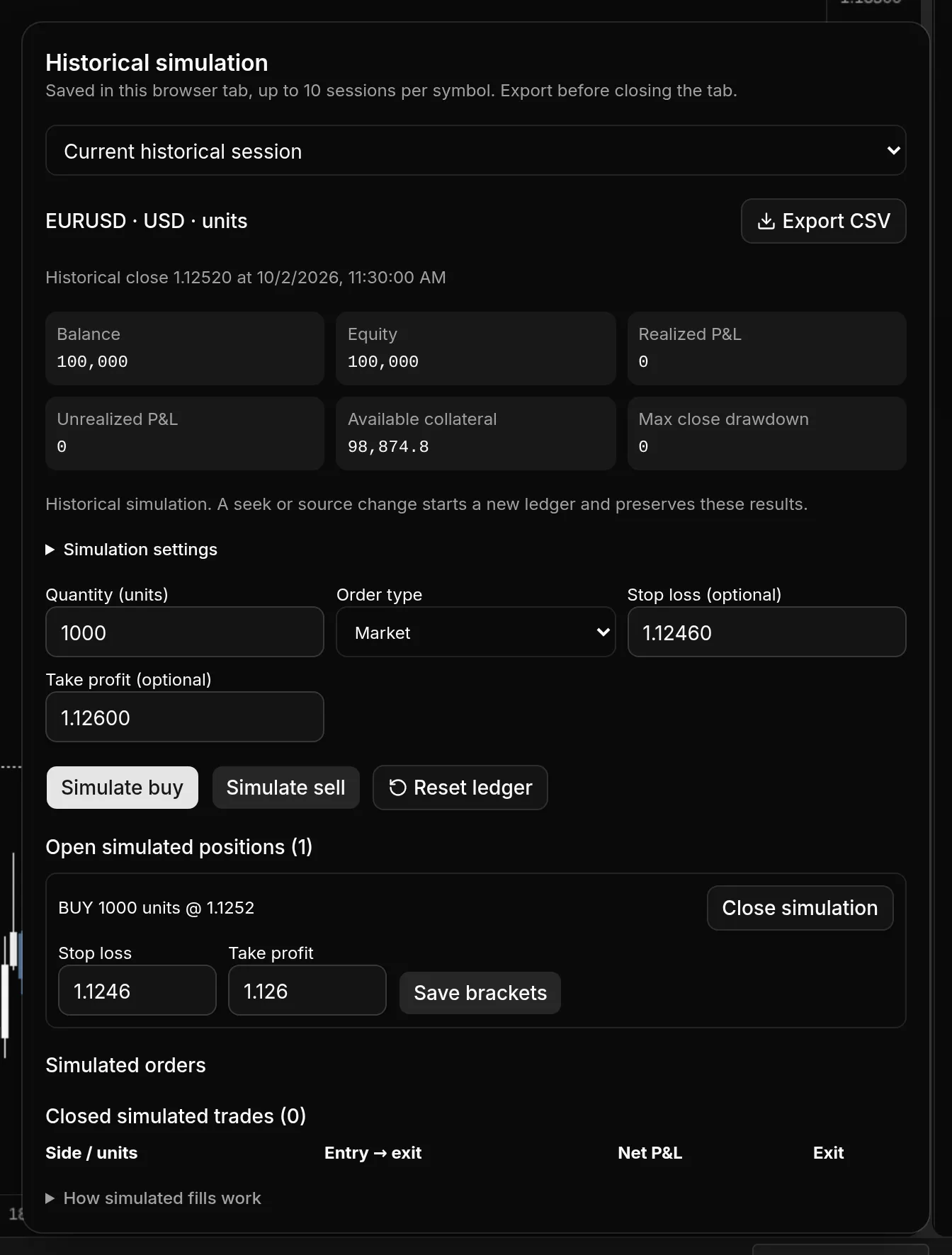
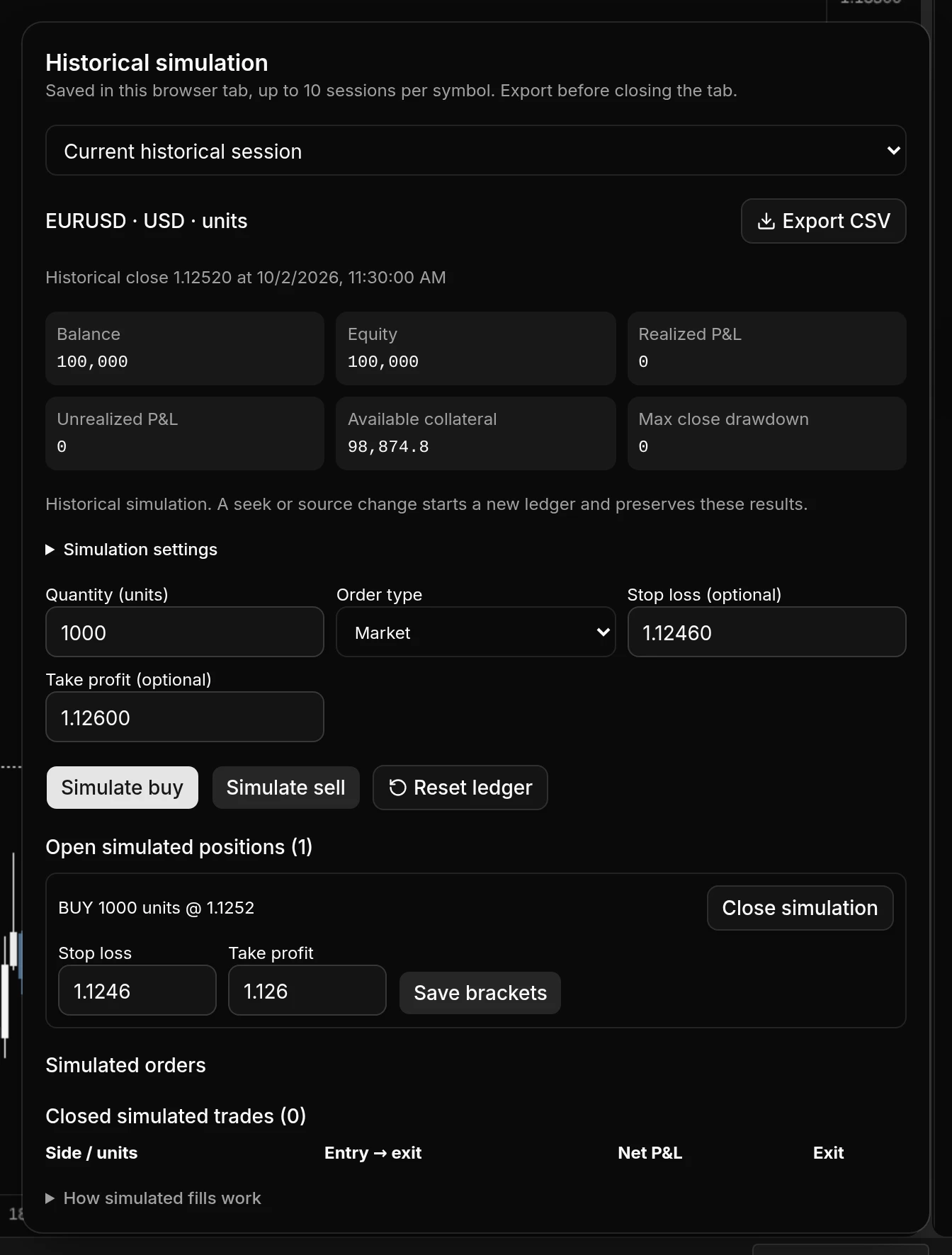
Click Replay Trading on the replay bar. The Historical simulation panel opens.
-
Optional, before your first order: open Simulation settings to set the Initial balance, Commission per fill and Adverse slippage (ticks), then click Apply settings.
-
Enter a Quantity (units). This is in units of the instrument, not lots.
-
Choose an Order type: Market, Limit or Stop. For limit and stop orders, enter an Entry price.
-
Optional: enter a Stop loss (optional) and Take profit (optional).
-
Click Simulate buy or Simulate sell.
-
Step or play the replay. Market orders fill at the last revealed close. Pending orders, stops and targets fill on later candles.
Manage simulated positions
- Each open position under Open simulated positions has Stop loss and Take profit boxes. Change them and click Save brackets.
- Close simulation closes a position at the last revealed close.
- Pending orders are listed under Simulated orders, with Cancel for each.
- Reset ledger settles any open positions at the last revealed close, keeps that session in your results, and starts a new ledger from the current candle with the same settings.
When replay ends, open positions settle at the last revealed close and pending orders are cancelled.
Review results
The panel shows Balance, Equity, Realized P&L, Unrealized P&L, Available collateral and Max close drawdown, then Closed simulated trades with each trade’s side, units, entry, exit, net P&L and exit reason.
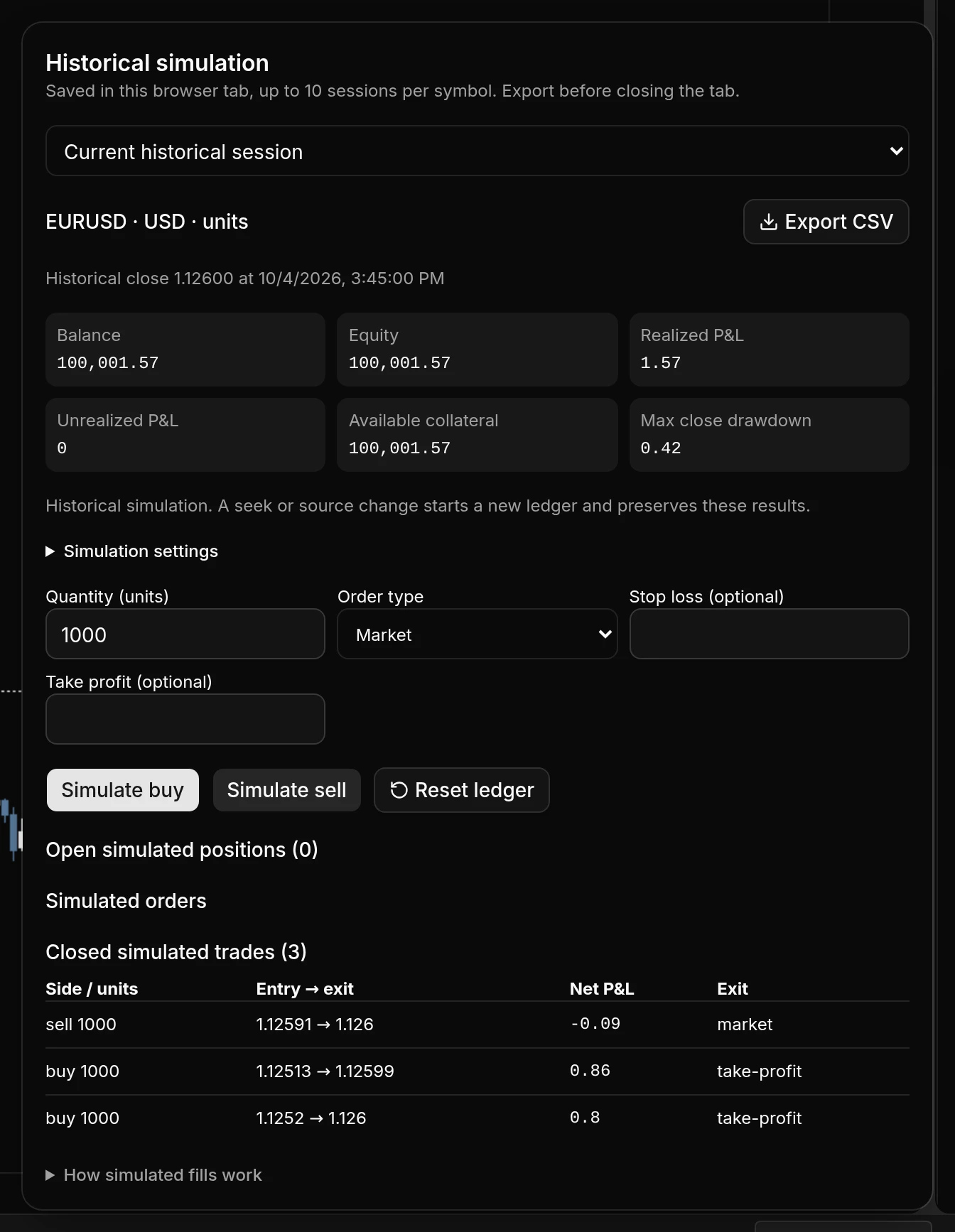
- Export CSV downloads the session’s trades.
- The menu at the top of the panel switches between the current session and earlier ones.
- After you return to live, click Bar replay to open the replay bar again, then click Replay Results to review past sessions on the chart’s symbol.
Sessions are saved in this browser tab, up to 10 per symbol. They’re gone when you close the tab, so export anything you want to keep.
How simulated fills work
Open How simulated fills work at the bottom of the panel for the full rules.