
Tour of the app
Find your way around AO's navigation, modules, notifications, Symbiote and layout options on a computer and on a phone.
Everything in AO hangs off one navigation menu. On a computer it’s a sidebar on the left, or a bar across the top if you prefer. On a phone it sits behind a menu button.
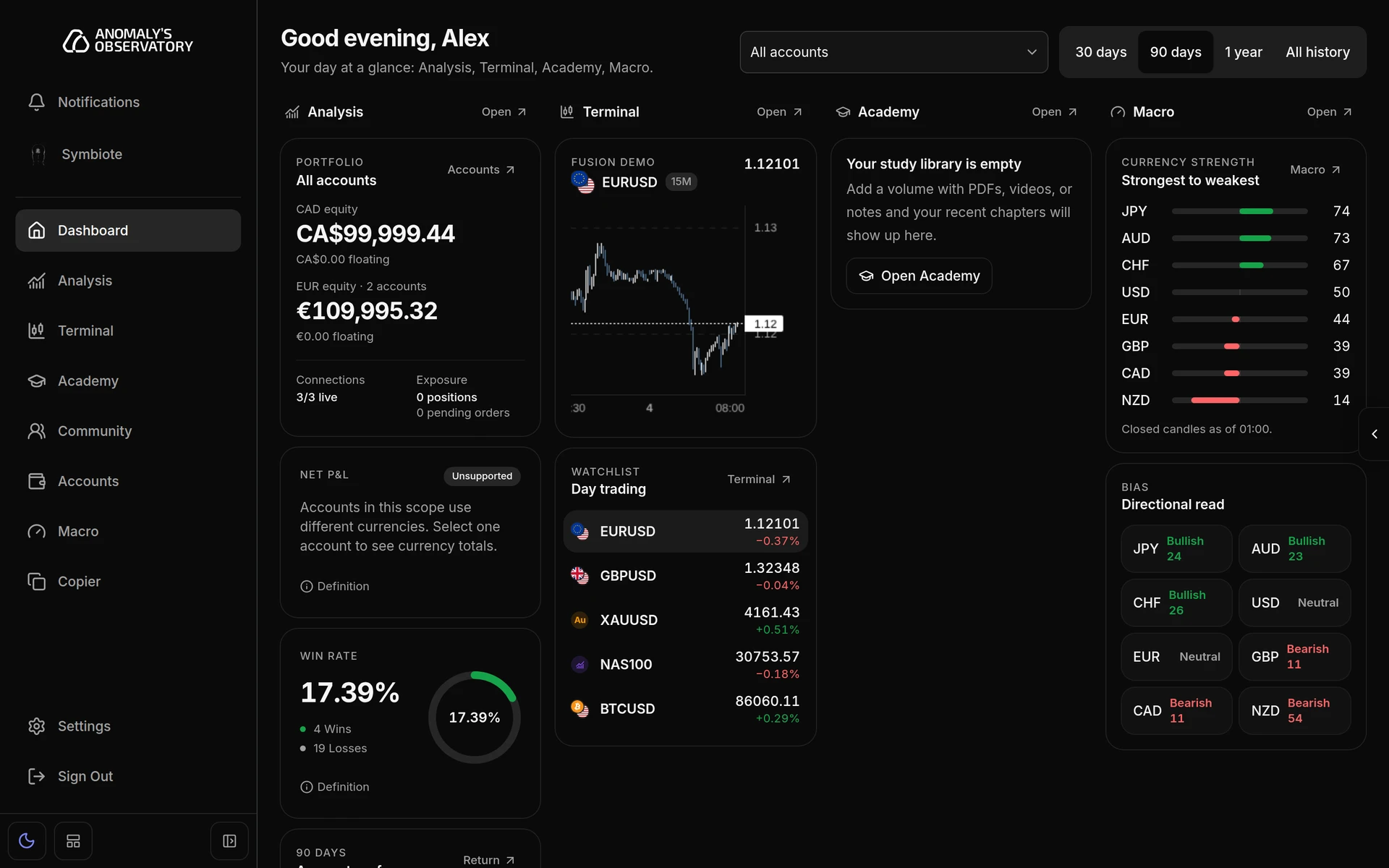
The sidebar
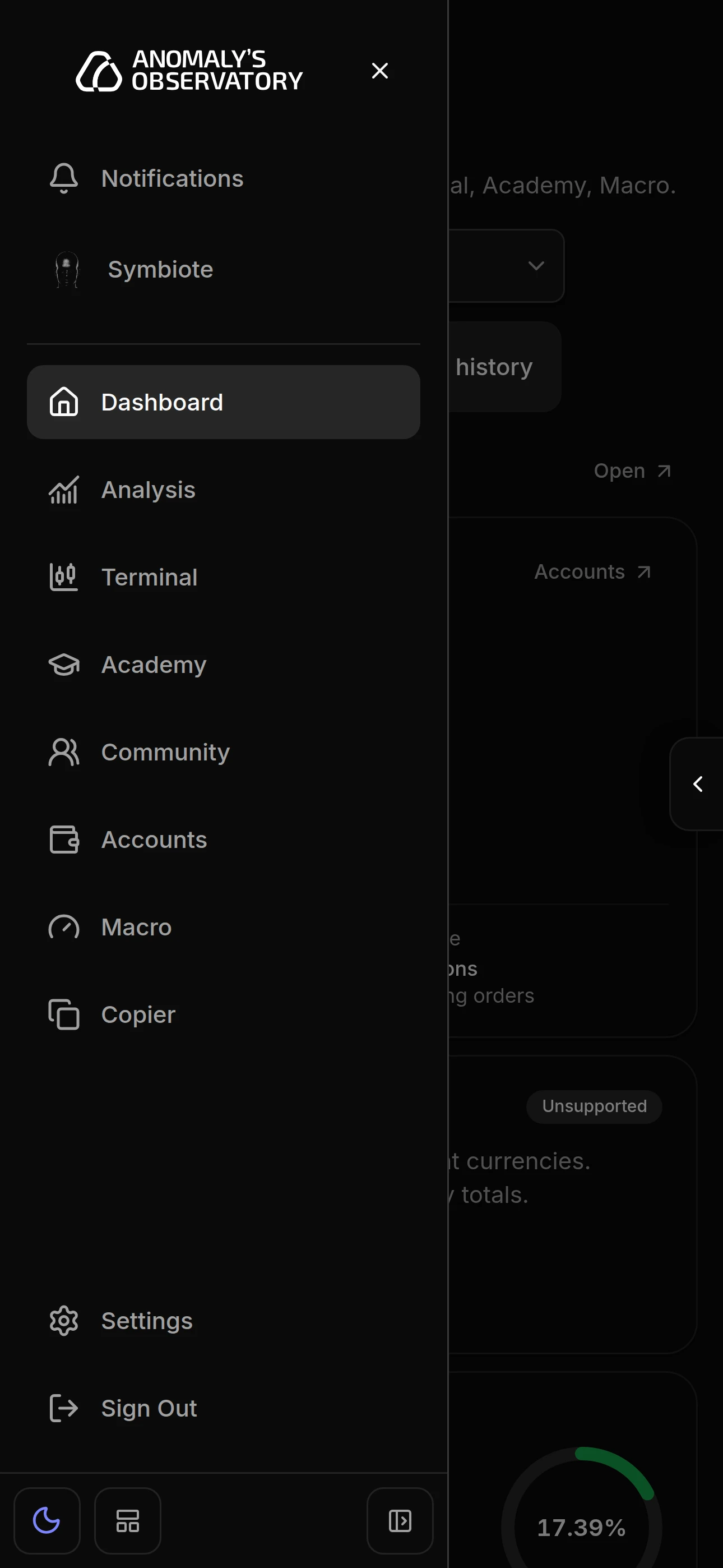
From top to bottom, the sidebar holds:
- The AO logo.
- Notifications, which opens the notification centre.
- Symbiote, above a divider.
- Your modules, in the order you set.
- At the bottom: Settings, Docs, which opens this manual in a new tab, and Sign Out.
- Under the menu: the light and dark switch, the layout switch, and the button that collapses the sidebar.
Modules appear according to your access. Your role decides which ones you can open, and you choose which of those to show in Settings. You can rename modules, so the names below are the defaults.
Modules
- Symbiote: ask about your charts, strategy, Academy material and accounts. See Symbiote.
- Dashboard: your day at a glance, with a lane for each of Analysis, Terminal, Macro and Academy that you have turned on. It’s always on. See Dashboard.
- Analysis: returns, risk, a trading calendar and trade review for your accounts. See Analysis.
- Terminal: live charts, order entry and your open positions. Start with Chart basics and Place a market order.
- Academy: AO’s course material, with PDFs, videos and notes. See Academy.
- Community: channels and threads for talking with other members. See Community.
- Accounts: connect and monitor your MetaTrader accounts. See Manage your accounts.
- Macro: currency strength, bias and cross-asset context. See Macro.
- Copier: copy trades between your accounts, with templates and logs. See Trade copier.
- Settings: navigation and colours. It’s always on. See Settings.
Notifications
Notifications sits near the top of the sidebar. Click it to open the notification centre, a panel on the right that’s reserved for market alerts. Alert delivery isn’t switched on yet, so it reads No notifications yet for now. See Notifications for the pop-ups the app shows instead.
Symbiote
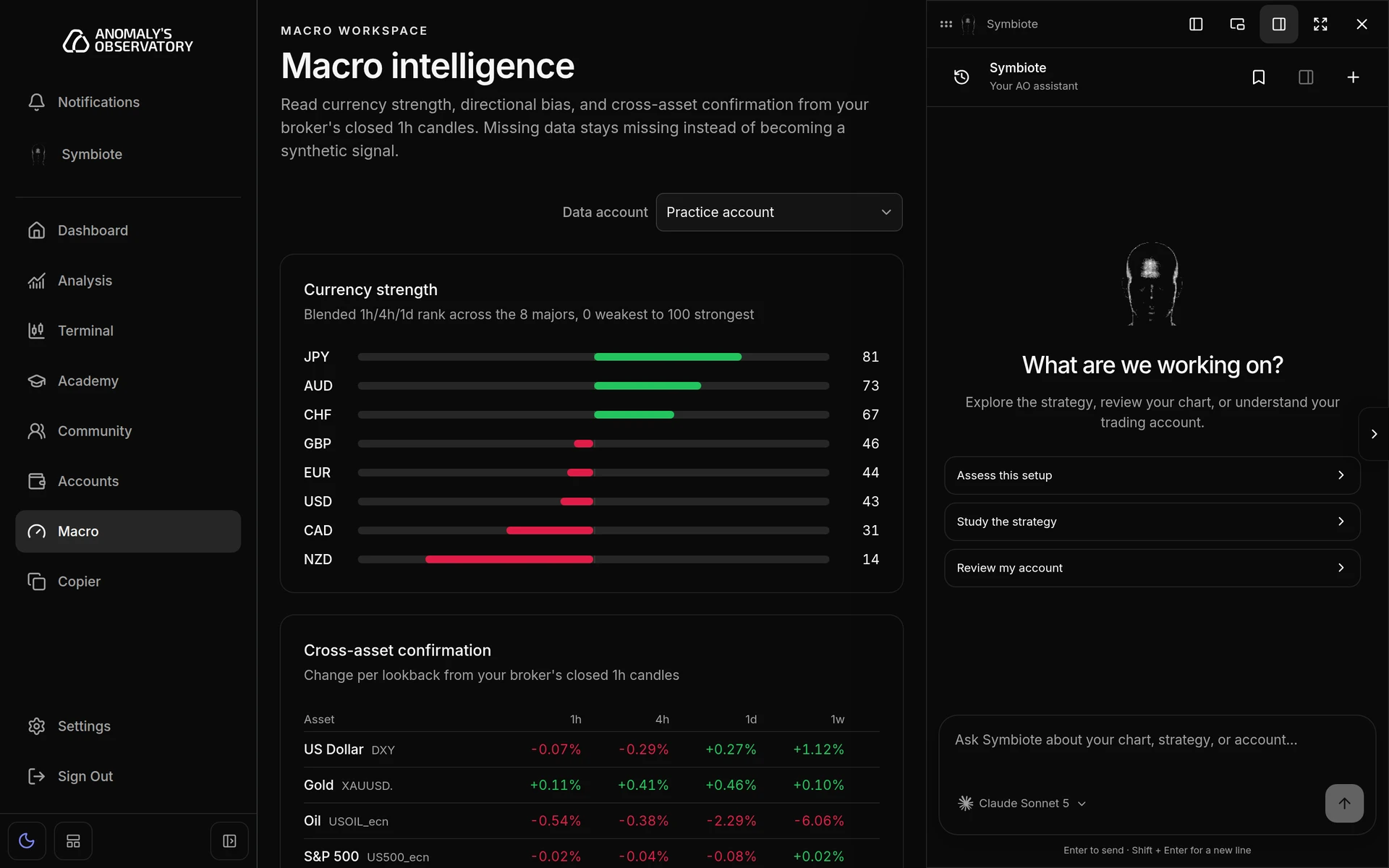
You can open Symbiote two ways:
- Click Symbiote at the top of the sidebar to open it as a full page.
- Click the small tab on the right edge of the screen to open it as a panel over the page you’re on. Ctrl + J does the same, or ⌘ + J on a Mac. Drag the tab up or down if it’s in your way.
The buttons along the top of the panel dock it to the left or right edge (in a wide window), let it float, open it as a full page, or close it. Esc also closes it. On a phone the panel fills the screen.
Light and dark
The sun or moon button under the sidebar switches between light and dark. In the stacked layout it’s at the top right. Until you choose, AO follows your device’s setting. More colour options are under Appearance in Settings.
Collapse and resize the sidebar
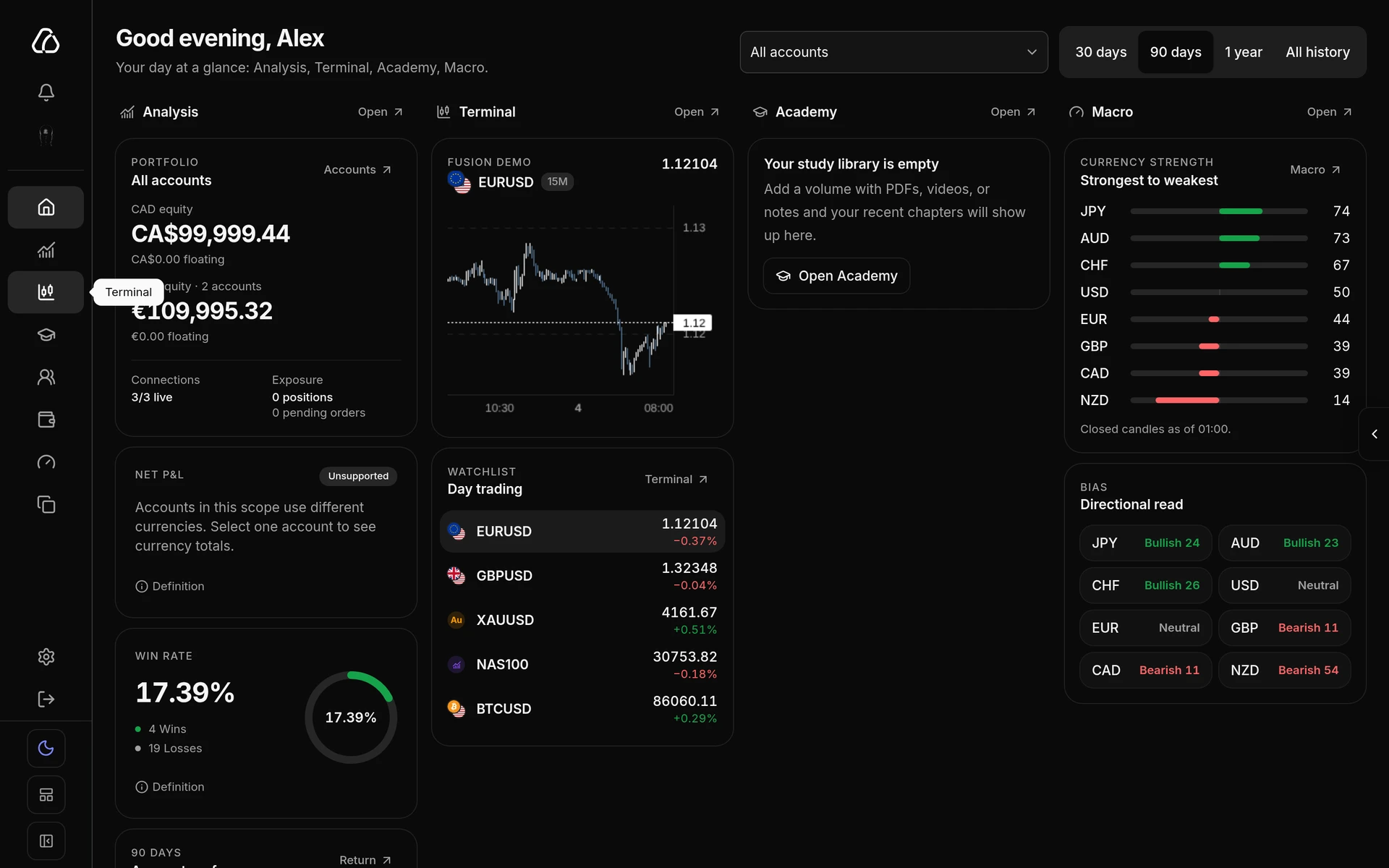
- Click Collapse sidebar, the button at the bottom right of the sidebar, to shrink it to icons. Hover over an icon to see its name. Click the same button (Expand sidebar) to open it again.
- Drag the sidebar’s right edge to make it wider or narrower. Drag it far enough to the left and it collapses.
- Right-click the edge and choose Reset panel sizes to go back to the default width.
The width and collapsed state are saved on this device.
Sidebar or stacked layout
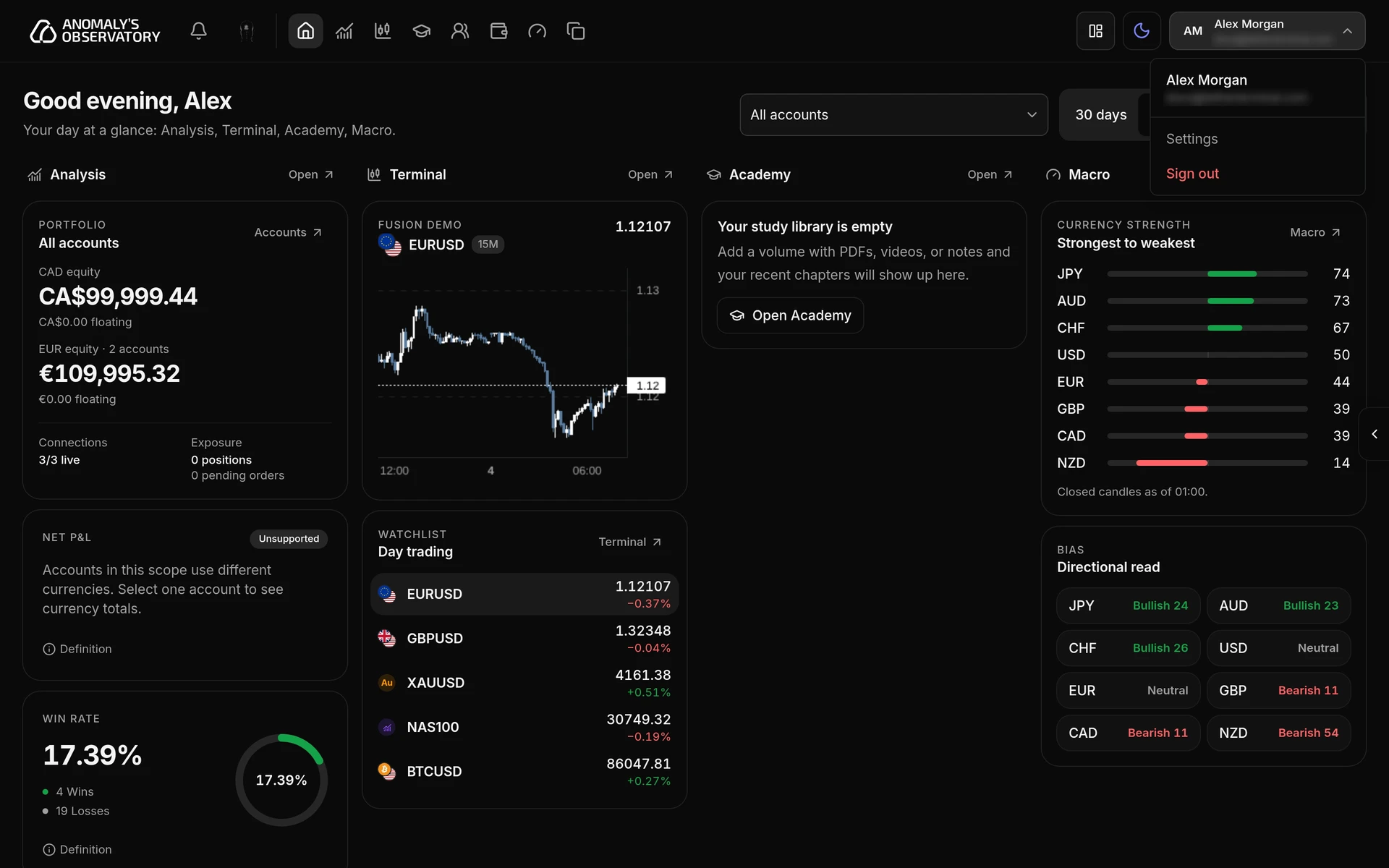
The stacked layout moves navigation into a bar across the top of the screen, which leaves more width for charts. Modules appear as icons; hover over one to see its name. Settings, Docs and Sign out move into the menu under your name at the top right.
- To switch to it, click the layout button under the sidebar. Its tooltip reads Switch to stacked view.
- To switch back, click the button beside the light and dark switch in the top bar. Its tooltip reads Switch to sidebar.
Your choice is saved in this browser. Settings always uses its own sidebar, whichever layout you pick.
On a phone
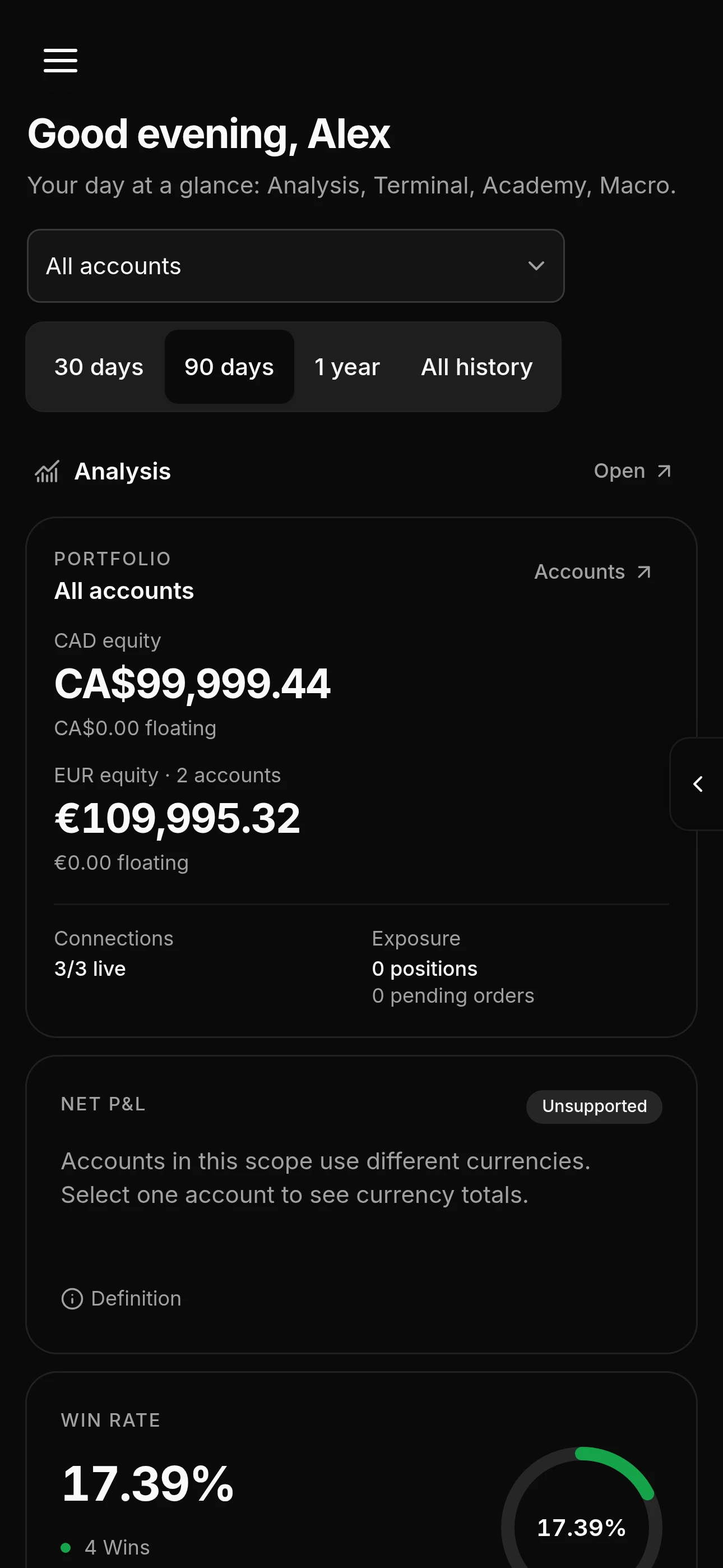
- In the sidebar layout, the menu is hidden. Tap the round menu button at the top left to slide it in. Tap a module to go there, or tap outside the menu or the × to close it.
- In the stacked layout, tap the menu icon in the top bar. The list shows your modules, then Settings and Docs, Use sidebar layout and Sign out.
- In Settings, the same menu button opens the Settings menu.
- The Symbiote tab stays on the right edge of the screen, and Symbiote opens full screen.
Sign out
Click Sign Out at the bottom of the sidebar. In the stacked layout, open the menu under your name and click Sign out.