
Connect a trading account
Connect a MetaTrader 4 or 5 account through MetaApi's secure page, or create a broker demo account to practise on.
AO reaches your broker through MetaApi, a MetaTrader connection service. You describe the account in AO, then type your MetaTrader login and password on MetaApi’s own page, so your broker password never enters AO.
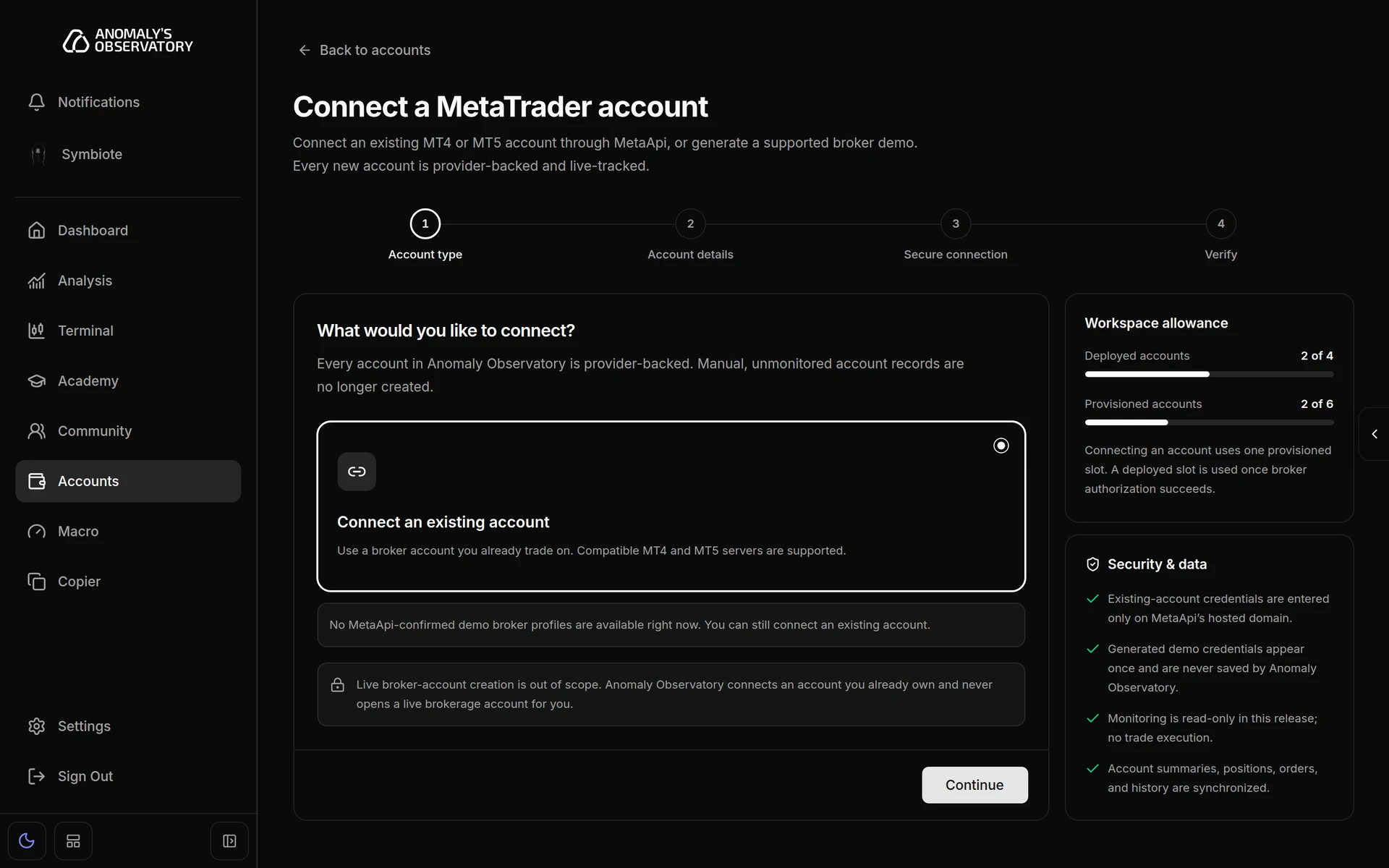
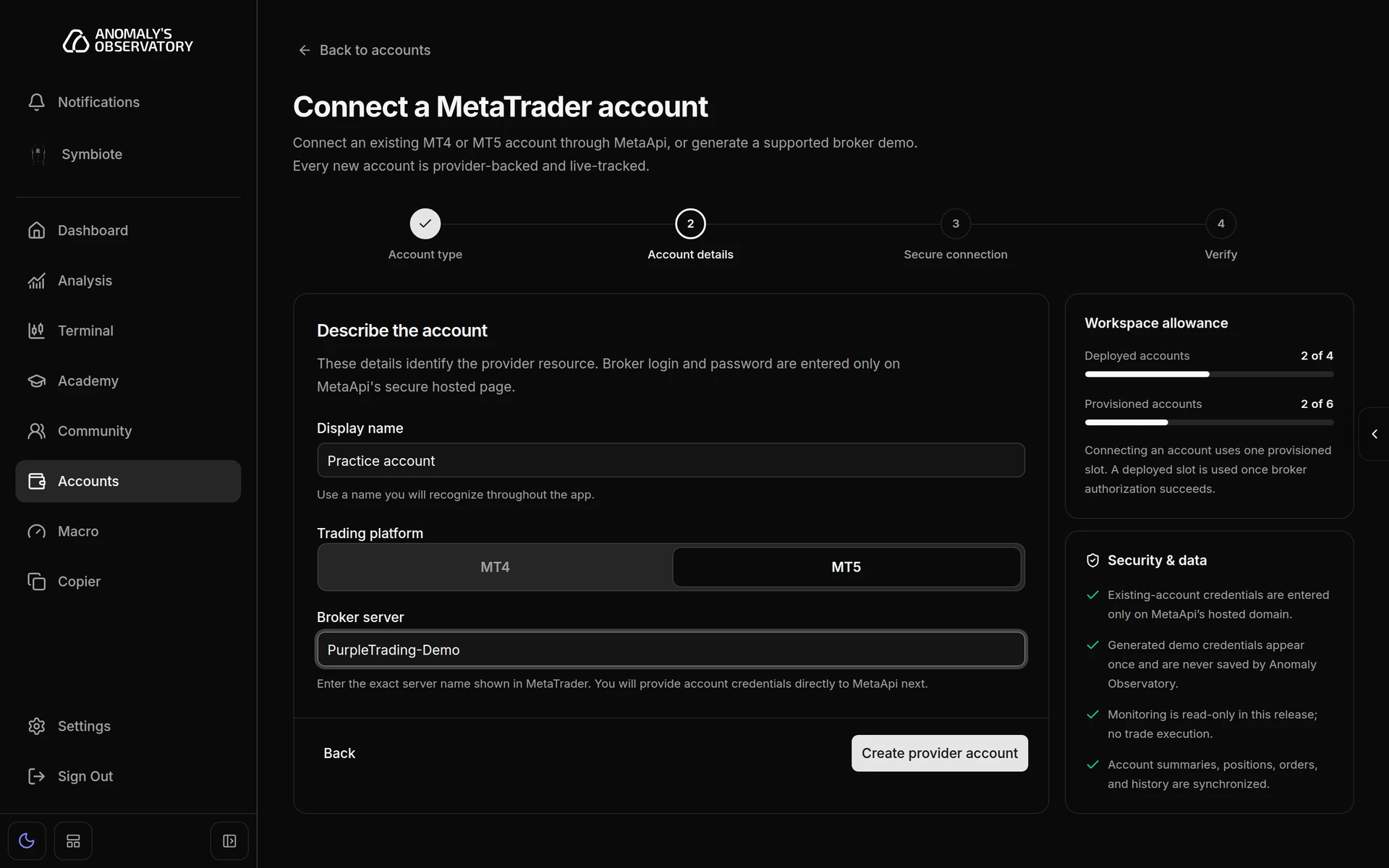
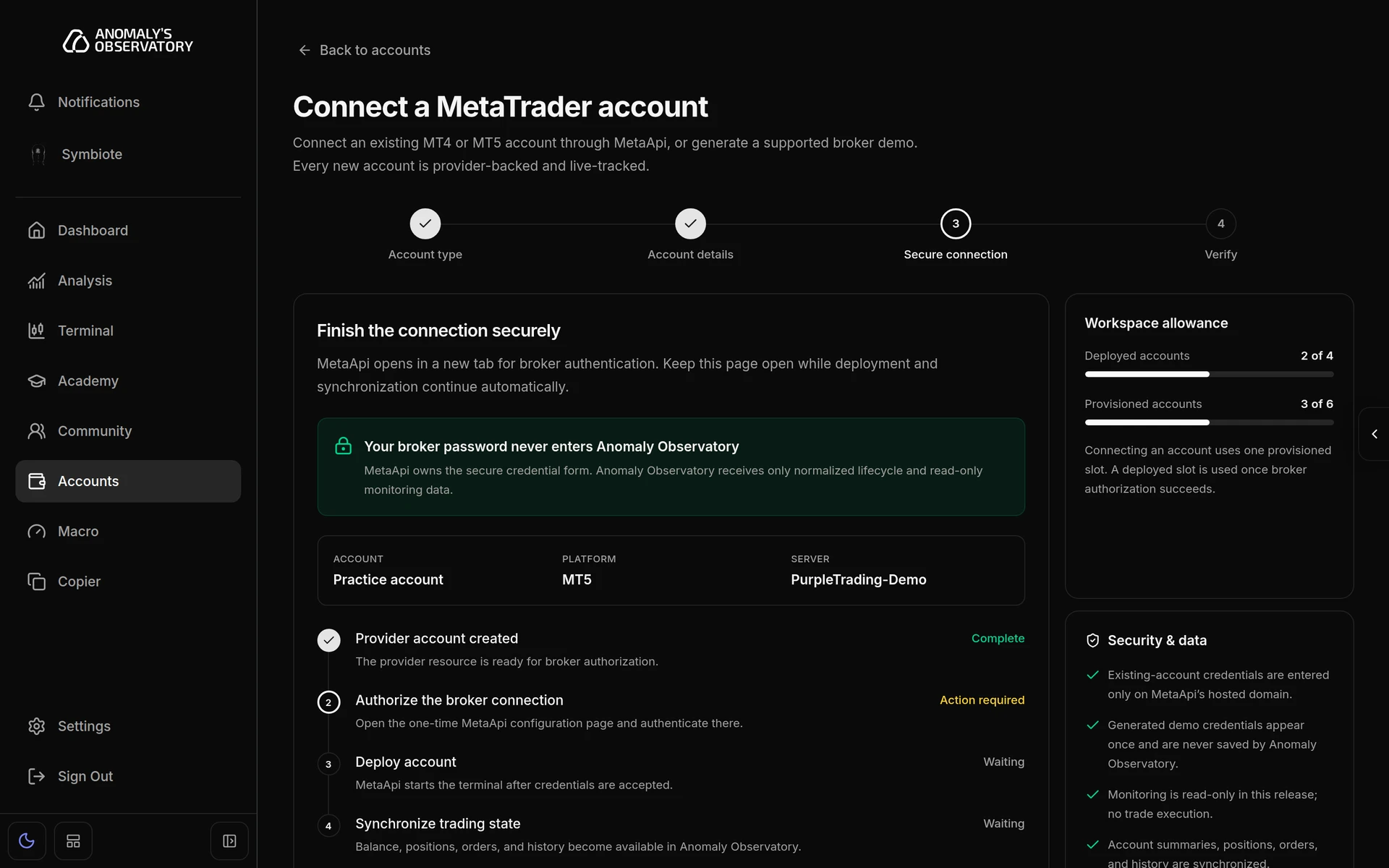
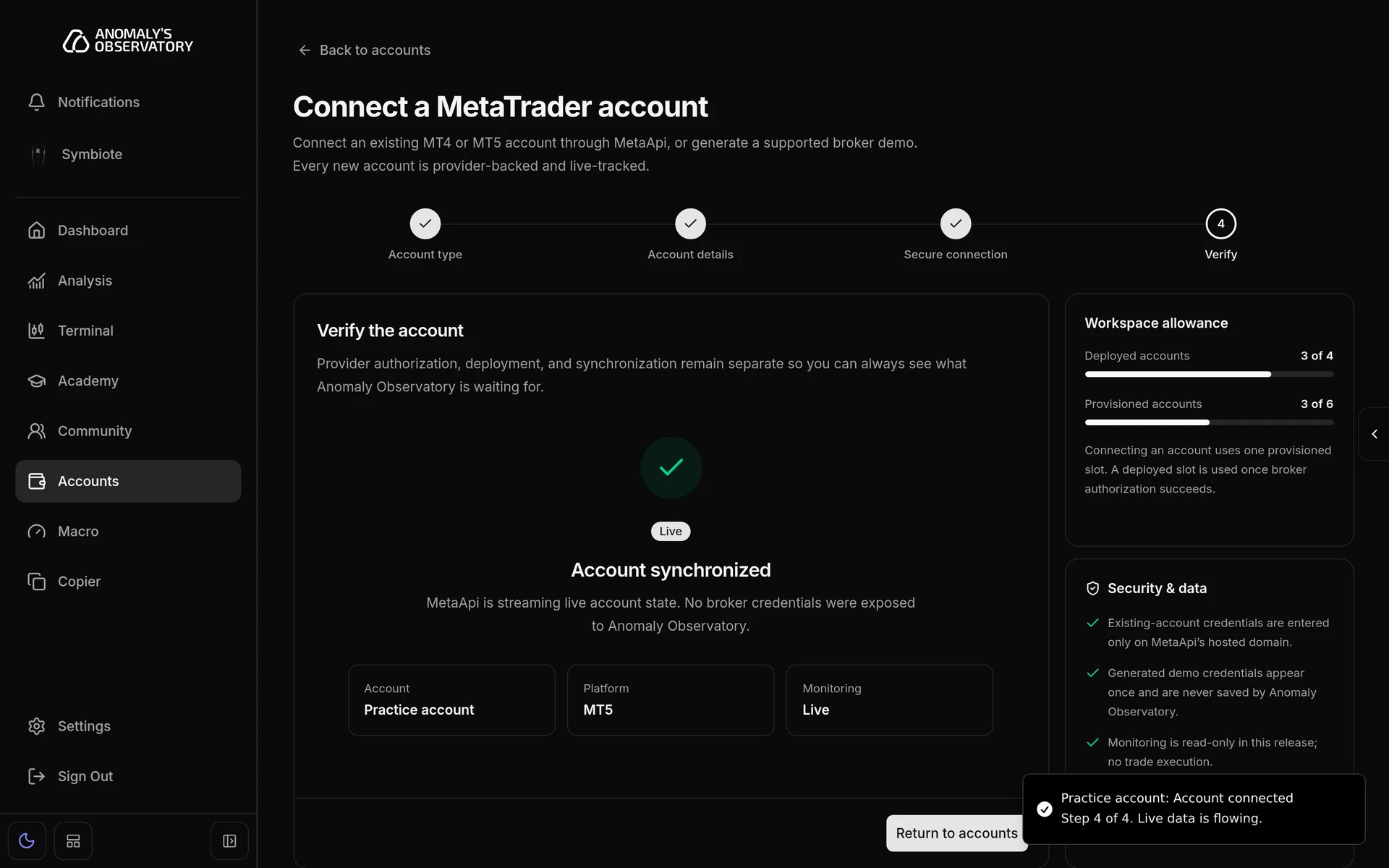
Connecting a demo account named Practice account, from Accounts to a live, synchronized account. The password is typed on MetaApi's own page, where it stays masked.
Before you start
- Your MetaTrader login (the account number) and password.
- The exact name of your broker’s server, for example
ICMarketsSC-Live06. It’s on the MetaTrader login screen and in the details your broker sent when you opened the account. Copy it character for character. - Pop-ups allowed for AO in your browser. The secure step opens MetaApi in a new tab.
Connect an existing account
-
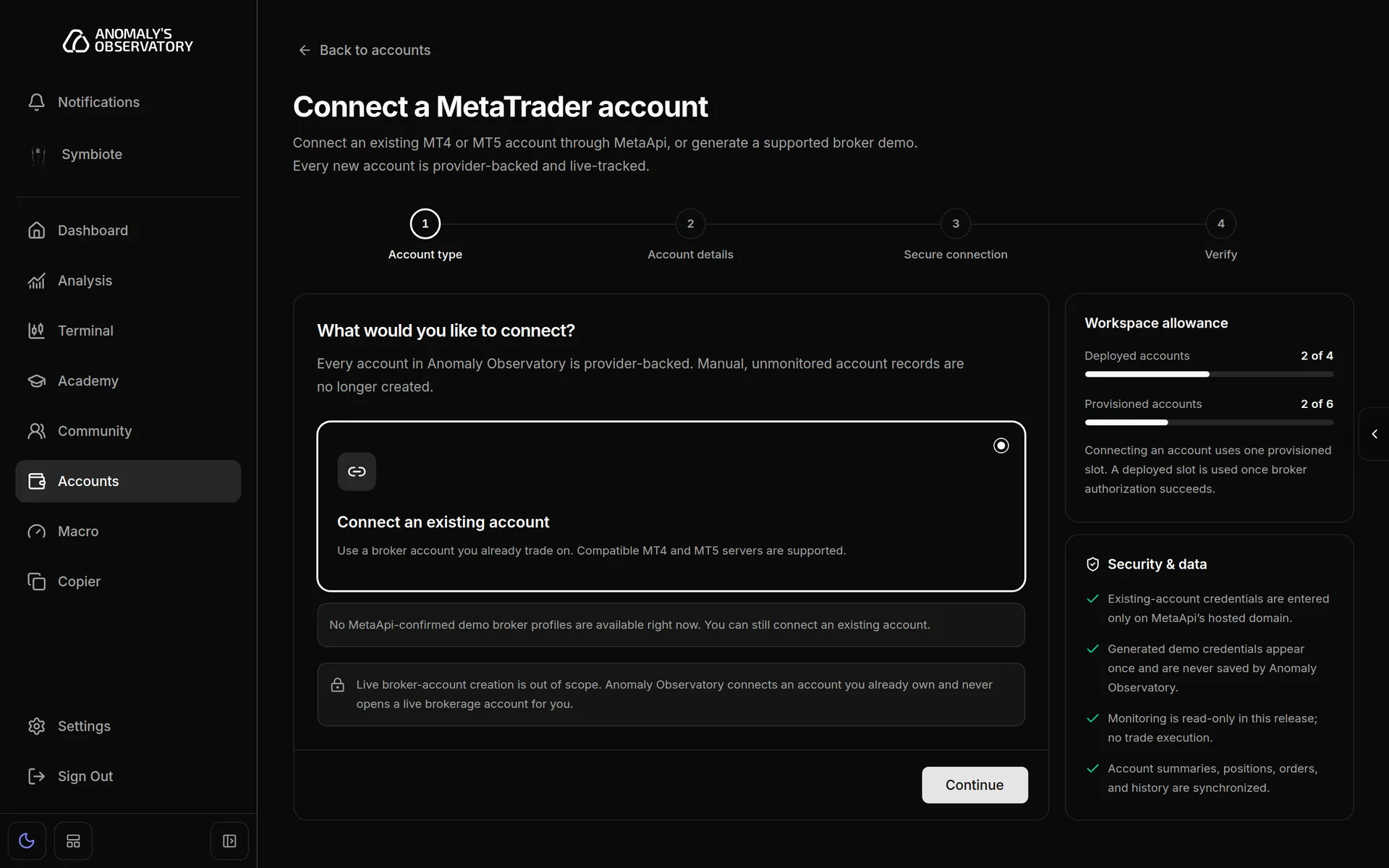
Open Accounts in the sidebar and click Connect Account. The Connect Account button on the Dashboard and the Connect your MetaTrader account step in the Get started checklist open the same page.
-
Under What would you like to connect?, choose Connect an existing account and click Continue.
-
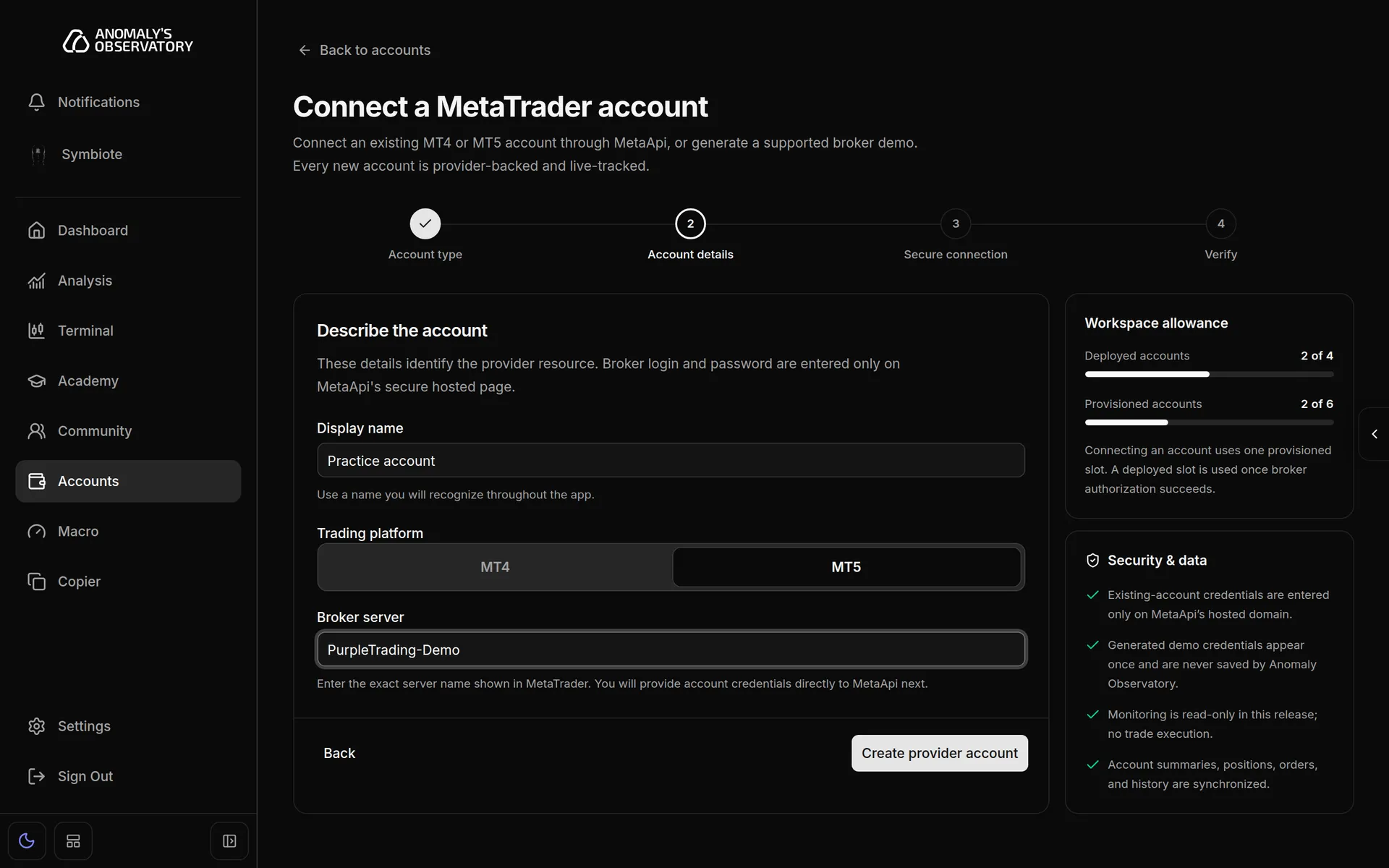
Under Describe the account, fill in:
- Display name: the name you’ll see for this account everywhere in the app, such as your broker and strategy.
- Trading platform: MT4 or MT5.
- Broker server: the exact server name from MetaTrader.
-
Click Create provider account. The button shows Creating account… while AO sets the account up with MetaApi. This usually takes a few seconds.
-
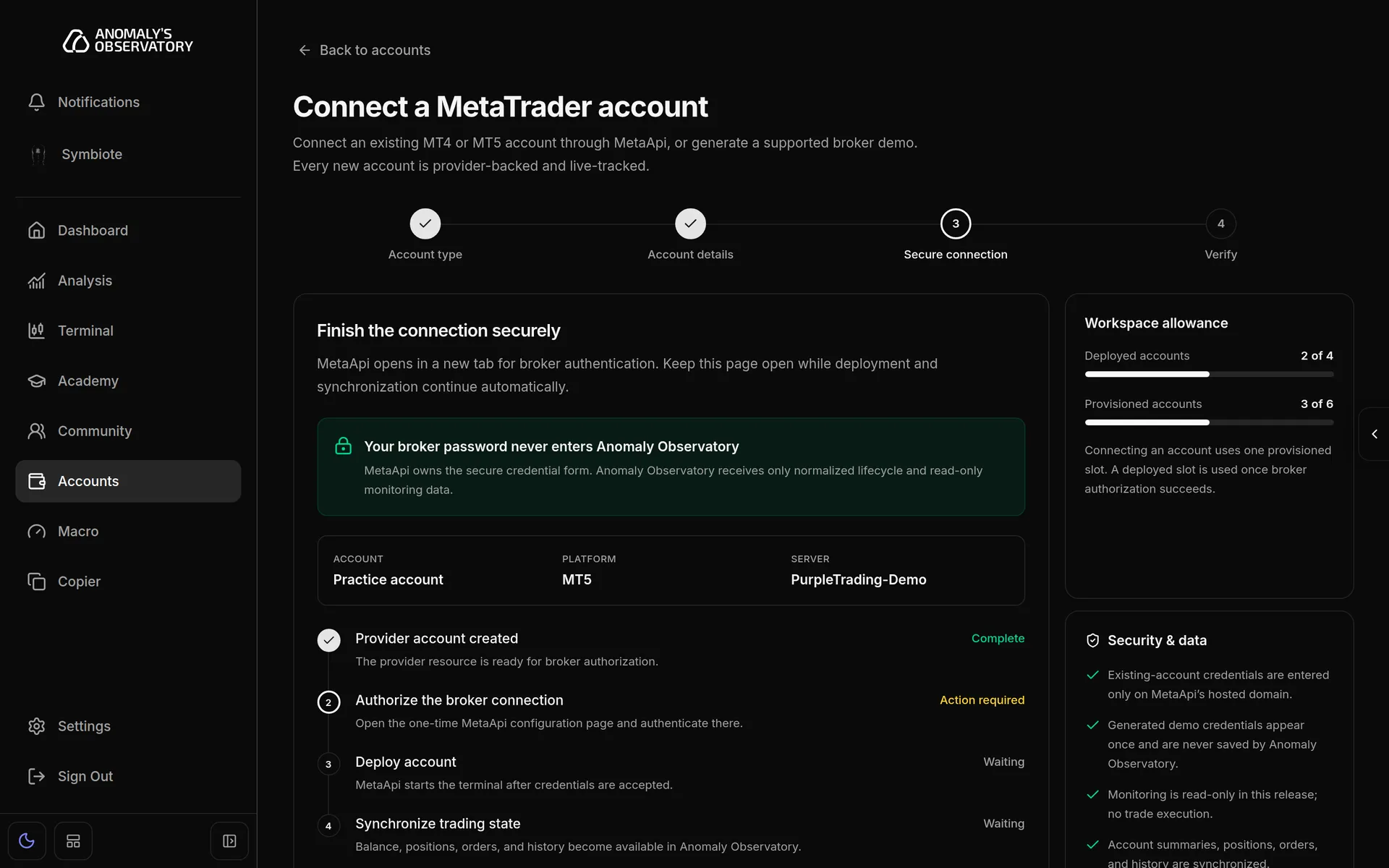
On Finish the connection securely, wait until Provider account created shows Complete. Until then the main button reads Waiting for MetaApi. Then click Open MetaApi in new tab.
-
In the MetaApi tab, enter your MetaTrader login and password and submit the form. You can close that tab when it’s done.
-
Go back to the AO tab. It checks for your details as soon as you return and shows Waiting for MetaApi to confirm your credentials. If nothing changes, click Check now.
-
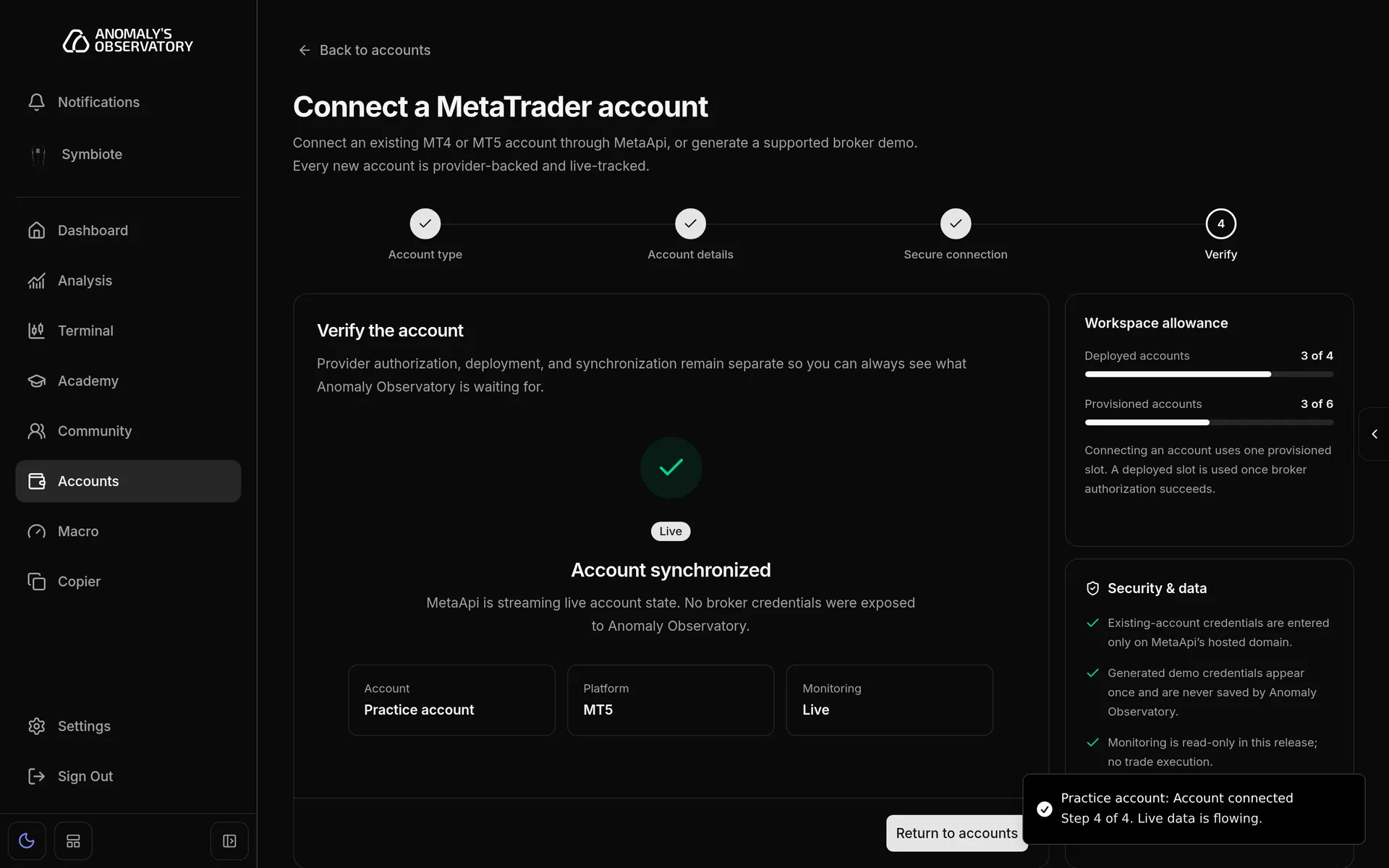
Once MetaApi accepts the login, the page moves to Verify the account. The badge steps through Authorization confirmed, Deploying and Synchronizing. You can keep the page open or carry on elsewhere in the app.
-
When the badge reads Live and the heading says Account synchronized, click Return to accounts.
The four stages
The timeline on the secure step tracks four stages. The setup notifications count them as steps 1 to 4.
| Stage | What’s happening |
|---|---|
| Provider account created | MetaApi sets up the connection for this account. |
| Authorize the broker connection | AO is waiting for you to enter your login and password on MetaApi’s page. |
| Deploy account | After your details are accepted, MetaApi starts a cloud MetaTrader terminal for the account. |
| Synchronize trading state | Your balance, positions, orders and history load into AO. |
How long it takes
Creating the account with MetaApi usually takes a few seconds. Deploying and the first sync take longer, and an account with a long trade history takes more time to load. The page and the notifications update by themselves, so you don’t need to refresh.
For 30 minutes after you open MetaApi’s page or come back to the setup page, AO watches closely for your details. After that, the page says We haven’t received your credentials yet. Finish the MetaApi form, then click Check now.
The secure link only works for a limited time. The page shows when it expires, under Current link expires.
Following progress from anywhere
You don’t have to wait on the setup page. If you leave it, a notification in the corner of the screen stays up until setup finishes. It names the account, says which step of 4 it’s on, and has an Open setup button that takes you back.
| Notification | What it means |
|---|---|
| Creating the MetaApi account | Step 1. Usually a few seconds. |
| Waiting for your broker login | Step 2. Enter your login and password on MetaApi’s page. |
| The secure link expired | Step 2. Open setup to request a new link. |
| Broker login accepted or Starting the cloud terminal | Step 3. MetaApi is deploying the account. |
| Syncing trading data | Step 4. Balance, positions and history are loading. |
| Account connected | Done. Live data is flowing. |
| No account capacity left | Your allowance is full. Free a slot to continue. |
| MetaApi is having trouble | Setup resumes by itself when MetaApi recovers. |
| Connection needs attention | Open setup to see what to do. |
If a notification adds Live data is delayed and will catch up automatically, the connection is fine and the data feed is behind. If you dismiss a notification, it stays hidden until the connection reaches its next stage.
On the Accounts page, an account that’s still being set up shows Needs credentials or Connecting. Opening it takes you back to the step that needs you, with a Continue setup button.
Create a demo account
When AO supports it, the first step also offers Create a demo account. AO asks a supported broker to open a new demo (practice) account and connects it for you. It never opens a live brokerage account.
- Under What would you like to connect?, choose Create a demo account and click Continue. If the option shows Checking support, wait a moment.
- Under Configure a supported demo, fill in:
- Display name
- Trading platform: MT4 or MT5.
- Supported broker demo: a broker and server from the list. Only combinations MetaApi has confirmed are listed.
- Starting balance and Leverage: optional. Left blank, they default to 1,000 USD and 1:100.
- Click Generate broker demo. The button shows Generating broker demo… while the broker creates the account.
- On Save your demo credentials now, copy the Broker login, Broker password and Server into your password manager. This is the only time AO shows them.
- Tick the box confirming you saved them, then click I saved them — continue.
- Follow Verify the account until it shows Live, as in the steps above.
If no supported demo brokers are available, the demo option doesn’t appear and the page says so. You can still connect an existing account.
Your password stays with MetaApi
The details you type into AO (display name, platform and server) only identify the account. Your login and password go straight to MetaApi on MetaApi’s own website. MetaApi keeps them and runs the connection to your broker. AO receives the account’s data and connection status, never the password.
Troubleshooting
Nothing opens when you click Open MetaApi in new tab. Your browser blocked the new tab, and the page says Your browser blocked the secure MetaApi tab. Allow pop-ups for AO in your browser settings and click the button again.
We could not open the secure MetaApi connection. The link request failed. Click the button again to request a new link.
The link expired. The button reads Regenerate link in new tab. Click it to get a fresh link. This doesn’t create a second account.
We haven’t received your credentials yet. Finish the form in the MetaApi tab, come back, and click Check now.
An error with an Action required badge. MetaApi or your broker needs something from you. Most often the login, password or server is wrong. Check that the server name matches MetaTrader exactly, click Open MetaApi in new tab and enter your details again.
An error with a Retry available badge. Something failed for a moment. Click Try connection in new tab.
An error with a Needs support badge. AO can’t recover this one by itself, so the button is switched off. Contact support and give them the account’s display name.
We could not create the provider account. Shown on the details step. Your request is safe to send again and won’t create a duplicate. Click Create provider account again.
Provider account creation did not finish. Click Retry connection. It resumes the same setup and doesn’t add another account.
Account setup was cancelled. This setup stopped before you entered any broker details. Start again from Accounts with Connect Account.
No room for another account. The page says This workspace has no available provider capacity. Your allowance is full. Remove an account you no longer use to free a slot, or contact support. The Workspace allowance panel shows how many slots you’re using: connecting an account uses a provisioned slot, and a deployed slot is used once your broker login is accepted.
MetaApi is currently unavailable. MetaApi is having an outage. Your account is safe, and setup resumes by itself when MetaApi recovers.
Setup could not be resumed. The account was removed or you no longer have access to it. Click Return to accounts and connect again.
Supported demo brokers could not be loaded. Connecting an existing account still works. Try the demo option again later.
Using the desktop app. The MetaApi page opens in your default web browser. Finish there, then come back to the app.