
Set take profit and stop loss
Set stops in the order ticket or drag them on the chart, use the R:R controls and magnet, and move stops on open positions.
You can type a stop loss and take profit into the order ticket or drag them on the chart. Before the order exists, the lines only change the ticket. On an open position or pending order, a drag changes the order at your broker once you confirm it.
Set stops on a new order
- Open the order ticket with Trade ticket in the right-hand rail.
- Type a price in Stop loss. If Take profit is empty, the ticket fills it at 2R, twice the distance from entry to stop. The ratio shows next to the label, for example ”≈ 2.0R”.
- To change the ratio, click one of the R:R chips (1R, 1.5R, 2R or 3R) or move the slider, which runs from 0.5R to 5R. Each change re-places the take profit.
- To use a take profit that isn’t on a ratio, type it into Take profit.
If there’s no stop loss yet, a chip or the slider sets one for you. It goes 5 pips from the entry, or at your broker’s minimum stop distance if that’s wider, and the take profit follows at the chosen ratio.
If you switch between Buy and Sell, the ticket mirrors the stop loss and take profit to the other side of the entry, with the same distances.
Drag the new order’s lines
As soon as the ticket has a stop or a target, dashed lines appear on the chart. They’re labelled “SL (new)” and “TP (new)” with the price and the share of your balance you’d lose or gain there. A pending order also gets a dashed entry line.
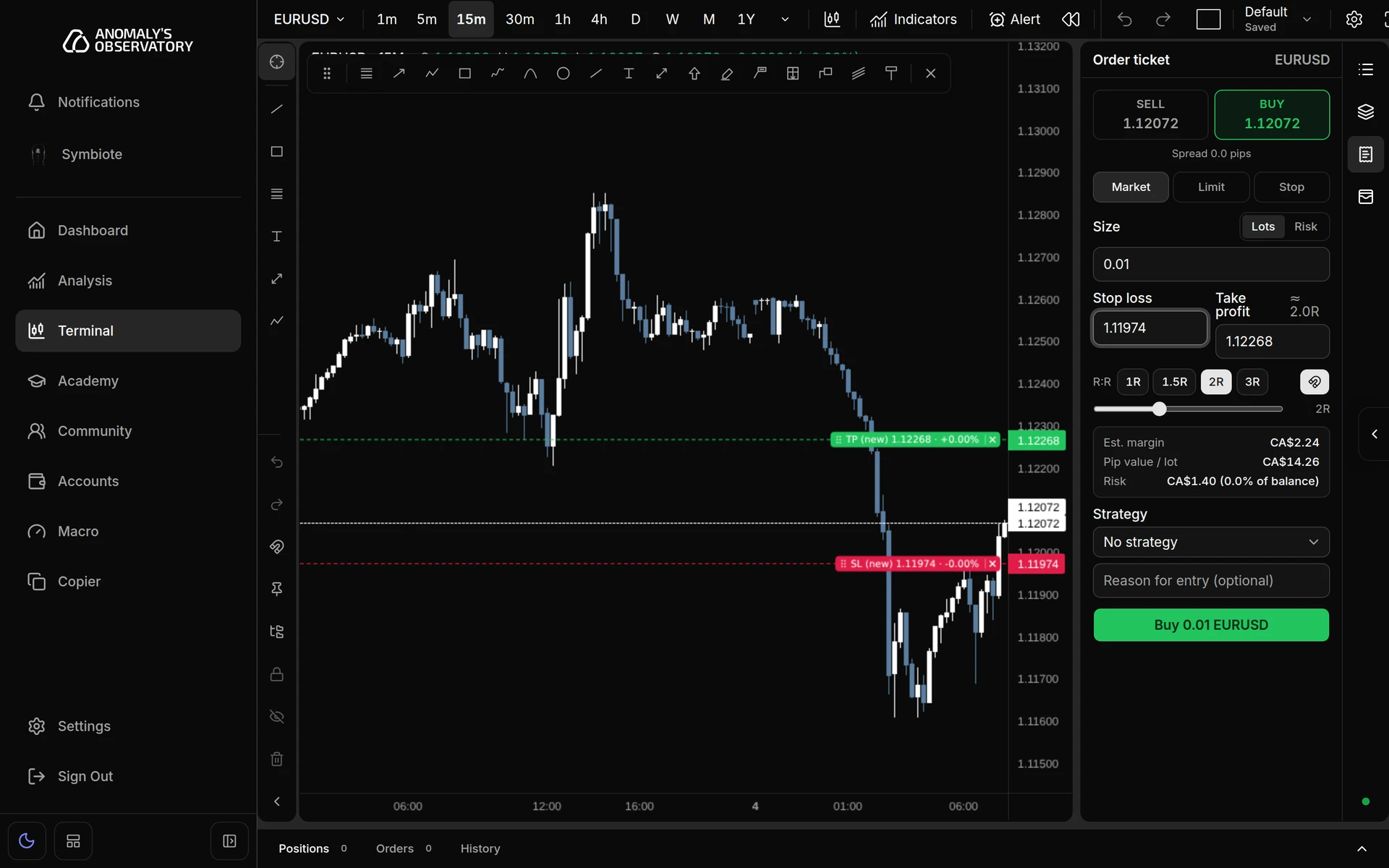
- Drag a line, or the label at its right end. The dots on the label are the grip.
- The ticket’s fields, the lot size and the Risk readout follow the drag as you move.
- Drag a pending order’s entry line and its stop and target move with it, so the distances and R stay the same.
- Press Esc during a drag to put the line back.
- Click the × on any of these lines to clear the stop loss, take profit and pending price from the ticket.
Nothing goes to the broker while you drag a new order’s lines. The order is only sent when you click the submit button. Closing the order ticket clears the draft and its lines.
Use the magnet
The magnet button sits at the right end of the R:R row. It’s on by default, and AO remembers your choice in this browser.
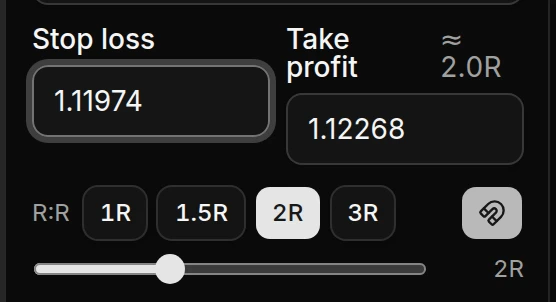
- Magnet on: moving the stop loss, by typing or dragging, re-places the take profit at the selected R. On a market order, the stop and target also move with the live price, so the distances and the risk stay the same.
- Magnet off: the stop loss and take profit move independently. The chips and slider follow whatever ratio your two prices make.
Move stops on an open position
Each open position on the chart has a solid entry line, plus solid lines for its stop loss and take profit once they’re set. To hide them, open Chart settings and clear Show active positions.
- Drag the position’s stop loss or take profit line to the new price.
- Let go. A prompt next to the line asks you to confirm, for example “Move SL to 1.08310?”. For a stop loss it also shows what the position now risks, in money and as a share of your balance, starting “Risk becomes”.
- Click Confirm to send the change to your broker. Cancel or Esc puts the line back.
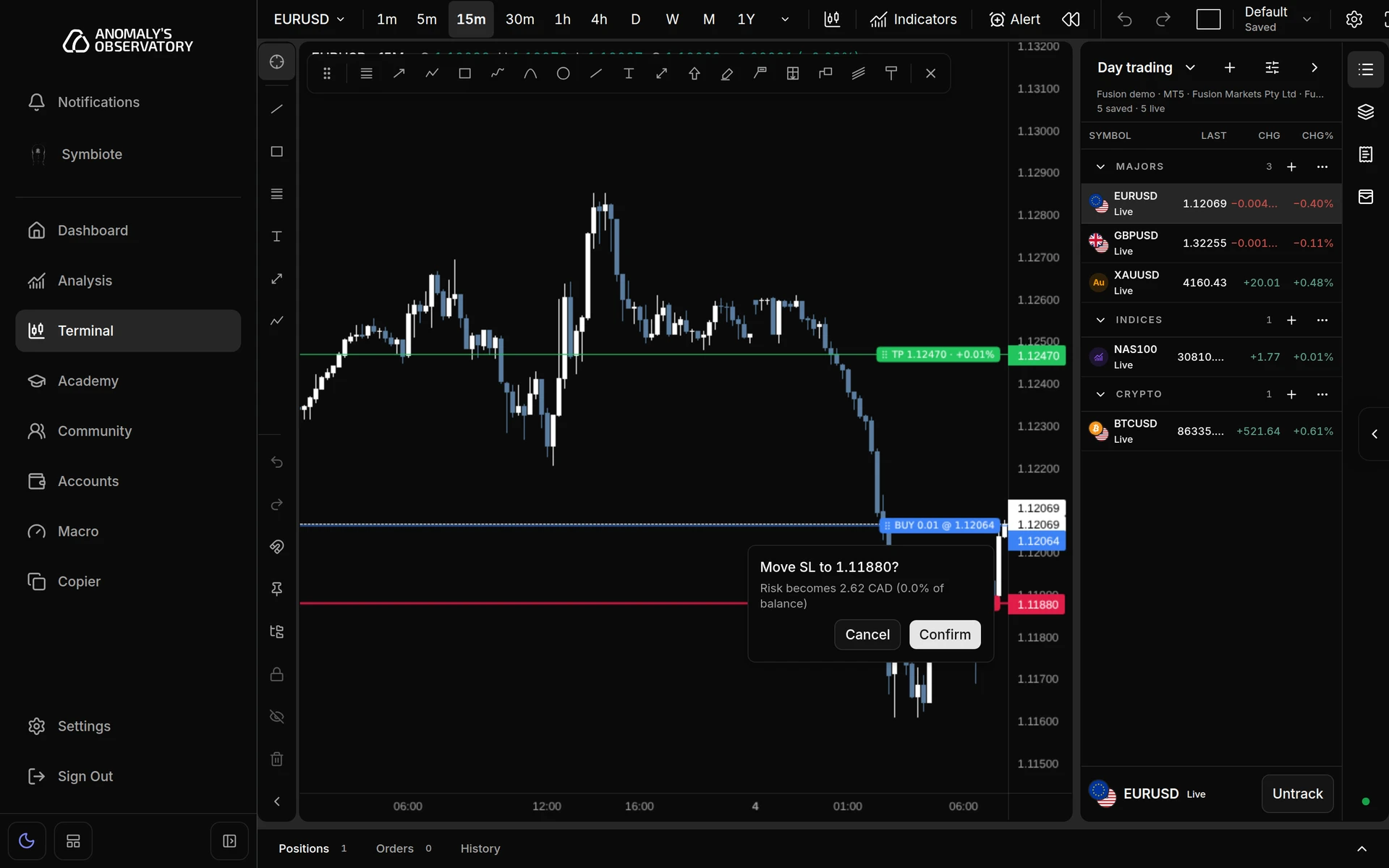
If the new price breaks a broker rule, such as a stop on the wrong side of the price or too close to it, the prompt shows the reason with Dismiss and nothing is sent.
A toast confirms the change, such as “Stop loss updated”. If the broker refuses it, the line snaps back and a toast gives the reason.
Add a missing stop by dragging the entry line
If a position has no stop loss or take profit, drag its entry line. On a buy, drag up for a take profit or down for a stop loss. On a sell, it’s the reverse. The line takes the stop’s colour while you drag. This change is sent as soon as you let go, without a prompt, and a toast confirms it with “Stop loss set” or “Take profit set”.
Type the stops instead
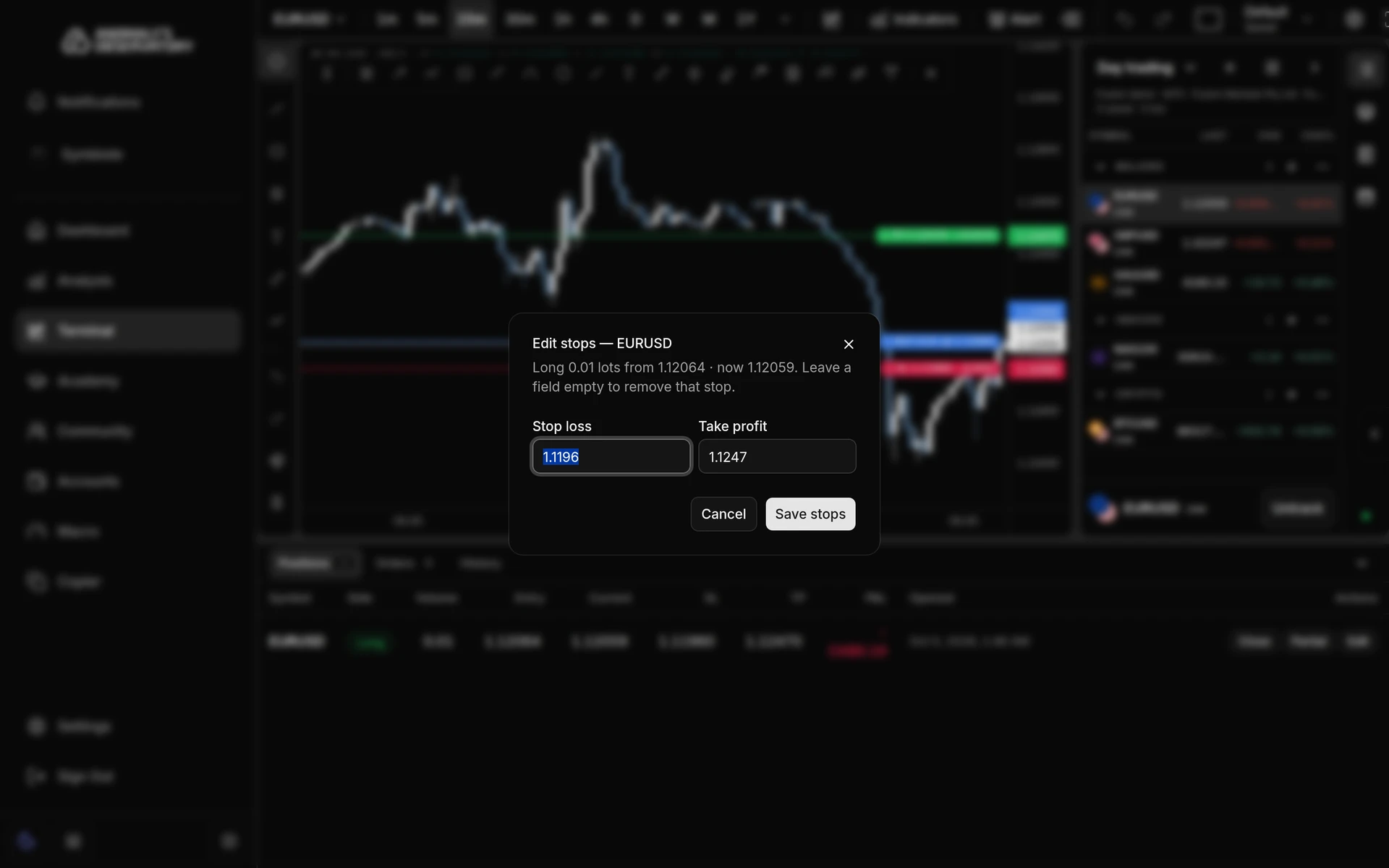
- Click Edit on the position’s row in the Positions tab under the chart.
- Change Stop loss or Take profit. Leave a field empty to remove that stop.
- Click Save stops.
Setting a 2R pair from the ticket, dragging the new lines, then moving a stop on an open position.
Stops on a pending order
A pending order’s dashed stop loss and take profit lines drag the same way and ask you to confirm. You can also use Modify in the Orders tab. See Place a pending order.
Rules the ticket checks
The ticket and the drag prompt check stops against the live price before anything is sent. On a pending order they check against your open price instead.
| Message | What to do |
|---|---|
| “Stop loss must be below the current price for a buy” | Move the stop below the price. A sell needs it above. |
| “Take profit must be above the current price for a buy” | Move the target above the price. A sell needs it below. |
| “Stop loss must be at least 10 points from the current price” | Your broker sets a minimum distance for stops. Move it further away. The number comes from your broker. |
| “The stop loss must be a price” | In Edit stops or Modify, the field has something other than a number. |