
Dashboard
Read your accounts, chart, macro view and study progress on one board, and choose which lanes it shows.
The dashboard is the first page you see after signing in. It borrows a little from each module you use: one lane each for Analysis, Terminal, Academy and Macro, side by side like columns on a board.
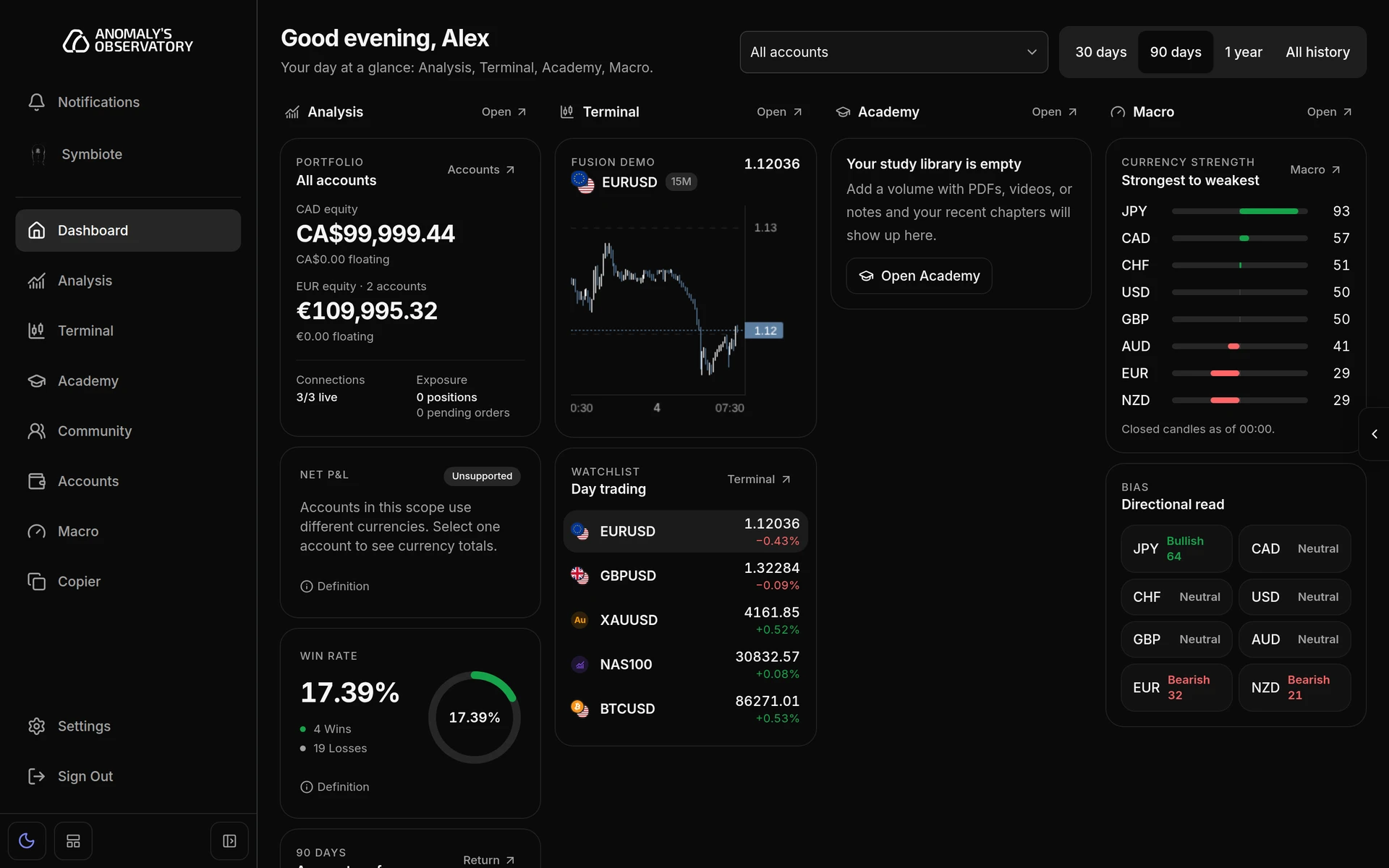
The header
The greeting uses your first name and the time of day. Underneath, the line “Your day at a glance” lists the lanes on your board.
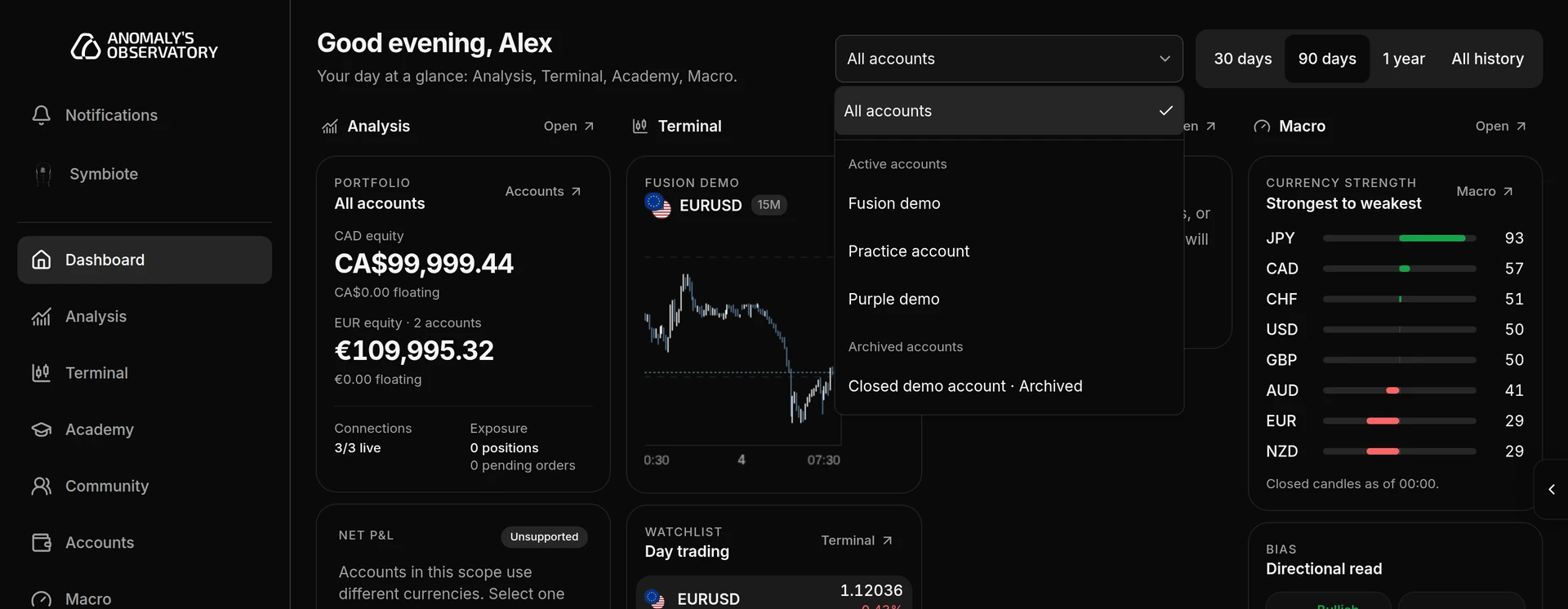
Once you have at least one trading account, two controls appear on the right:
- The account picker. Choose All accounts, or one account from Active accounts or Archived accounts. As on Analysis, All accounts adds up exactly the accounts listed in the picker, so trades from accounts you’ve removed from Accounts aren’t counted.
- The period buttons: 30 days, 90 days, 1 year and All history. The board opens on 90 days.
The period applies to the Analysis lane. The account applies to every lane that reads account data. Terminal and Macro need a live connection, so when you pick an archived account they keep showing your default account.
If a connection needs you, a Portfolio Needs Attention banner sits above the board. Each line names the account and what’s wrong, with Open Connection or Continue setup to fix it.
The lanes
Every lane has an Open link in its header that takes you to the full module.
Analysis
- Portfolio: equity and floating P&L for each account currency, how many connections are live, and your open positions and pending orders. Accounts opens your account list.
- Net P&L and Win rate for the account and period you picked. Win rate needs at least 10 closed trades in that scope. Until then it shows Insufficient sample and how many trades are recorded.
- Account performance: your cumulative P&L curve. Return opens the same view in Analysis.
Terminal
A small copy of your Terminal: the chart for the symbol and timeframe you last had open, and up to eight symbols from your active watchlist with live prices and daily change. Click a symbol to chart it. The Terminal switches to that symbol too, so the two stay in step.
Before you connect an account, the lane shows AO Market Data prices with a Connect an account to trade button, when that feed is available.
Macro
Currency strength ranks the eight major currencies from strongest to weakest. Bias shows each one as Bullish, Bearish or Neutral with a conviction score. The Macro page explains both.
Academy
Recent chapters lists the last three chapters you studied, with study time and when you last opened them. In a library you haven’t started, it shows the first chapters under Start here. Volumes lists each volume with its chapter count and your total study time.
Choose and arrange the lanes
The board follows your sidebar. A lane appears only for modules you have turned on, and lanes sit in the same order as the sidebar. Change either in Settings.
- Open Settings from the bottom of the sidebar, then Navigation.
- To move a lane, use the up and down arrows beside the module. Moving Macro above Terminal in the list moves its lane to the left of the Terminal lane. Modules marked In Development sit in the list too, so this can take several clicks.
- To remove a lane, turn off the switch beside the module. The module leaves the sidebar too, and its page stops opening.
- Click Back to app at the bottom of the Settings menu. The board already shows the new order.
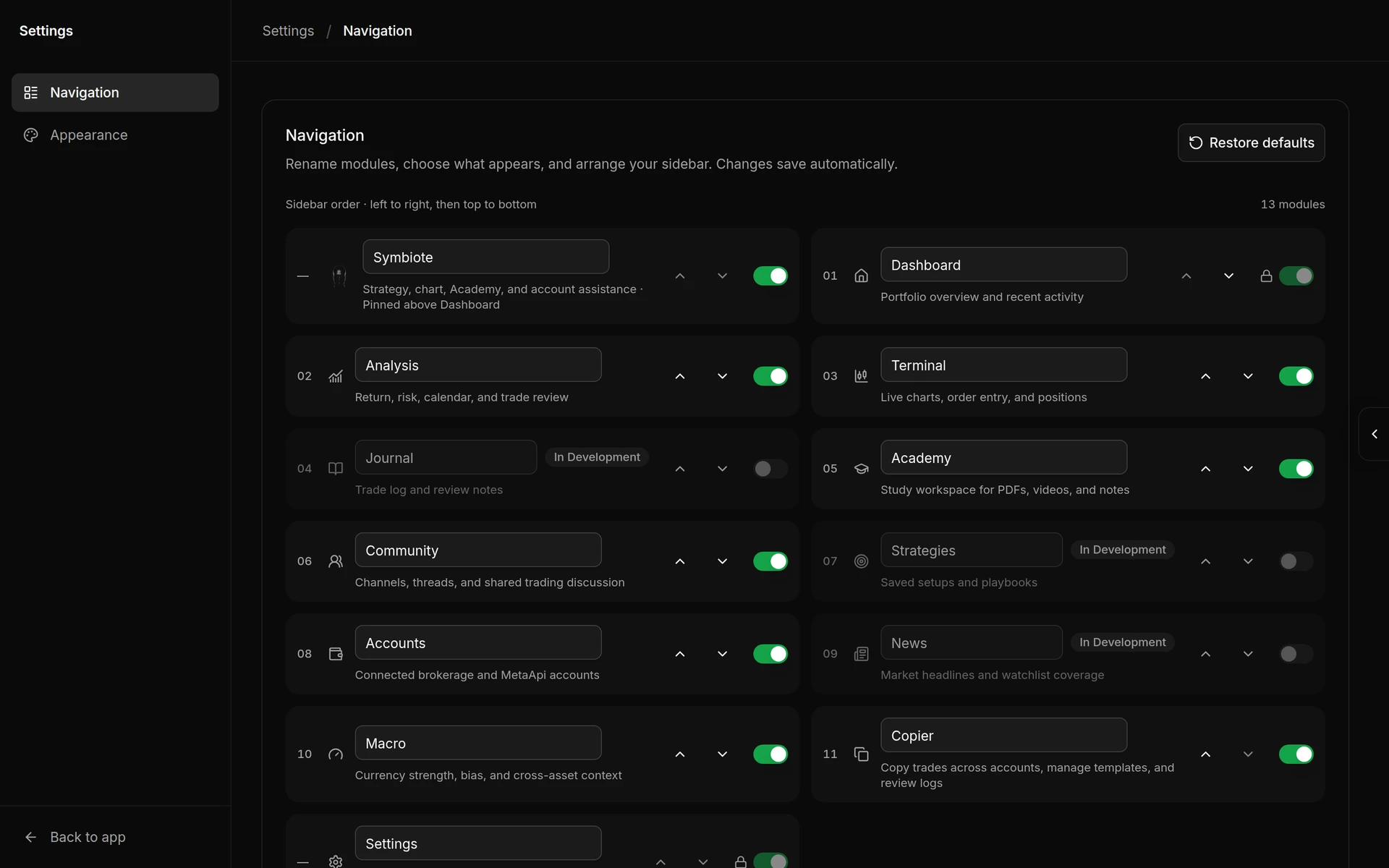
Moving Macro ahead of Terminal in Settings, Navigation, then checking the board.
Changes save as you make them. If you rename a module on the same page, its lane uses your name. Restore defaults puts every module back in its original order.
When the board is empty
- No trading account yet: a Connect Your First Trading Account card with a Connect Account button appears above the board. New members may see the Get started checklist here instead. See Connect a trading account.
- Every lane turned off: the board shows “Nothing on the board yet” and an Open Settings button.
On a phone the lanes stack one under another, in the same order.