
Modify and close positions
Edit a position's stops, close part of it, or close all of it from the Positions tab in the terminal.
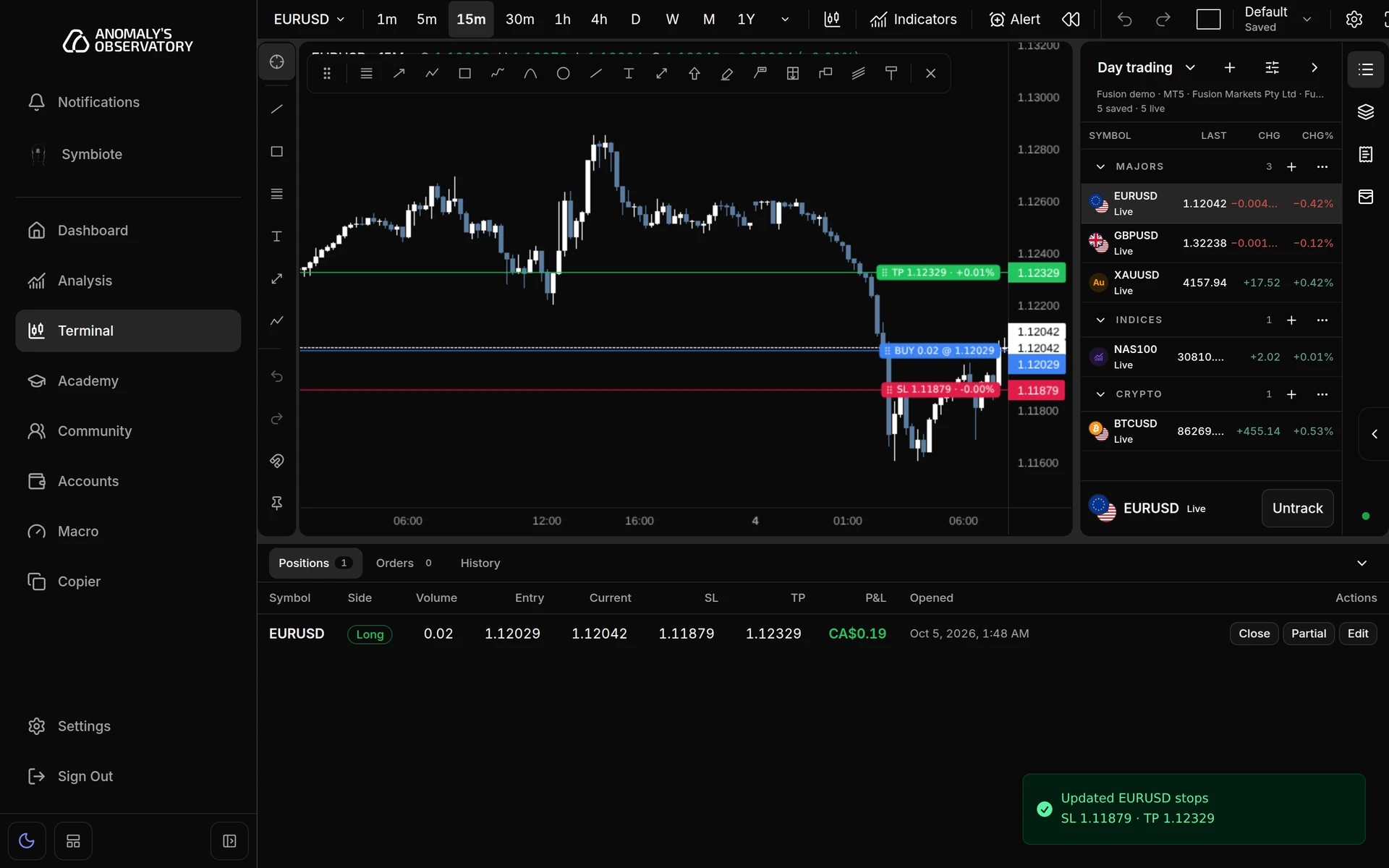
Your open positions are listed in the Positions tab under the chart. Each row has three actions: Close for the whole position, Partial for part of it, and Edit for its stops.
Find your positions
Open Terminal and click Positions under the chart. The number beside it is how many positions are open on the selected account. Click the tab again, or the arrow at the right end of the bar, to collapse the panel.
Each row shows Symbol, Side (Long or Short), Volume, Entry, Current, SL, TP, P&L and Opened. Hover over the P&L to see swap and commission. Click any price or volume to copy it.
The Exposure tab on an account’s page lists the same positions, but it’s read-only. Manage positions from the terminal.
Edit stops
- Click Edit on the position’s row.
- Change Stop loss or Take profit. The dialog shows the entry and the current price for reference. Leave a field empty to remove that stop.
- Click Save stops.
A toast confirms with “Updated EURUSD stops”. You can also drag the stop lines on the chart. See Set take profit and stop loss.
Close part of a position
- Click Partial on the position’s row.
- Type the Volume to close. It starts at half the position, rounded down to your broker’s lot step. The line under the field shows the step and how many lots stay open.
- Click the close button, which restates the volume, for example Close 0.01 lots.
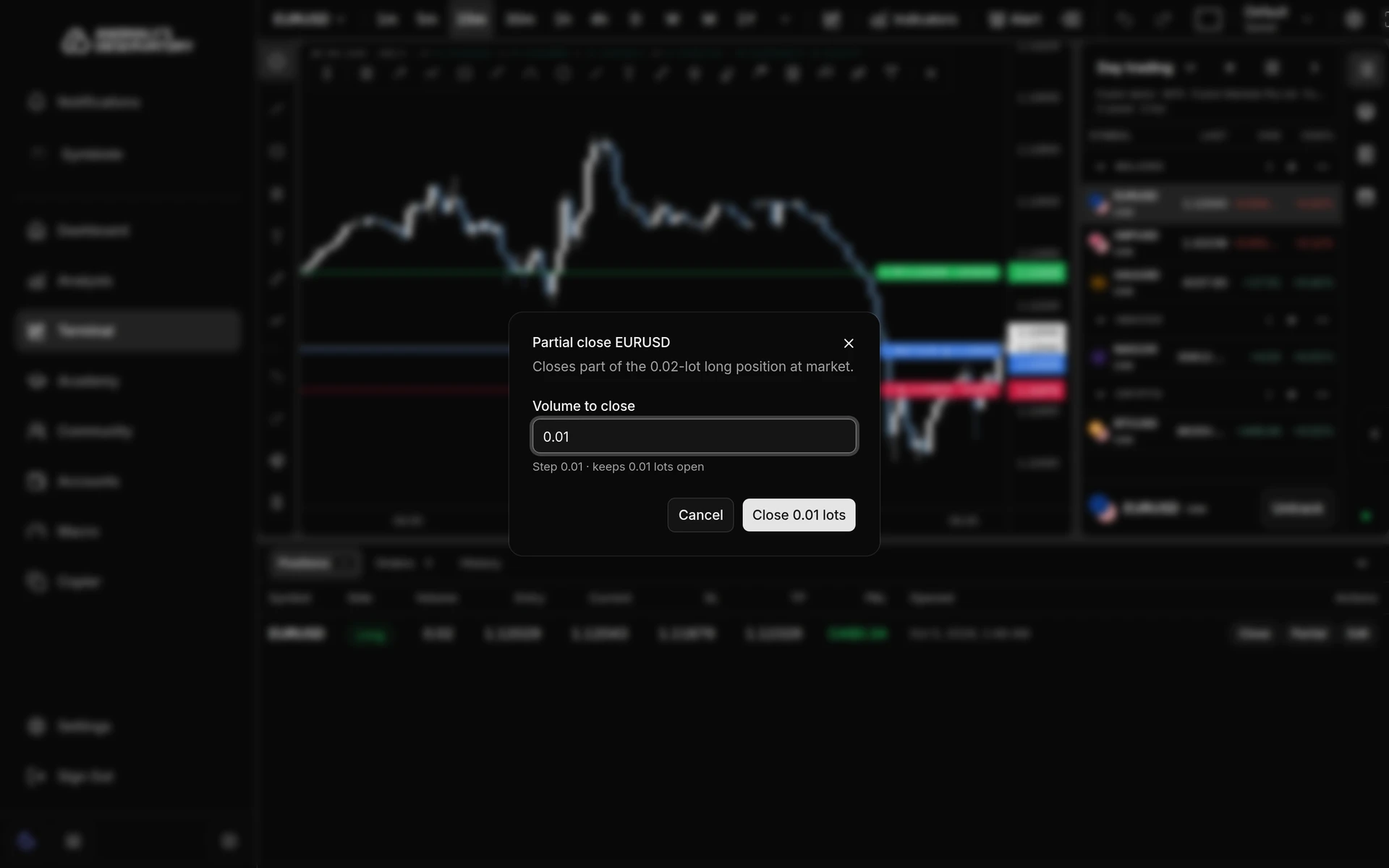
The part you close fills at market, and a toast confirms it, for example “Closed 0.01 of 0.02 EURUSD”. The rest of the position stays open.
The volume must be at least your broker’s minimum, a multiple of the lot step, and smaller than the position. To close everything, use Close instead.
Close a whole position
- Click Close on the position’s row.
- Check the dialog. It names the volume and symbol, for example “Close 0.01 EURUSD?”, and shows the current P&L.
- Click Close position. Keep position backs out without changes.
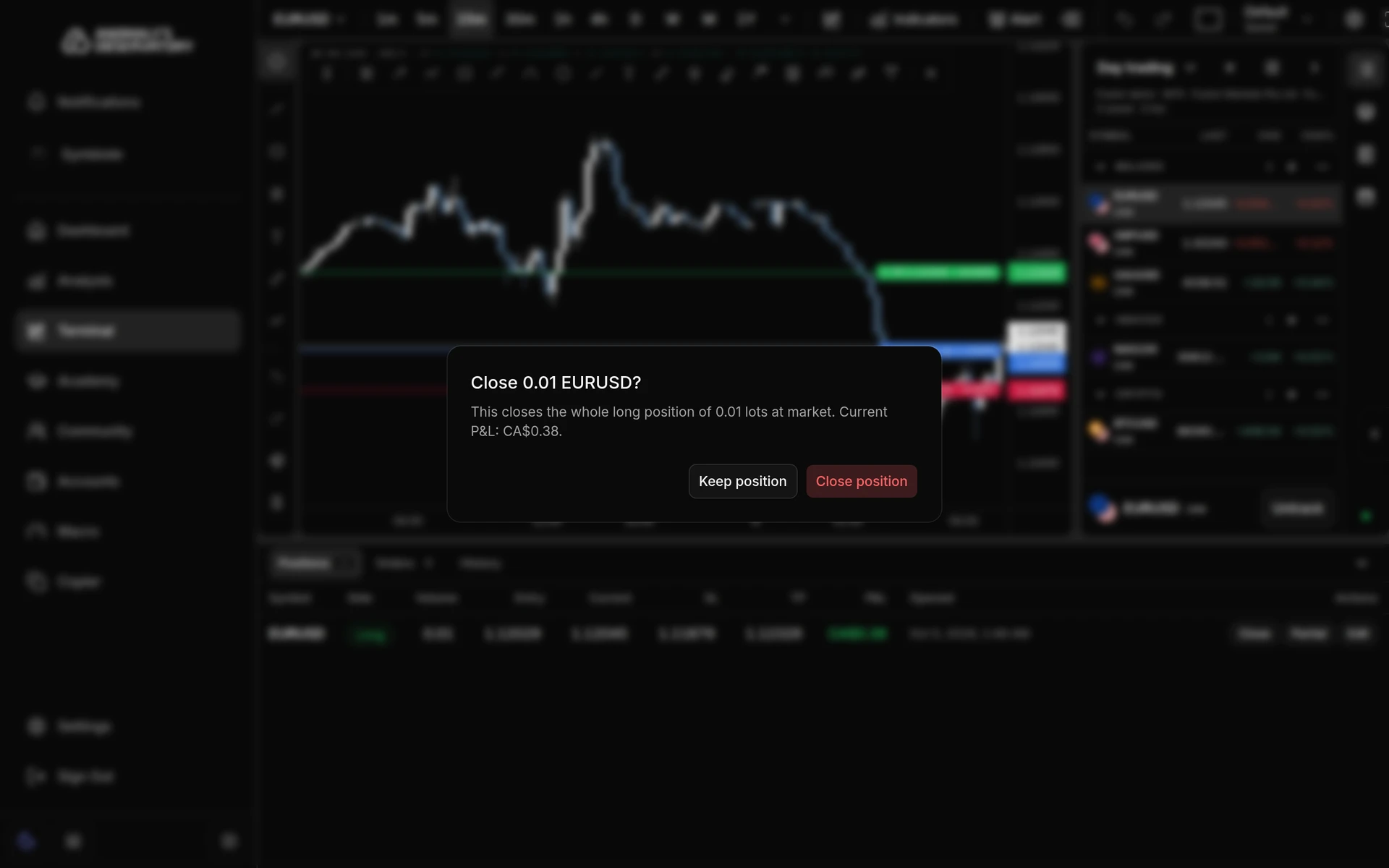
The position closes at market and a toast confirms it, for example “Closed 0.01 EURUSD”. The row leaves Positions and the trade appears in History, which can take a few minutes while your broker’s records sync. A position closed in several parts shows as one row in History, marked with the number of partial exits. Click the arrow next to the symbol to list each exit.
A 0.02-lot EURUSD position: stops edited, 0.01 lots closed, the rest closed, then both exits in History.
If the broker connection drops
Close, Partial and Edit stay available while the connection is down, so you can always try to reduce risk. The dialog warns: “The broker connection is interrupted. This waits up to 10 s for the broker and sends nothing if it can’t be reached.” New orders stay paused until the connection is back.
If Positions doesn’t match your broker
AO compares Positions with your broker every few minutes. If a position stays listed after your broker has closed it, one is missing, or one shows the wrong volume, AO reconnects that account by itself and the list corrects itself. Your broker’s own MetaTrader app always shows what’s really open.
MetaApi also resynchronises each account every so often, for example when it moves the account to another server. AO reloads only the trades it hasn’t loaded yet, so Positions and Orders catch up within moments of the resync finishing.
If an account’s live connection drops and hasn’t come back after two minutes, AO checks that your broker still answers. If it does, AO reconnects that account by itself and Positions and Orders start updating again. It does this each time the connection drops, as often as every five minutes. If your broker can’t be reached either, AO waits for MetaApi to restore the connection.
If a close or edit fails
| Toast | What it means |
|---|---|
| Close failed, Partial close failed or Stop update failed | The broker refused the request. The message gives the reason. The position is unchanged. |
| Close not confirmed, Partial close not confirmed or Stop update not confirmed | The broker didn’t answer in time. The change may still have gone through. Check Positions before you try again. |
| “This ticket isn’t synchronized yet, so its other stop is unknown. Try again in a moment.” | The terminal is still loading the position’s current stops. Wait a second and save again. |