
Settings
Choose, rename and reorder the modules in your navigation, and set the app's colours.
Settings controls what’s in your navigation and how AO looks.
Open Settings
Click Settings at the bottom of the sidebar. In the stacked layout, it’s in the menu under your name at the top right.
Settings swaps the app’s sidebar for its own menu:
- Navigation, which opens first.
- Appearance.
At the bottom of that menu, Back to app returns you to the page you came from. On a phone, tap the menu button at the top left to open the Settings menu.
Navigation
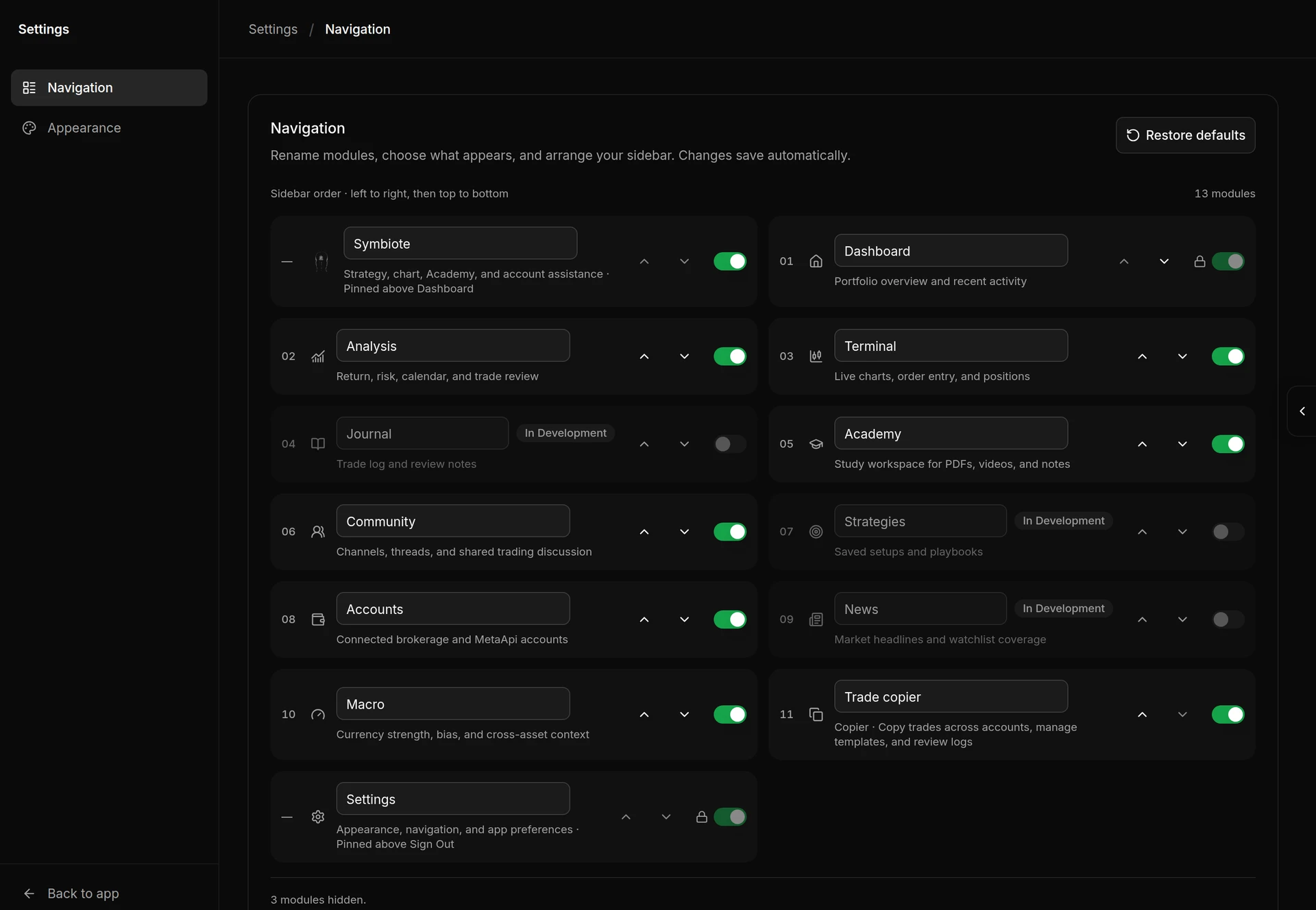
This page lists every module in sidebar order, reading left to right, then top to bottom. Changes save as you make them, and they’re stored with your account, so they follow you to other browsers and devices.
For each module you can:
- Rename it. Type a new name in its field, up to 32 characters. Once you’ve renamed a module, the line under it shows the original name. To undo a rename, type the original name back.
- Move it. Use the up and down arrows at the end of the row. Modules marked In Development keep their place in the list too, so a move can take an extra click. Only the main list moves: Symbiote stays pinned above Dashboard, and Settings and Billing stay pinned above Sign Out.
- Show or hide it. Use the switch at the end of the row. A hidden module drops out of the navigation and its pages stop opening. If you follow a link to it, you land on the Dashboard with a note saying it’s turned off.
Some switches can’t be changed:
- Dashboard and Settings are always on, marked with a lock.
- Requires access means your role doesn’t include that module. Ask an AO administrator.
- An In Development badge means the module isn’t released yet, so it stays off.
Restore defaults puts back the original names, order and visibility.
The Dashboard follows this page too. It shows a lane for each of Analysis, Terminal, Macro and Academy that you have turned on, in your navigation order.
Appearance
Appearance choices are saved in this browser only. On another browser or device, set them again.
Light and dark mode aren’t on this page. Use the sun or moon button under the sidebar, described in the tour of the app. Until you pick, AO follows your device’s setting.
Colors
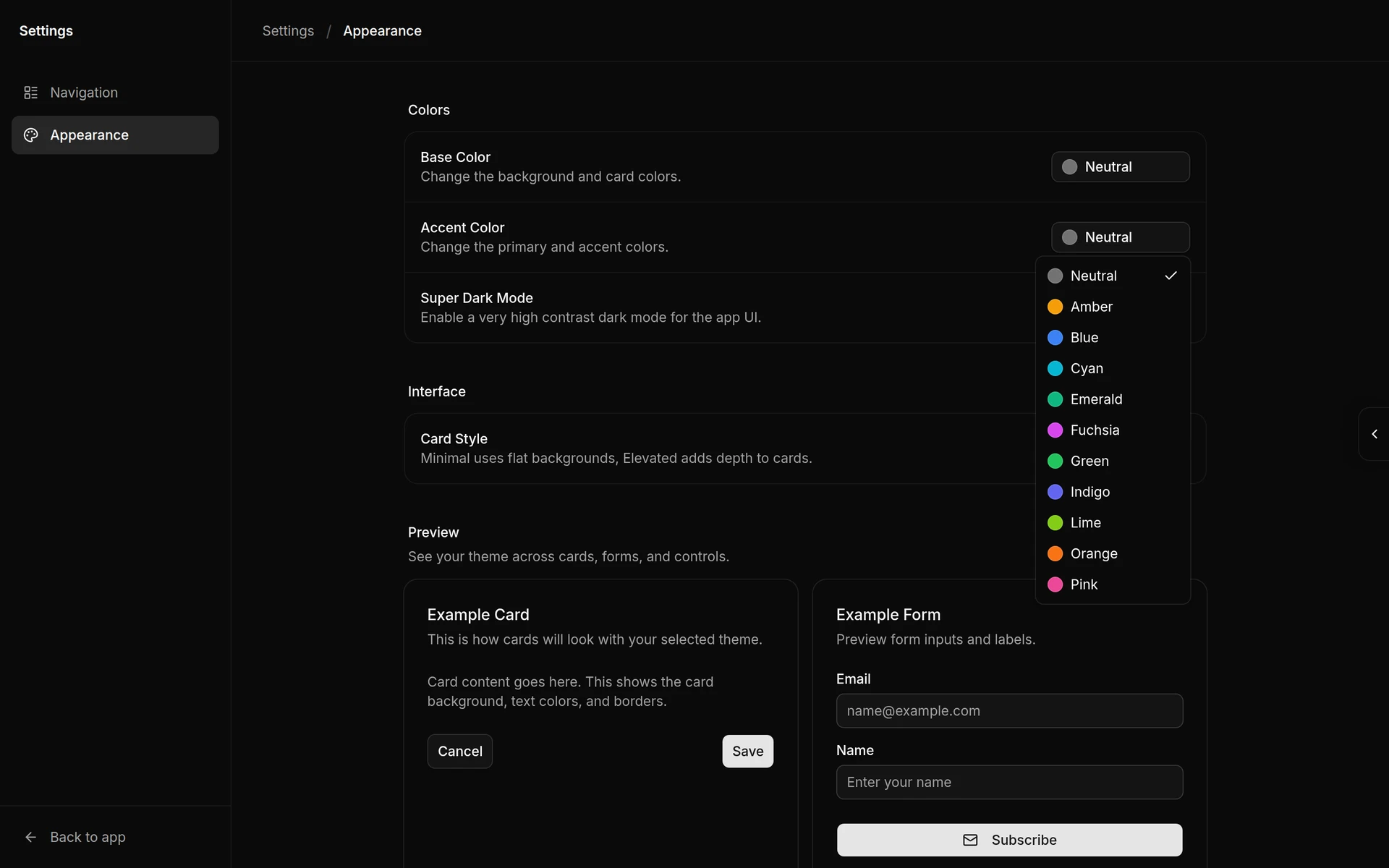
- Base Color changes the background and card colours. Choose Neutral, Stone, Zinc or Gray.
- Accent Color changes the primary and accent colours, such as buttons and highlights. Choose Neutral or one of ten colours, such as Blue or Emerald.
- Super Dark Mode switches on a very high contrast dark mode. Switching to light mode turns it off.
Interface
Card Style sets how cards look. Minimal uses flat backgrounds and Elevated adds depth.
Preview
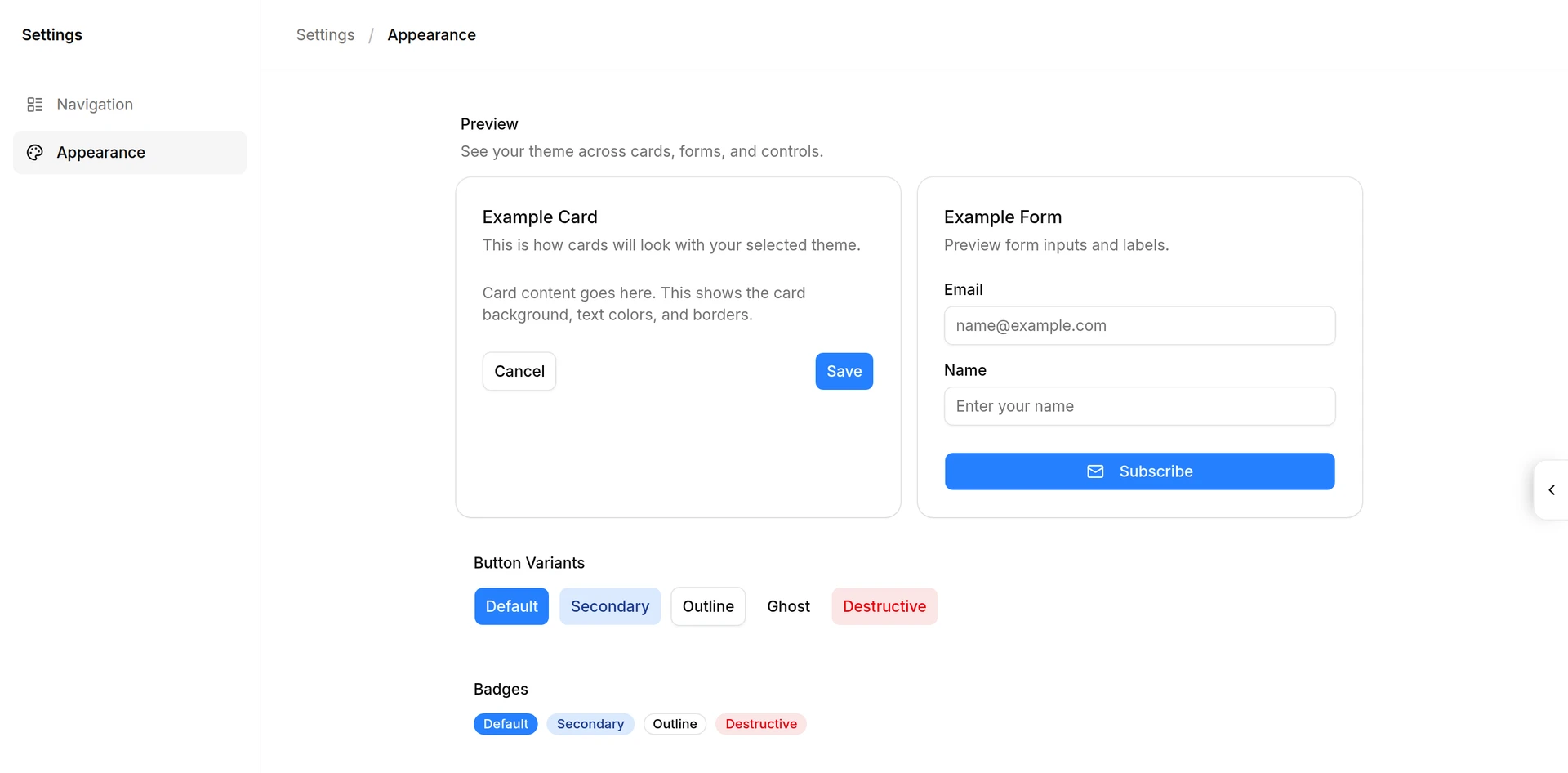
The Preview section shows sample cards, a form, buttons and badges in your current colours, so you can check a choice before you leave the page.
Brand preview
Brand preview lets you see AO with another name and other logos, in this browser only. It doesn’t change anything for anyone else.
- Fill in any of Name, Short name, Tab title, Assistant name and Market feed label.
- Upload logos if you want them. There are slots for the full logo and the compact mark, each for light and dark mode. Each file must be under 300 KB. A slot you leave empty uses the other mode’s file.
- Adjust the logo size and zoom under Logo sizing if the logo looks too big or small. Reset logo sizing undoes your changes.
- Click Apply preview. The page reloads and the whole app uses the preview.
To go back to normal, click Clear preview.