
Place a pending order
Set a limit or stop order from the order ticket or straight from the chart, then change or cancel it while it waits.
A pending order waits at the broker until price reaches the level you set, then fills. AO places two kinds:
- Limit: a buy below the current ask, or a sell above the current bid. You’re waiting for a better price.
- Stop: a buy above the current ask, or a sell below the current bid. You’re waiting for a breakout.
Place it from the order ticket
- Open Terminal, show the symbol on the chart, and click Trade ticket in the right-hand rail.
- Choose Buy or Sell.
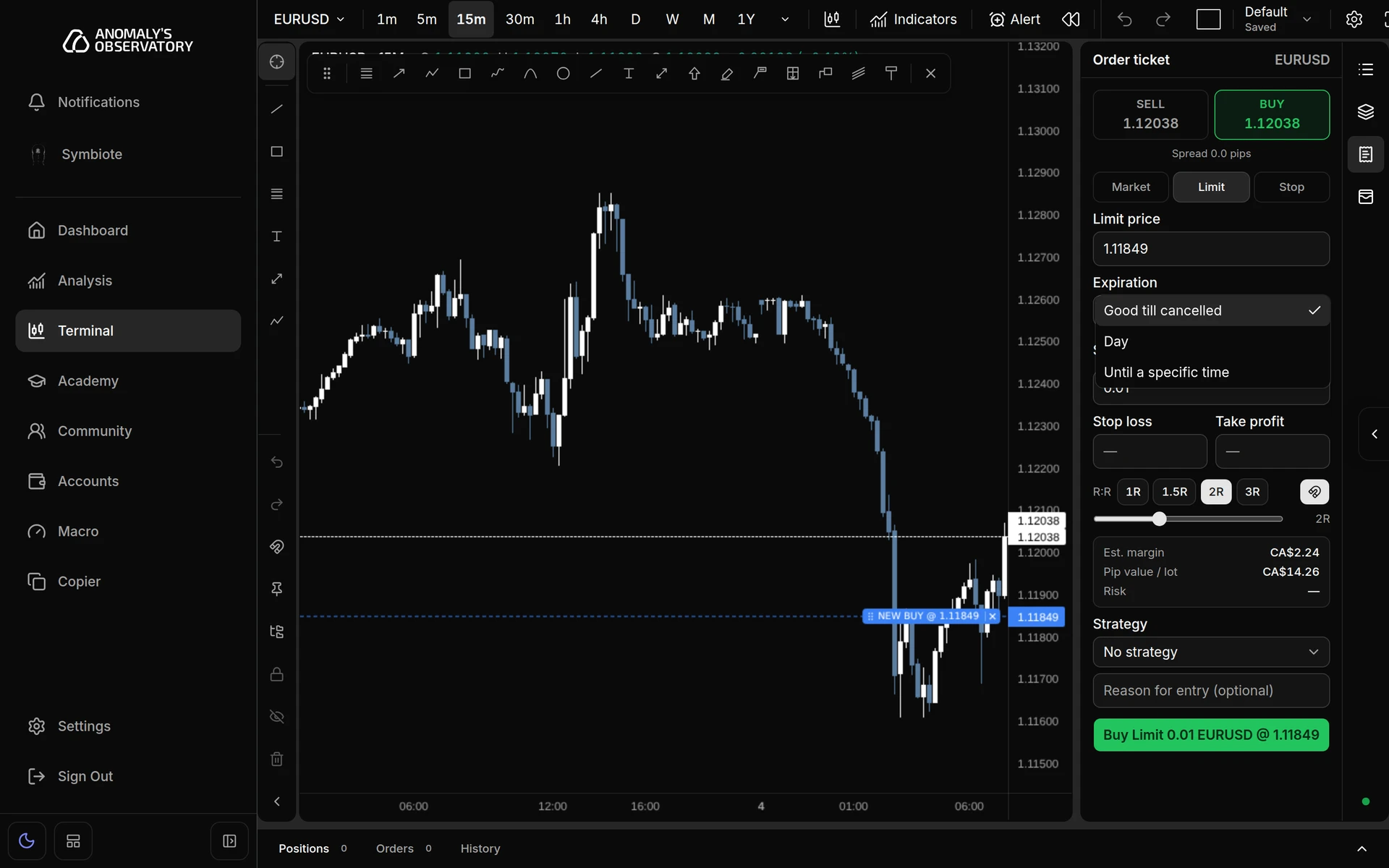
- Click Limit or Stop. The Limit price or Stop price field fills with the current ask for a buy, or the bid for a sell.
- Change that price to where the order should trigger. A dashed entry line for the new order appears on the chart, and you can drag it instead of typing.
- Choose an Expiration: Good till cancelled, Day, or Until a specific time. For a specific time, pick the date and time in the field that appears. MT4 accounts don’t offer Day.
- Set the size, and add a Stop loss and Take profit if you want them. On a pending order, both are measured from your open price.
- Click the submit button. It restates the order, for example Buy Limit 0.01 EURUSD @ 1.08000.
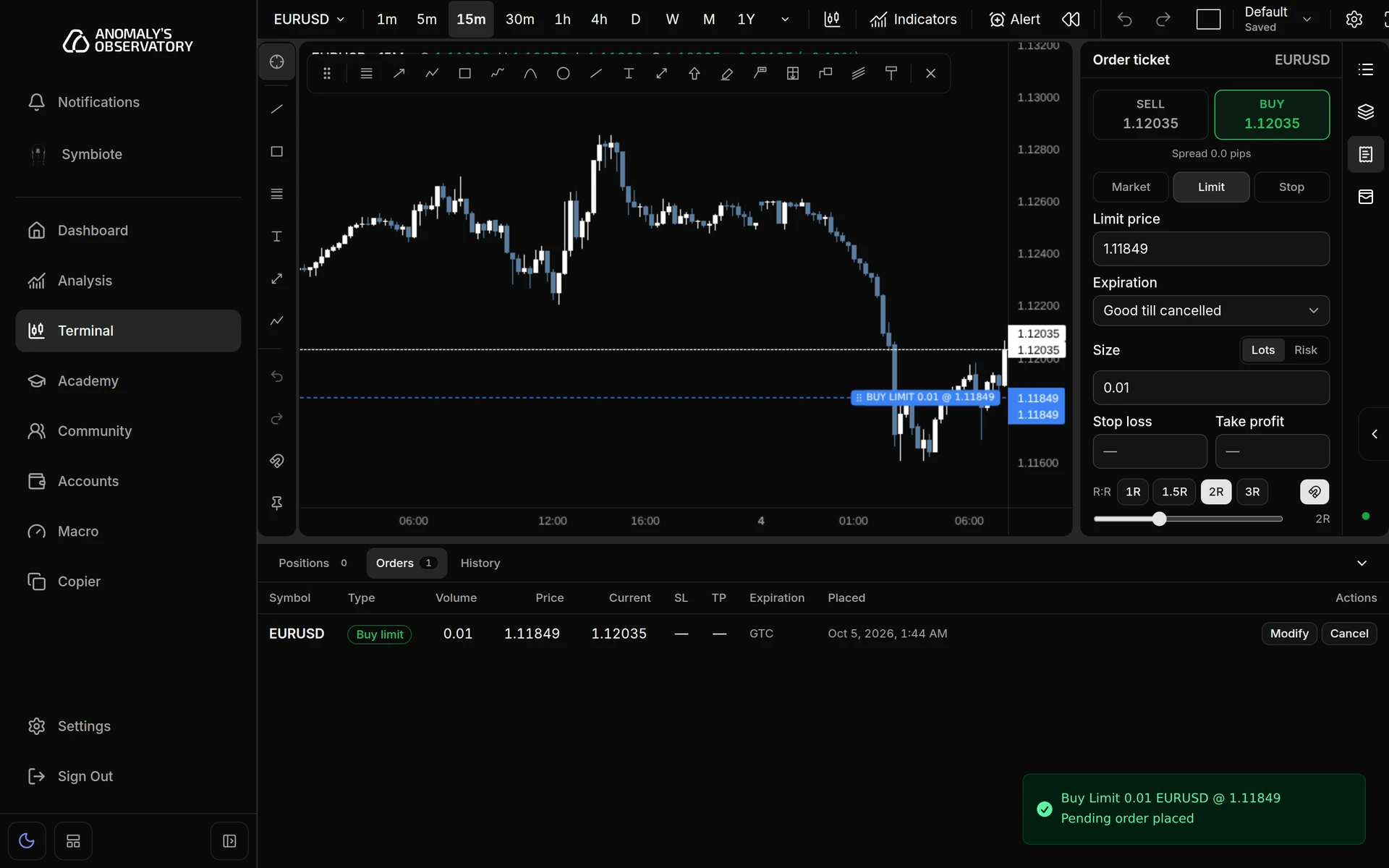
A toast confirms the order with Pending order placed, and the order appears in the Orders tab under the chart.
The ticket checks that the price is on the right side of the market before it lets you submit. Because the field starts at the current ask or bid, a new limit or stop order shows a message such as “A buy limit must be below the current ask” until you move the price.
Place it from the chart
- Move the pointer over the chart at the price you want. A + button follows it along the right edge, next to the price scale. You can also right-click the chart at that price.
- Click + and choose an order, for example Buy EURUSD @ 1.08000 limit or Sell EURUSD @ 1.08000 stop. The menu picks limit or stop for you from where that price sits against the market. Add order on EURUSD at 1.08000… starts a buy at that price.
- The order ticket opens with the side, order type and price filled in. Check the size and stops, then click the submit button.
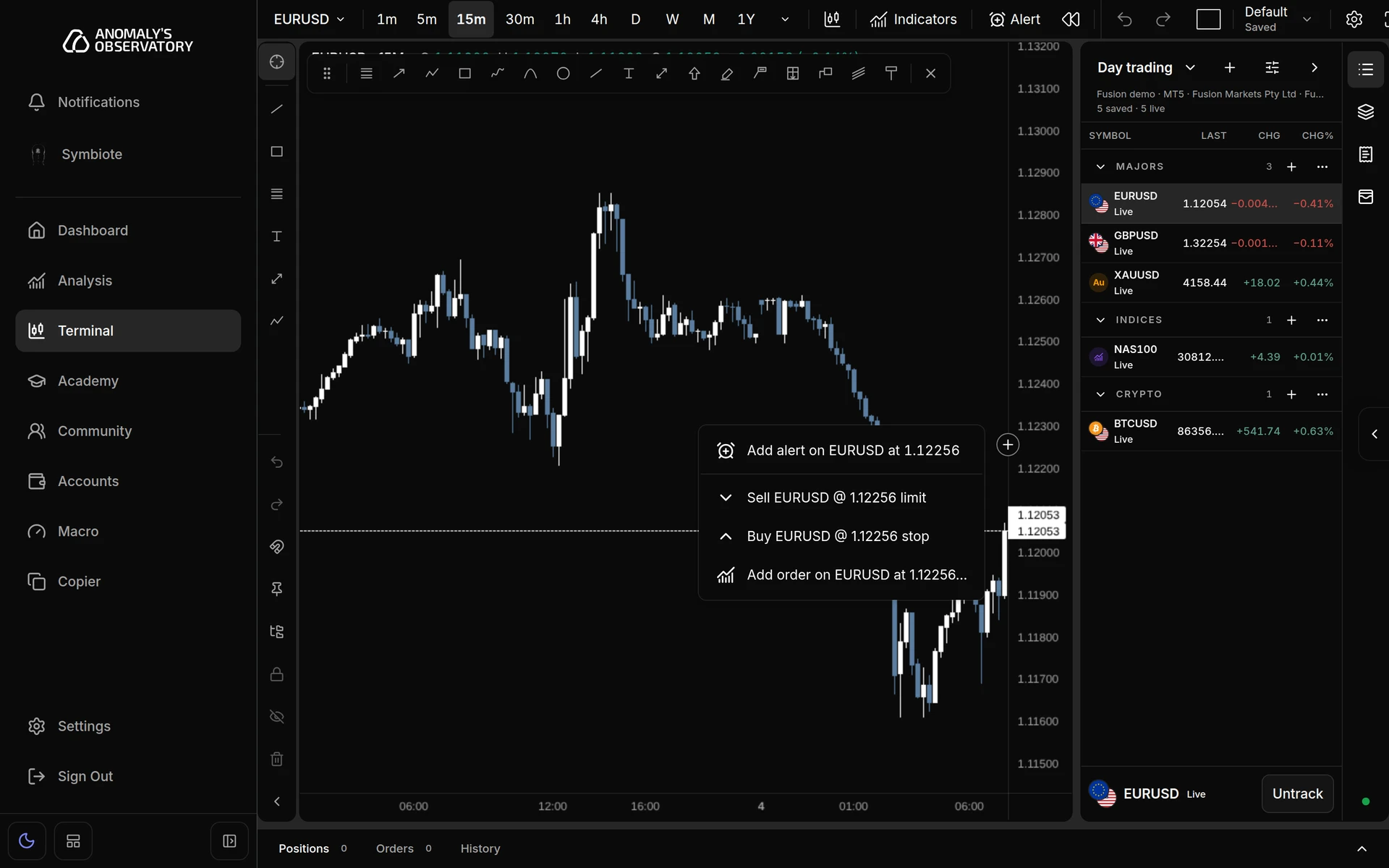
Choosing an order from the menu only fills the ticket. Nothing is sent until you click the submit button.
Change a pending order
Your waiting orders are in the Orders tab under the chart. Each row shows the type, volume, price, current price, stops, Expiration (GTC for good till cancelled) and when it was placed.
- Click Modify on the order’s row.
- Change the Open price, Stop loss or Take profit. Leave a stop field empty to remove that stop.
- Click Save order.
The dialog doesn’t change the volume or the expiration. To change either, cancel the order and place a new one.
You can also drag the order’s dashed entry, stop loss or take profit line on the chart. When you let go, a prompt asks you to confirm, for example “Move entry to 1.07950?”. Click Confirm to send the change, or Cancel to put the line back. Esc does the same as Cancel.
Cancel a pending order
- Click Cancel on the order’s row in Orders.
- Read Cancel this order?, which restates the order, and click Cancel order. Keep order closes the dialog and leaves the order in place.
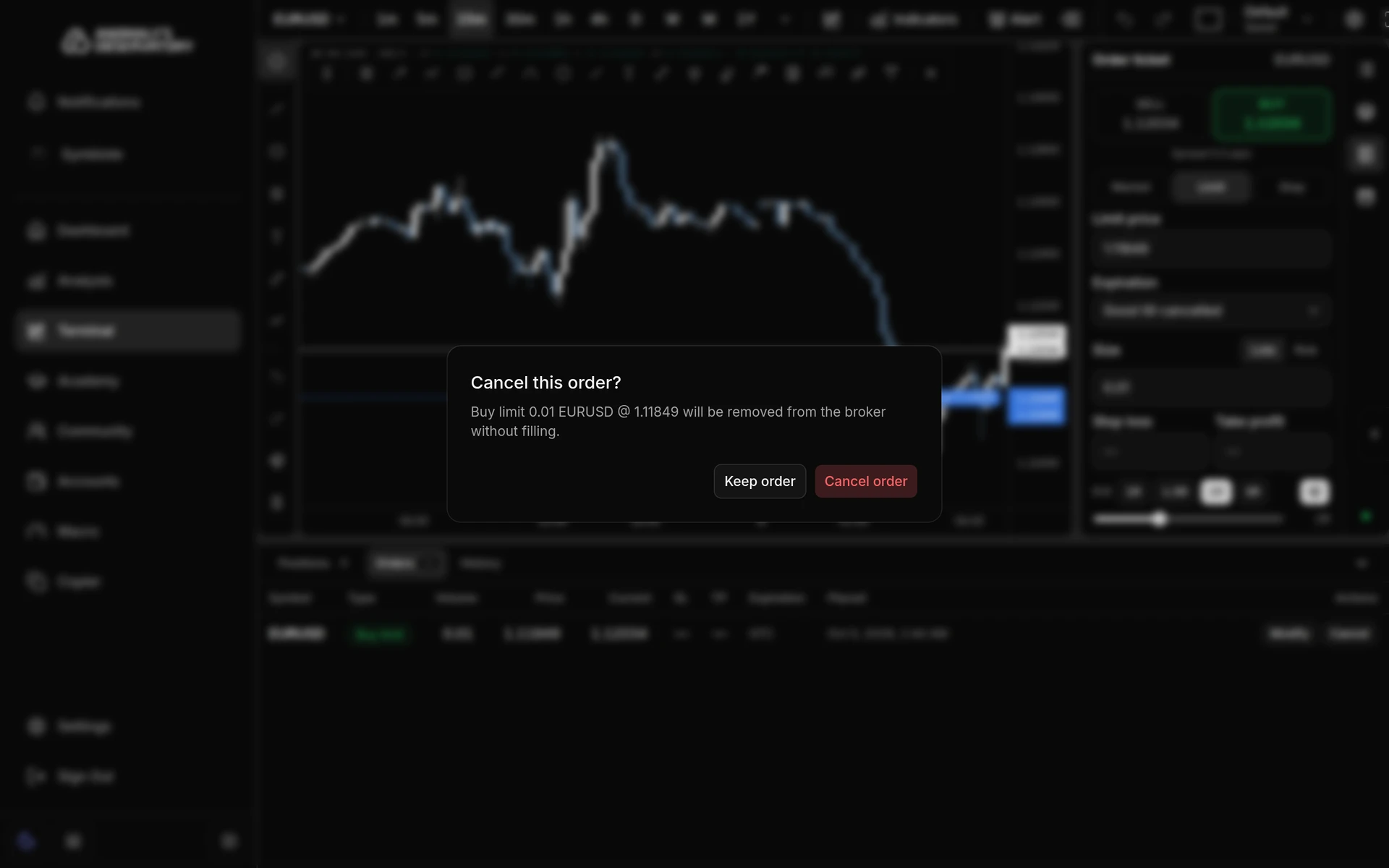
The broker removes the order without filling it, and a toast confirms the cancellation.
A 0.01-lot EURUSD buy limit placed from the ticket, then cancelled from the Orders tab.
If the order is refused
| Message | What to do |
|---|---|
| “A buy limit must be below the current ask” | Move the price below the ask, or switch to Stop. The same check applies to sell limits and to stop orders on the other side. |
| “The open price must be at least 10 points from the current price” | Your broker sets a minimum distance. Move the price further from the market. The number comes from your broker. |
| “Enter an open price” | Type a price in Limit price or Stop price. |
| “Pick an expiration date and time” | You chose Until a specific time. Fill in the date and time field. |
| “The expiration must be in the future” | Pick a later time. |
Modify and Cancel stay available if the broker connection drops. The dialog then warns that it waits up to 10 seconds for the broker and sends nothing if it can’t reach it. New orders, including pending ones, are paused until the connection is back. The other connection messages are listed on Place a market order.