
Place a market order
Buy or sell at the current price from the order ticket and find the new position under the chart.
A market order fills straight away at the broker’s current price. You place it from the order ticket beside the chart.
Before you start
- A connected MetaTrader 4 or 5 account. See Connect a trading account. Sample accounts can’t place trades.
- The right account selected in the terminal. The terminal opens on your default account. To trade a different one, click Account details in the rail on the right edge of the terminal and pick the account under Feed & execution.
Place the order
- Open Terminal from the sidebar and show the symbol you want on the chart, for example EURUSD. Your broker may add a suffix, such as EURUSD_ecn.
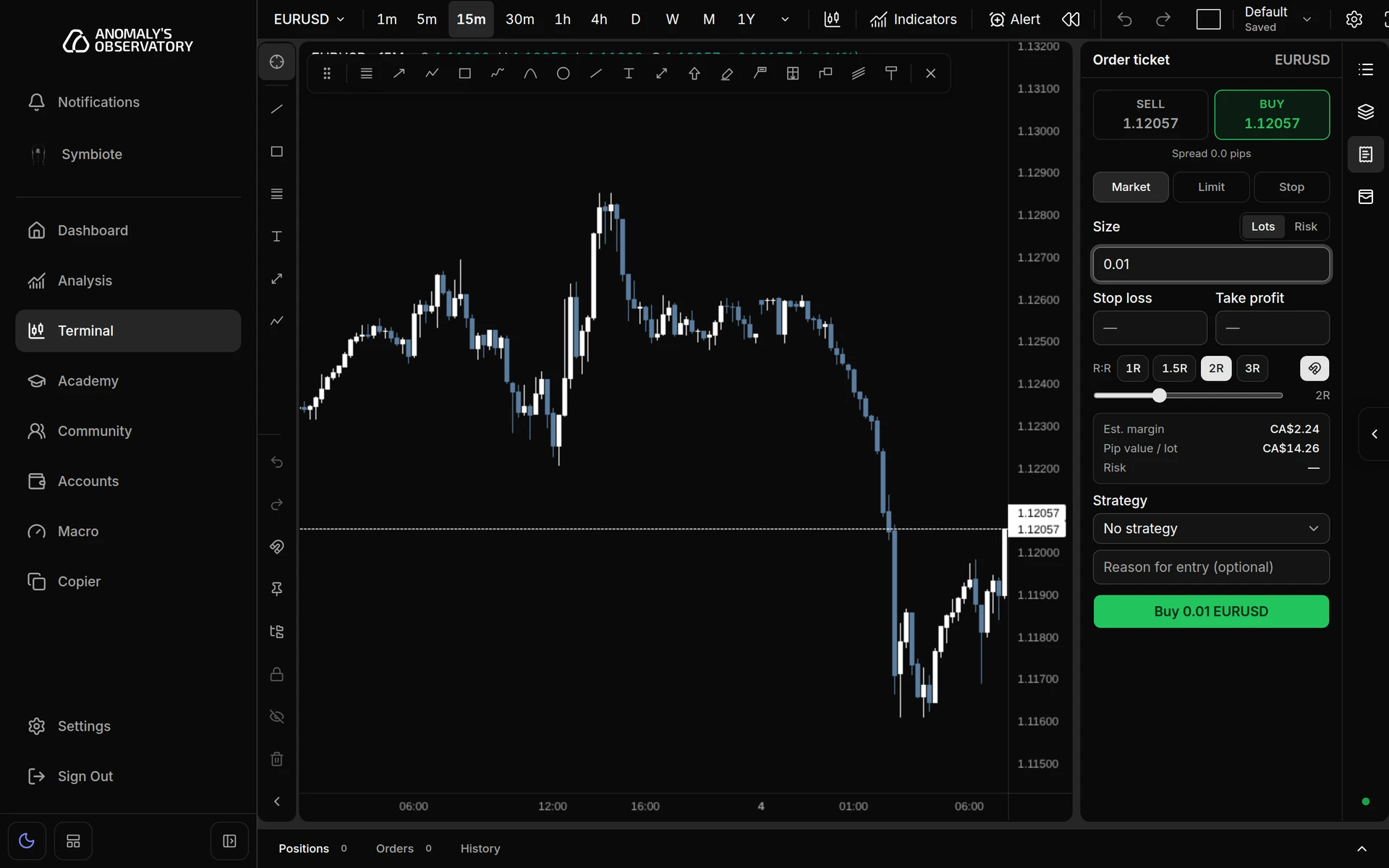
- Click Trade ticket in the rail on the right edge of the terminal. The Order ticket opens with the chart’s symbol in its header.
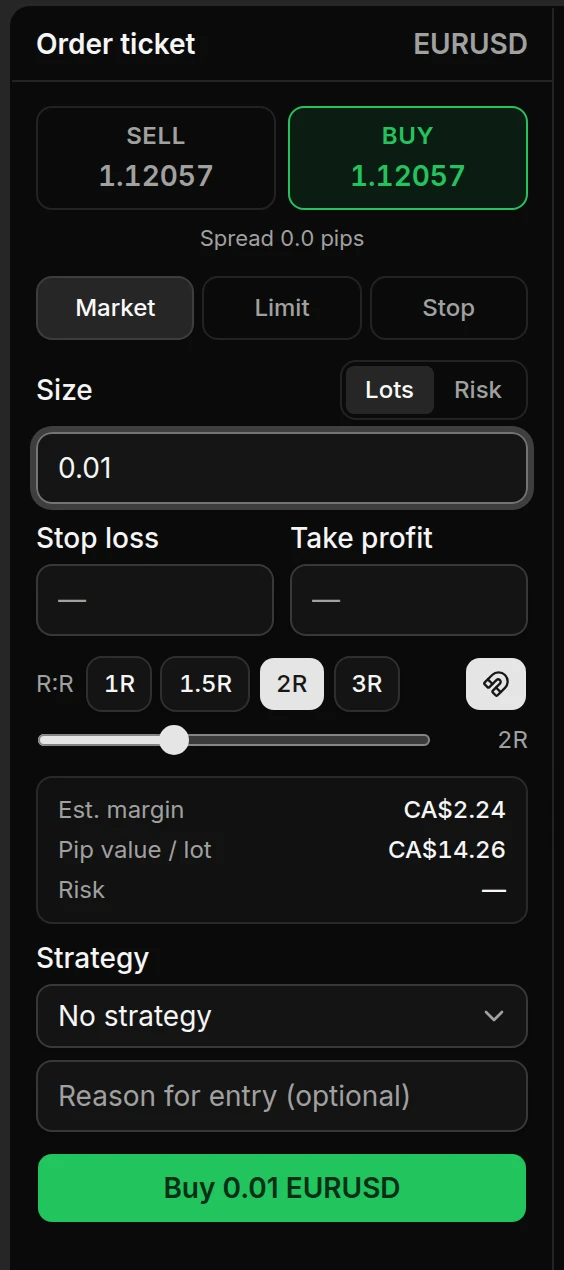
- Choose Buy or Sell. Each button shows the price you’d fill at: Buy shows the ask and Sell shows the bid. The spread in pips is underneath.
- Leave the order type on Market.
- Set the size. The ticket starts in Risk mode, which sizes the trade from a stop loss. To trade a fixed size instead, click Lots and type the volume, for example
0.01. Position sizing and risk checks explains risk mode. - Optional: add a Stop loss and Take profit, or drag them on the chart. See Set take profit and stop loss.
- Optional: pick a Strategy and type a reason in Reason for entry (optional). Both are saved with the trade for your journal.
- Click the submit button at the bottom of the ticket. It restates the order, for example Buy 0.01 EURUSD.
A market order on a live price goes out as soon as you click. There’s no second confirmation.
Buying 0.01 lots of EURUSD on a demo account.
What happens next
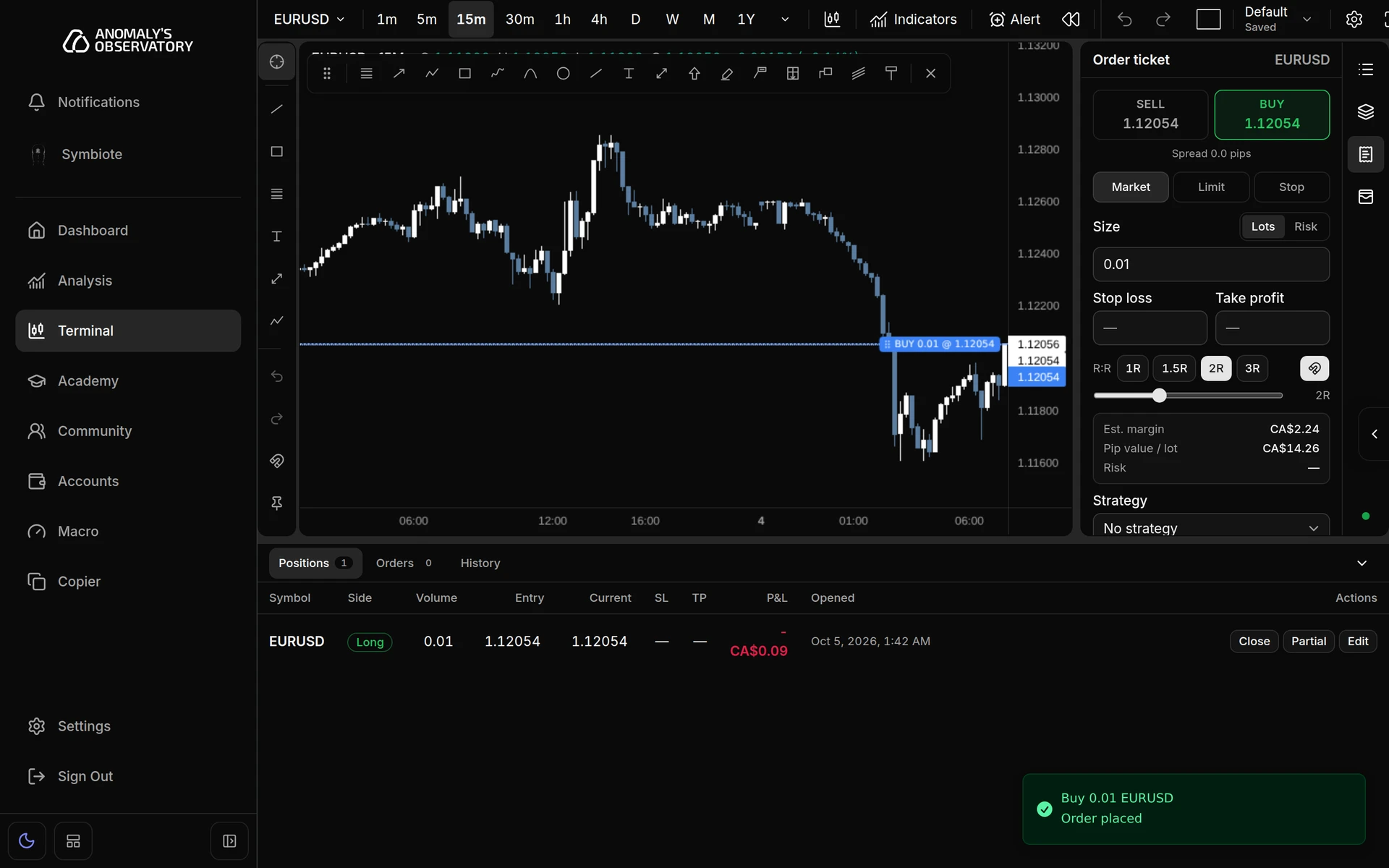
- A toast titled with the order, such as “Buy 0.01 EURUSD”, says Order placed. If the broker was slow to answer, it says the order was confirmed after a slow broker response.
- The position appears in the Positions tab under the chart, and its entry line appears on the chart. If the panel under the chart is collapsed, click Positions to open it.
- The ticket keeps its settings, including any stop loss and take profit, ready for your next order.
To manage the position, see Modify and close positions.
On a phone
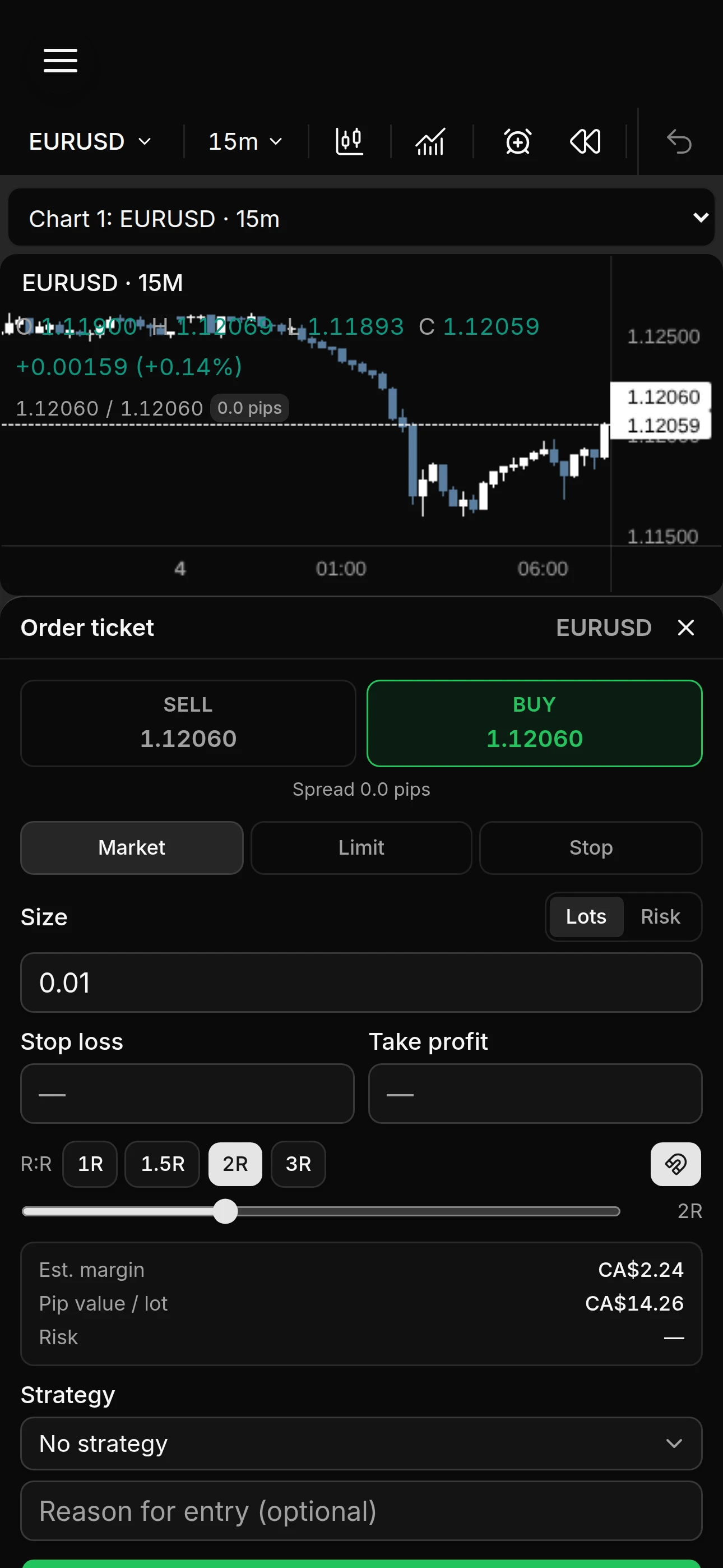
The chart fills the screen. Tap Trade at the bottom right to open the order ticket as a sheet. The chart stays live above it, so you can still drag the order’s lines. Tap the × in the ticket’s header to close it.
There’s no Account details panel on a phone. To trade a different account, tap the symbol name above the chart and pick the account at the top of Symbol search.
If the order doesn’t go out
When the order can’t be sent, the submit button is greyed out and the reason appears under it.
| Message | What it means |
|---|---|
| “Waiting for market data…” | Prices or the symbol’s details haven’t loaded yet. Wait a moment. |
| “Reconnecting to the broker. New orders are paused until prices are live.” | The connection dropped. New orders resume when the banner above the chart clears. |
| “The broker connection failed. New orders are paused until it reconnects.” | Click Retry in the red banner above the chart. |
| “MetaApi lost its connection to your broker. New orders are paused until it reconnects.” | The link between MetaApi and your broker is down. Wait for it to come back. |
| “Live prices stopped updating. New orders are paused while the feed reconnects.” | The price feed stalled. The terminal reconnects it for you. |
| “The EURUSD market is closed.” | The symbol is outside its trading hours. |
| “Trading is disabled for this symbol” | Your broker doesn’t allow trading this symbol. “Only closing trades are allowed for this symbol” works the same way. |
| “Volume must be at least 0.01” | The size is below the broker’s minimum. Other volume messages give the maximum or the lot step. |
| “Live trading is paused during replay. Return to live to trade.” | Leave replay to trade. See Replay and paper trading. |
| “Trading is disabled for AO Market Data.” | The chart is on a read-only market data feed. Select a connected account under Account details. |
Old prices
If the last price for the symbol is more than 10 seconds old, the ticket shows how old it is next to the prices, for example “Last quote 14 s ago”. Clicking the submit button then opens Send this order?, which tells you the price’s age and that the order fills at the broker’s current price. Click Don’t send to back out, or click the order button in the dialog to send it anyway.
After you click
| Toast | What it means |
|---|---|
| Order not sent | Nothing reached the broker. The message says why. |
| Order rejected | The broker refused the order. On an account in Managed mode, the server’s risk check can also refuse it. The message gives the reason. |
| Order not confirmed | The broker didn’t answer in time. The order may still have filled. Check Positions and Orders before you try again. |