
Manage your accounts
Check each connected account's status, rename it, choose your default, fix its connection, and archive or remove it.
Accounts lists every MetaTrader account you’ve connected, with its status, equity and open trades. From here you open an account, change its name, choose which one the terminal opens on, fix a connection, or archive and remove it.
The accounts list
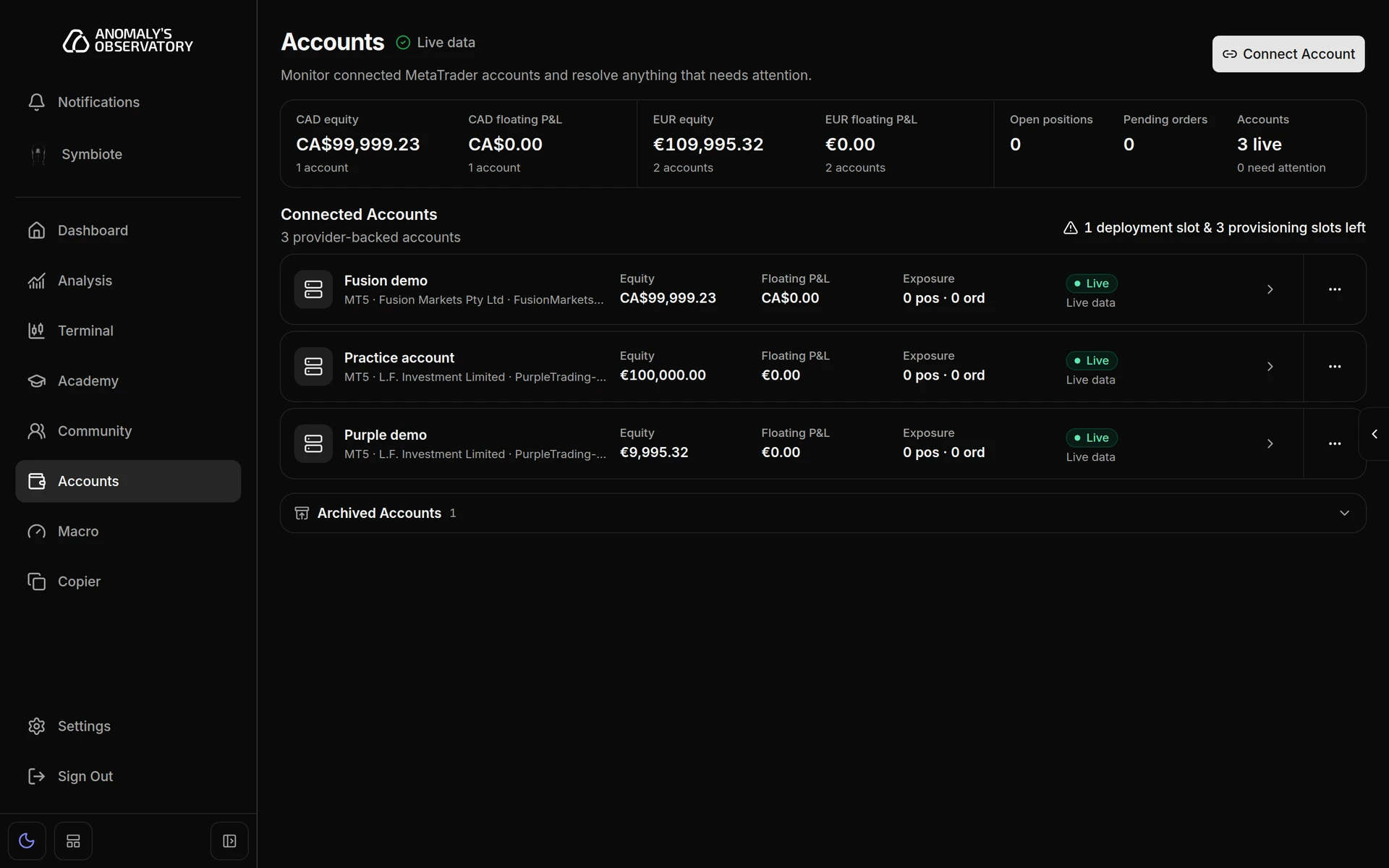
Open Accounts from the sidebar. Next to the heading, AO tells you how current the figures are: Live data, Partially current when some accounts are behind, or Cached data. Connect Account adds another account. See Connect a trading account.
Under Connected Accounts, each row shows:
- The account’s name, with Default next to your default account.
- The platform, broker, server and a masked login.
- A status badge and how fresh its figures are.
- Equity, Floating P&L and Exposure, the number of open positions and pending orders.
If something needs attention, a line under the row says what and when it was observed.
| Status | What it means |
|---|---|
| Live | The connection and the account’s figures are current. |
| Connecting | AO is waiting for the connection to start. |
| Needs credentials | The secure sign-in with your broker isn’t finished. |
| Degraded | The connection is recovering. The last known figures stay on screen, marked as cached. |
| Paused | You stopped monitoring the account. |
| Undeployed | The MetaApi terminal for this account isn’t running. |
| Failed | Setup or a connection step needs attention. |
| Archived | The account is kept for its history but no longer monitored. |
Row actions
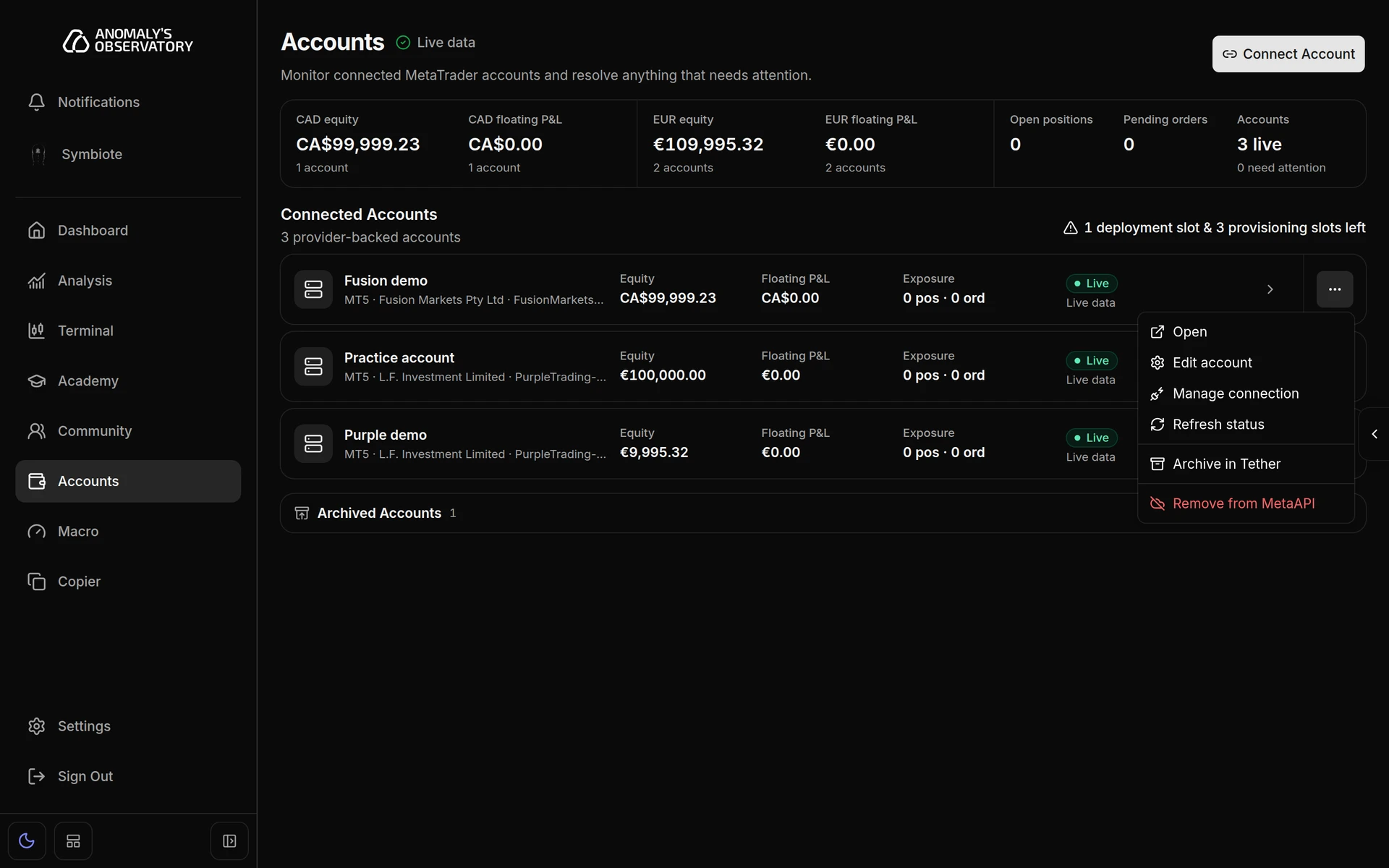
Click the ⋯ button at the end of a row for Open, Edit account, Manage connection, Refresh status, Archive account and Remove from MetaApi.
The account page
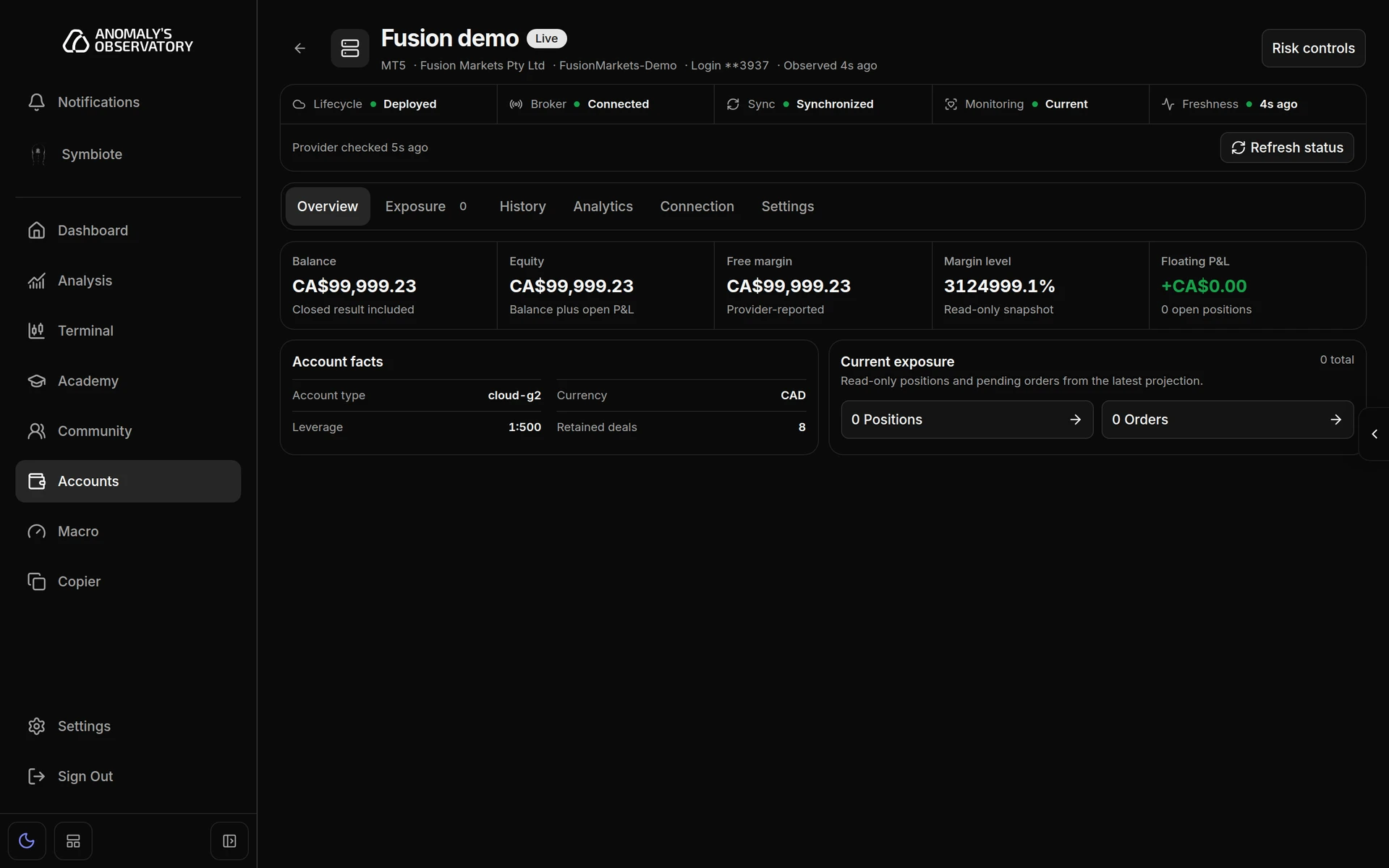
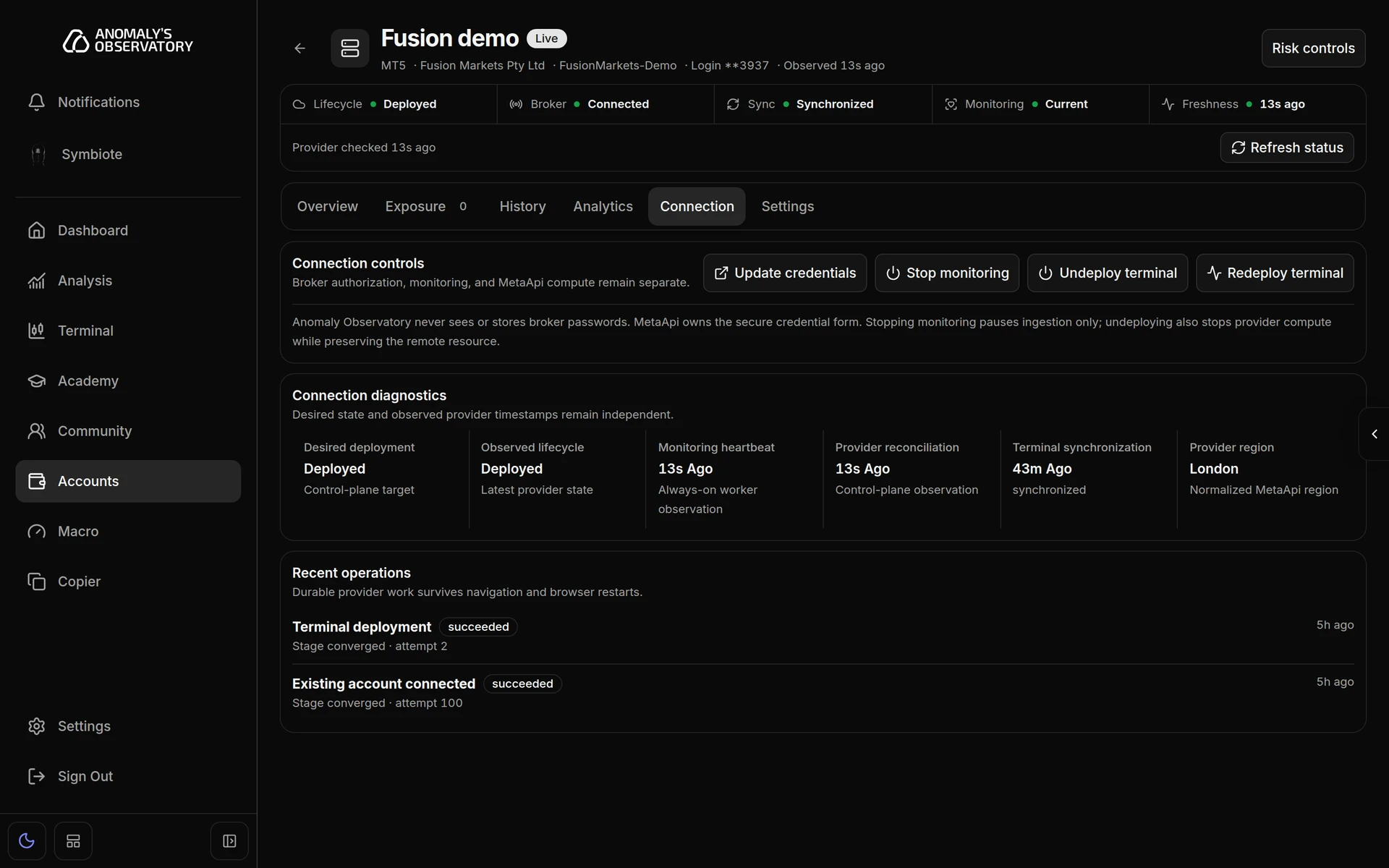
Click a row to open the account. The header shows its name, status, platform, broker, server, masked login and when it was last observed. Under it, a strip shows the connection’s Lifecycle, Broker, Sync, Monitoring and Freshness, with Refresh status to check again. Two buttons sit on the right:
- Risk controls opens the account’s rules.
- A connection button appears when something needs doing, such as Continue connection, Deploy account, Start monitoring, Resolve connection or View progress. It opens the Connection tab.
The tabs are Overview, Exposure, History, Analytics, Connection and Settings. Exposure lists the account’s open positions and pending orders. It’s read-only, so to trade or close positions, use the terminal.
Rename an account
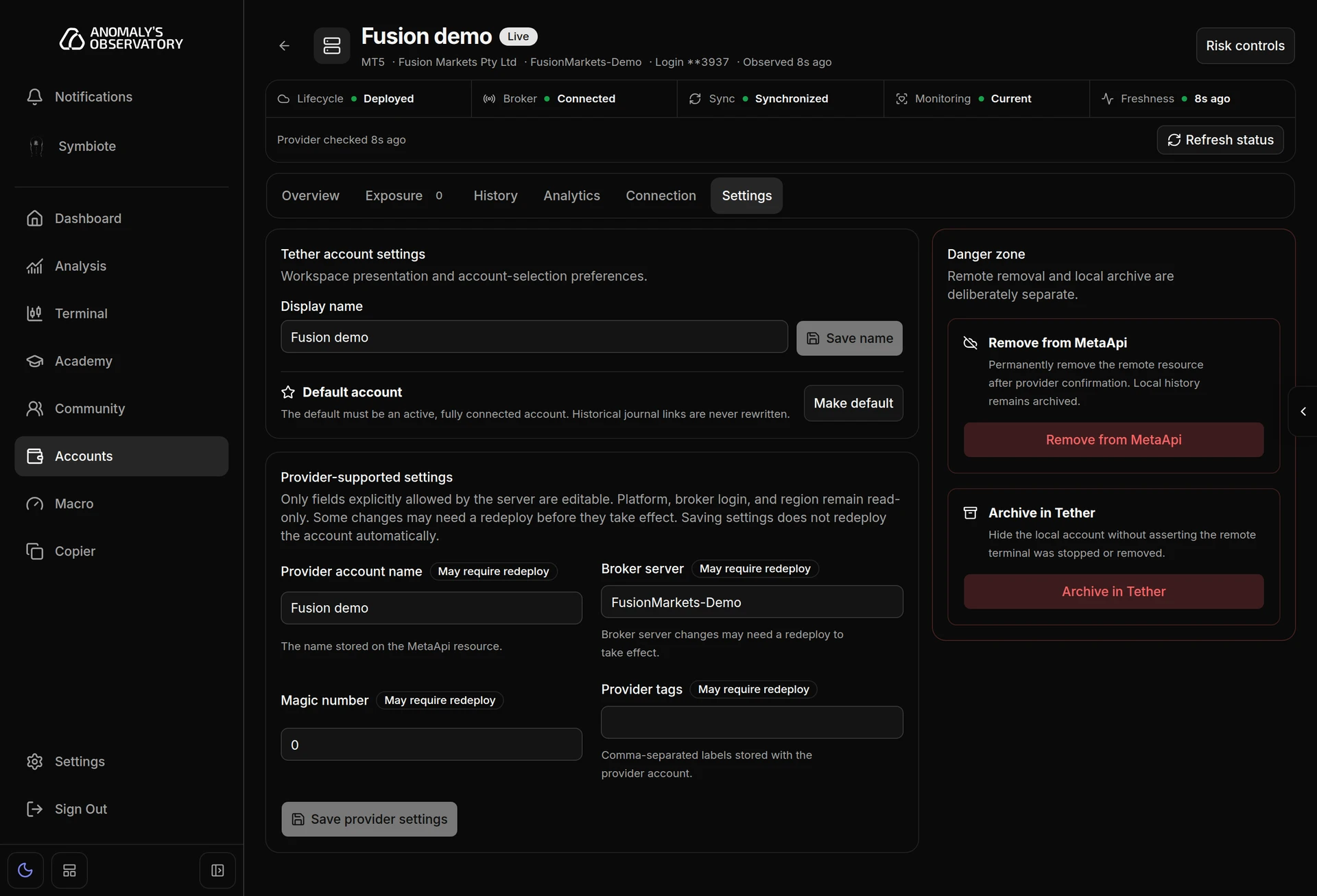
- Open the account and click the Settings tab.
- Type a new Display name, up to 80 characters.
- Click Save name.
If you leave Settings with unsaved changes, AO asks whether to discard them.
Choose your default account
The terminal opens on your default account.
- Open the account and click the Settings tab.
- Under Default account, click Make default.
The account must be active and fully connected. Your default shows Current default in Settings and Default in the accounts list. Changing it doesn’t change which account past journal entries link to.
Fix a connection
Open the account’s Connection tab. Connection controls keeps three things separate: your broker sign-in, monitoring in AO, and the MetaApi terminal that holds the broker session.
- Update credentials opens MetaApi’s secure form in a new tab, where you sign in to your broker again. AO never sees or stores your broker password. If your browser blocks the tab, allow pop-ups for AO and try again.
- Stop monitoring pauses updates in AO without changing the MetaApi terminal, which stays deployed. Start monitoring resumes them without reconnecting.
- Redeploy terminal restarts the MetaApi terminal to recover the broker session or apply changed settings.
- Deploy terminal and Undeploy terminal start and stop the MetaApi terminal. Undeploying keeps the account so you can deploy it again later.
Each action opens a dialog that lists what happens to monitoring, the MetaApi terminal and your data before you confirm. Connection diagnostics shows the deployment state, the latest monitoring heartbeat, synchronization and the region. Recent operations shows the latest connection work and whether it finished.
In the terminal, a red banner above the chart means the connection failed. Click Retry in the banner to reconnect.
Settings also has Provider-supported settings for the few fields MetaApi lets you change. Click Save provider settings to apply them. Some changes only take effect after a redeploy, which you start from the Connection tab.
Archive or remove an account
These are separate actions, both in Settings under Danger zone and in the row’s ⋯ menu.
- Archive account hides the account from your active list and stops monitoring it here. It doesn’t stop or remove the MetaApi terminal, which may stay deployed and keep counting toward your account allowance. You can bring the account back with Restore account.
- Remove from MetaApi permanently removes the account’s MetaApi connection after MetaApi confirms it. Its history and journal links stay in AO, archived. It can’t be undone. Connecting the account again creates a new connection.
Both dialogs ask an optional question, Why are you closing this account? (optional), with reasons such as Maximum drawdown or No longer trading.
Archived accounts move to Archived Accounts further down the page. Click the heading to expand it, then View & Restore to open one. The bin button removes an archived account from Accounts for good. If its MetaApi connection still exists, that’s removed first, and the account leaves the list once MetaApi confirms.