
Position sizing and risk checks
Size a trade from the amount you're prepared to lose, read the ticket's risk figures, and see which checks run before an order reaches your broker.
The order ticket can work out the lot size from the amount you’re prepared to lose at your stop loss. Before the order goes out, the ticket checks it against your broker’s rules and the live price. On accounts in Managed mode, the server checks it again against the account’s rules.
Size a trade by risk
- Open the order ticket with Trade ticket in the right-hand rail. Next to Size, Risk is selected by default.
- Type your risk in the risk field. Use a percentage of your balance, such as
1%, or an amount in your account currency, such as50. - Set a stop loss, by typing it or by dragging the dashed SL line on the chart. Risk sizing needs one.
- Read the lots field. The ticket fills in the lot size that loses about your risk amount if the stop is hit.
- Check the Risk line in the readout. It shows the money at risk and its share of your balance.
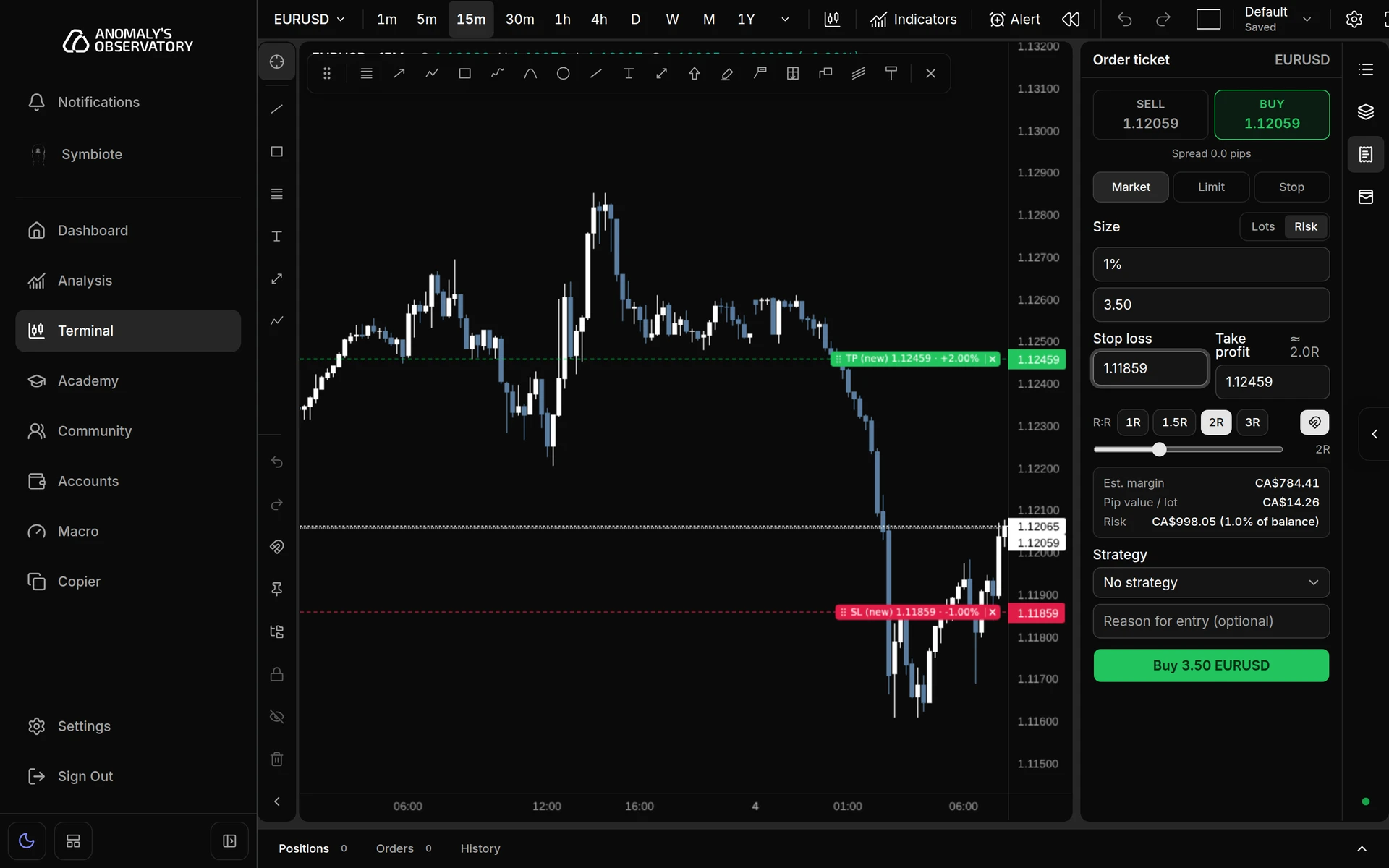
Move the stop and the lots change with it: a wider stop means fewer lots for the same risk. Typing into the lots field switches the ticket to Lots mode, where you set the size yourself and the Risk line shows what that size risks.
How the ticket works out the lots
- It measures the distance from your entry to your stop loss. A market order enters at the ask for a buy and the bid for a sell. A pending order enters at your open price.
- It values that distance per lot in your account currency, using your broker’s tick value for the symbol.
- It divides your risk by that value and rounds down to your broker’s lot step, so the size doesn’t risk more than you typed.
- The ticket reads a money amount in your account currency. On a EUR account,
$250and250both mean 250 EUR.
If the result is below your broker’s minimum lot, the ticket uses the minimum and shows “Adjusted to the symbol’s allowed volume range”. The trade then risks more than you typed, so check the Risk line before you submit. The same message appears when the result is above the broker’s maximum.
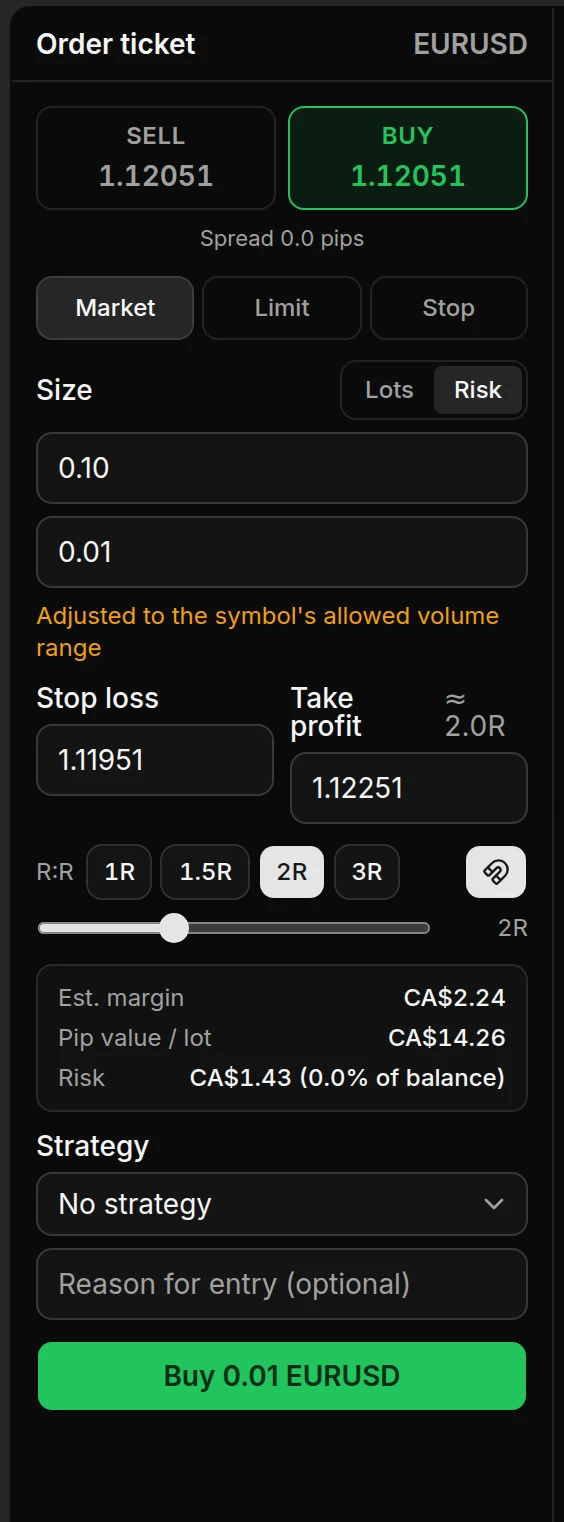
The readout
The box under the R:R controls updates as you change the order.
| Line | What it shows |
|---|---|
| Est. margin | An estimate of the margin the order uses: size × contract size × price ÷ your account’s leverage. Your broker’s figure can differ. |
| Pip value / lot | What a one-pip move is worth on one lot, in your account currency. |
| Risk | The money lost if the stop loss is hit, and its share of your balance. It shows a dash until there’s a stop loss. |
The new order’s lines on the chart show the same idea: each label ends with the share of your balance you’d lose at the stop or gain at the target.
Checks in the order ticket
The ticket checks every order before it lets you submit. If something’s wrong, the submit button is greyed out and the first problem appears under it.
| Message | What to do |
|---|---|
| “Risk-based sizing needs a stop loss” | Add a stop loss, or click Lots to set the size yourself. |
| “Risk must look like 1% or $250” | Type a percentage with a % sign, or a plain amount. |
| “Waiting for the account balance…” | Percentage risk needs your balance, which is still loading. |
| “The stop loss is too close to size this risk” | Move the stop loss away from the entry. |
| “Volume must be a multiple of 0.01” | Your broker trades in fixed steps. The ticket tells you the step. |
| “Stop loss must be at least 10 points from the current price” | Your broker’s minimum stop distance. The number comes from your broker. |
Set take profit and stop loss lists the other stop checks. Place a market order covers connection, market hours and old prices.
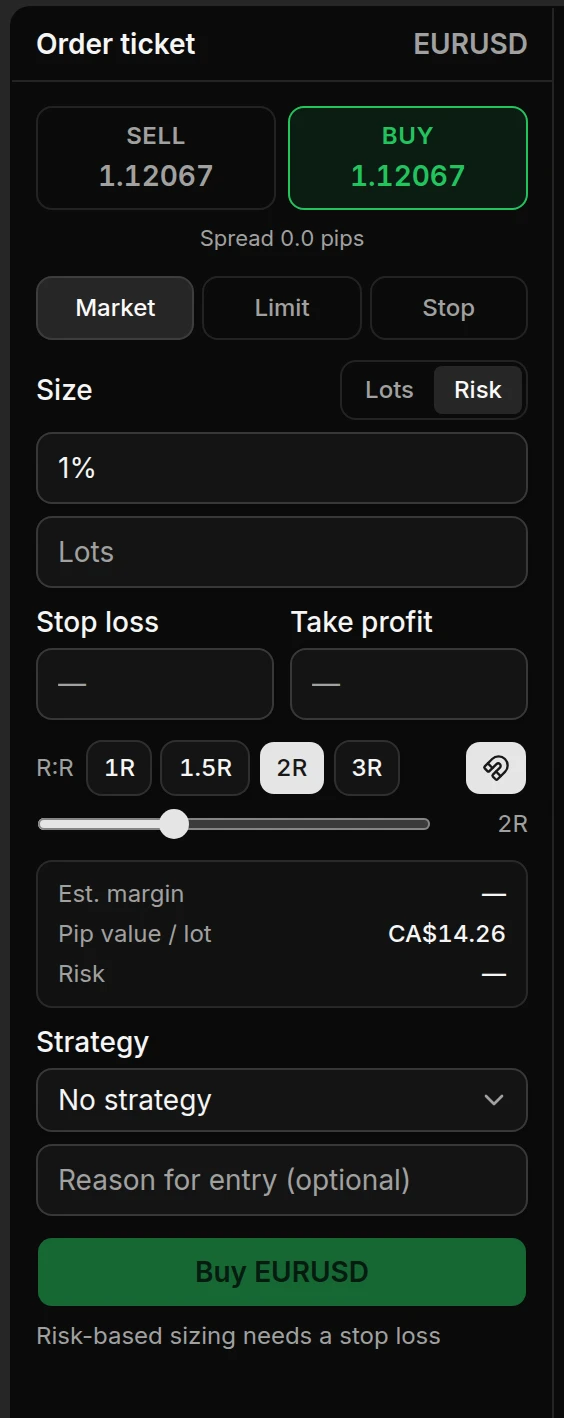
Typing a risk amount, setting a stop, and watching the lots and Risk readout follow the stop.
Server risk checks
Every account has an execution mode, set on its Account rules page.
- Direct trading: orders go from the terminal to your broker. The account’s saved rules aren’t enforced. New accounts start in Direct mode.
- Managed trading: every order placed in AO is checked on the server against the account’s active rules before it goes to your broker.
In Managed mode, the server checks the rules you see on the account’s rules page: the daily loss limit and its cooldown, static drawdown, stop risk per symbol and in total, required stop losses, the exposure ceiling, allowed symbols, the number of open positions and pending orders, and how often you enter. It also refuses new risk when the account’s broker data is out of date.
When the server refuses an order, an Order rejected toast names each rule that blocked it and, where it applies, your value and the limit.
While new risk is blocked, you can still close positions, cancel pending orders and move a stop loss closer to the price.
The Risk controls panel
Once an account has saved rules, or while a restriction is active, the terminal shows Risk controls. On a wide screen it’s the shield in the right-hand rail. On smaller screens it’s a button at the right end of the bar with the Positions, Orders and History tabs. An account with no saved rules doesn’t show it.
The panel shows:
- Whether the rules apply. “Managed trading · server risk checks apply.” means they’re enforced. “Rules saved. Not enforced in Direct mode.” means they aren’t.
- Any restriction in force, such as “Daily risk restriction” or “Static lockout”. While one is active, the rail shows Risk blocked under the shield.
- The saved and active rule revisions, whether a stop loss is required, and the allowed instruments.
- Account limits & controls, which opens the account’s rules page.
Other messages on Managed accounts
| Message | What it means |
|---|---|
| “Direct trading is paused while the account changes execution mode.” | The account is switching mode. Try again once the switch finishes. |
| “The account mode changed. Wait for the terminal to refresh.” | The mode changed while the terminal was open. Wait a moment and try again. |
| A message that says not to create another instruction | The server hasn’t confirmed the outcome yet. Don’t place the order again. Check Positions and Orders first. |