
Prop firm profiles
Find your prop firm, choose the program and account size you bought, and keep its listed rules beside your accounts.
A prop firm profile is one firm’s rules for one program and account size, such as FTMO’s Standard Challenge 2-Steps at 100K: the profit target, daily loss, maximum loss, profit split and payout frequency. Prop firm profiles lists 68 firms and 1,656 profiles across forex and CFDs, futures, crypto and perpetuals. Save the ones you trade or are considering, and keep one beside the account you trade with that firm.
Saved profiles are for reference. AO doesn’t check your orders against them. The limits it does check are the account’s own rules.
From Accounts to a saved FTMO Standard Challenge 2-Steps 100K profile: search for the firm, choose the program and size, read the rules, tick the box and add the profile.
Open the library
Open Accounts and click Prop firm profiles at the top right. Back to accounts returns you to your account list.
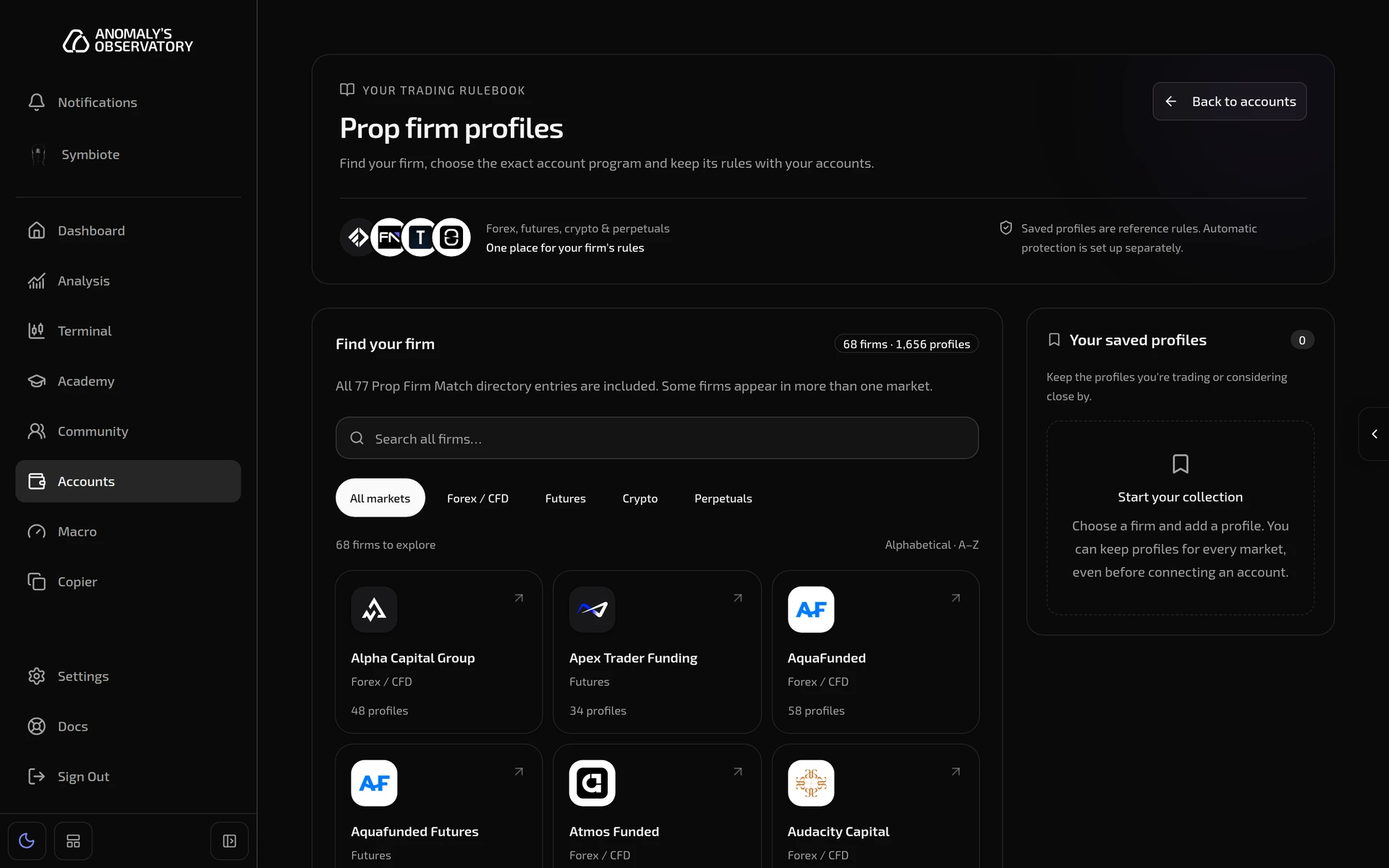
Under Find your firm, type a name into Search all firms… or pick a market: All markets, Forex / CFD, Futures, Crypto or Perpetuals. Firms are listed A to Z with their logo, their markets and how many profiles they have. A firm that sells accounts in more than one market shows each. The first twelve firms are listed. Show all lists the rest.
Choose a profile
- Click your firm.
- Under Program, choose the program you bought, for example FTMO - Standard Challenge - 2-Steps. Leave All programs to list every profile the firm has.
- Under Account profile and size, choose the one shown in your firm dashboard, such as the 100K account.
The profile’s rules appear below, with its market, its account size and the date the listing was Captured.
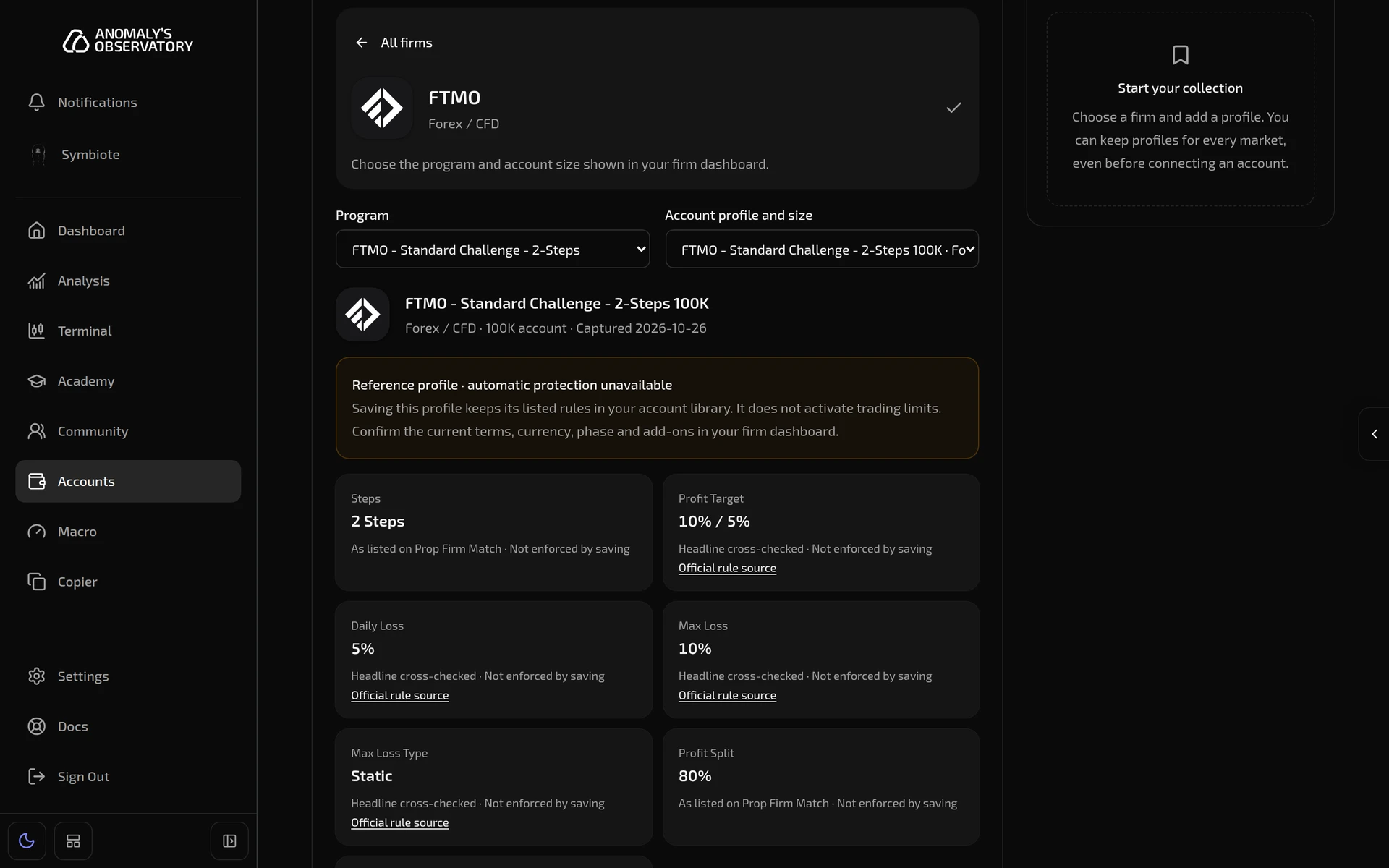
Each rule says where its figure comes from:
- Headline cross-checked: the figure also matches the firm’s own published rules. Official rule source opens that page.
- As listed on Prop Firm Match: the figure comes from the Prop Firm Match comparison listing.
Firm sources and verification lists the Prop Firm Match listing and the firm’s own pages, with the date each was retrieved. These are headline figures. They don’t settle how a firm calculates a loss limit, when its trading day resets, which version of its rules applies to the date you bought, or which strategies it restricts, so read your firm’s own rules before you trade. Firms change their terms, so confirm the currency, phase and add-ons in your firm dashboard too.
All firms takes you back to the full list.
Save a profile
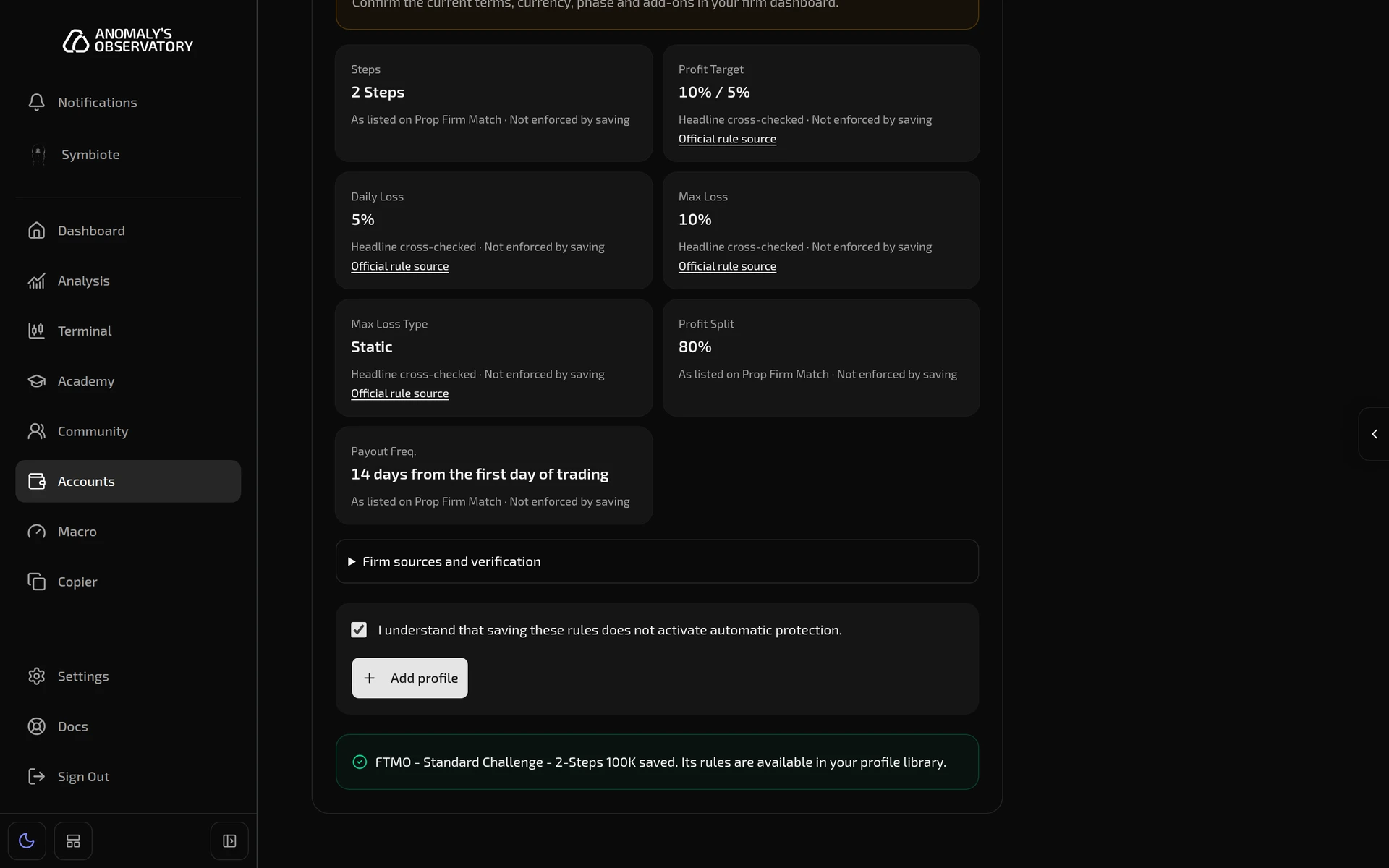
- Under the rules, tick I understand that saving these rules does not activate automatic protection.
- Click Add profile.
A message confirms the profile is saved, and it appears under Your saved profiles on the right. You can save profiles for any market, even before you connect an account.
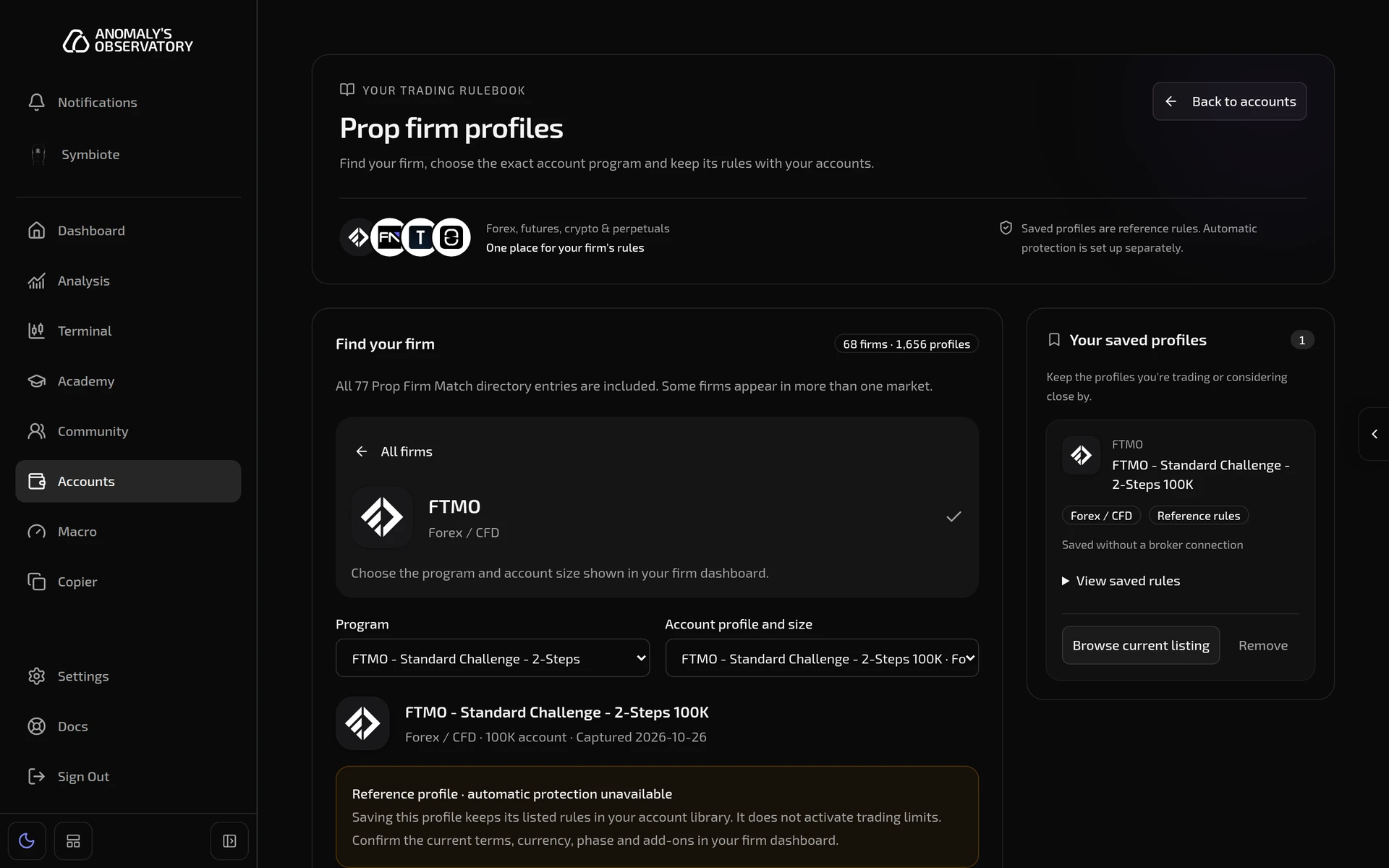
Each saved profile shows the firm, the market and Reference rules, and whether it’s saved with an account or Saved without a broker connection.
- View saved rules shows the rules as they were on the day you saved the profile.
- Browse current listing opens the profile as the library lists it now.
- Remove deletes the saved profile. If it was saved with an account, it comes off that account too.
Keep a profile with an account
Each account you own can keep one prop firm profile. Its rules then show on the account’s rules page, above Risk rules. Only Forex / CFD profiles can go on an account, because AO connects MetaTrader accounts. Futures, crypto and perpetuals profiles can be saved in the library only.
- Open Accounts, open the account and click Risk controls.
- Under Prop firm reference rules, click Add a firm profile.
- Choose the firm under Prop firm. Find a firm and Market narrow the list.
- Choose the Program and the Account profile and size.
- Tick These are reference rules for this account. Saving does not activate automatic protection.
- Click Add profile to account.
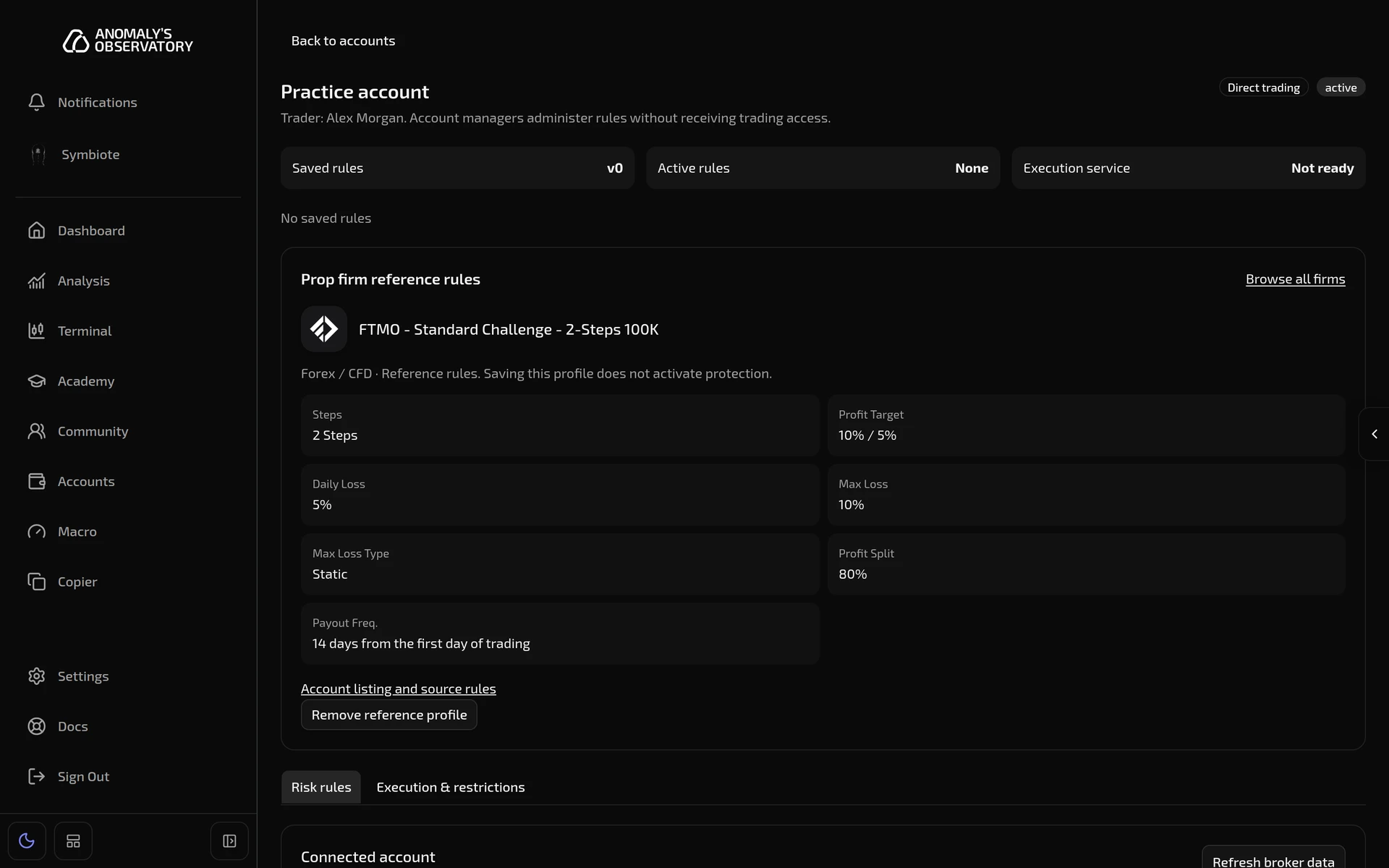
Account listing and source rules opens the profile’s Prop Firm Match listing. Remove reference profile takes it off the account, so you can add a different one. Browse all firms opens the library.
You can also choose the profile while you connect the account. See Choose a prop firm profile.
Automatic protection
Saving a profile, on its own or with an account, never changes the account’s rules or holds back an order. Every profile shows Reference profile · automatic protection unavailable: AO doesn’t yet enforce a prop firm’s rules for you. To have AO check orders against limits, set them in the account’s rules.